
Before you start
- You need Receiving Order and View on Purchase returns.
- To export, Can export lists. To see values, Can see purchase costs.
Steps
-
In the sidebar, select Catalog & Inventory › Purchase Returns. "Items sent back to suppliers: defective, damaged, wrong or excess goods". The card Return History says "Raise a new return from Inventory → Return to Supplier."
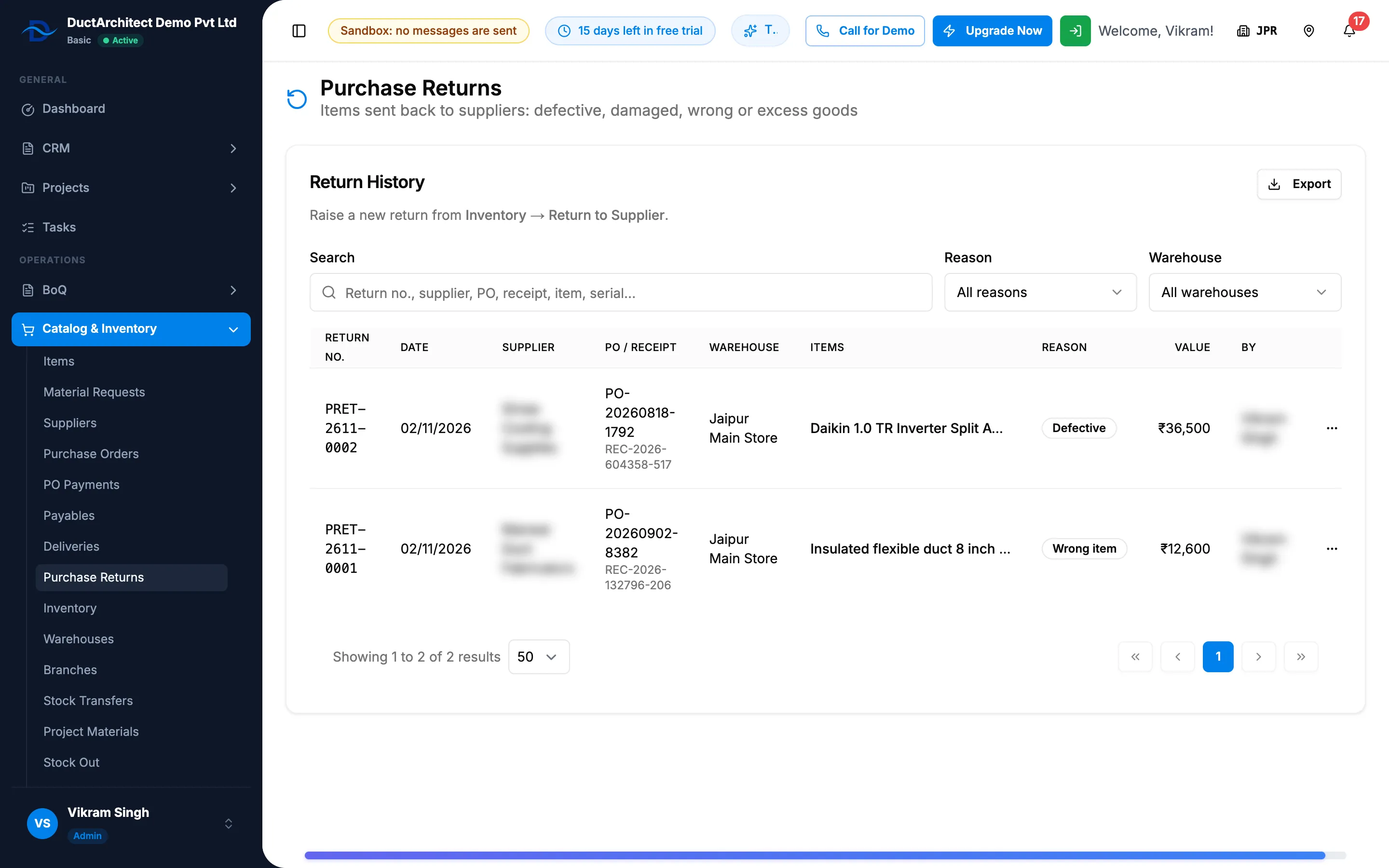
Step 1. The Purchase Returns page with Return History, the Reason filter and the Value column. -
Search with "Return no., supplier, PO, receipt, item, serial...".
-
To narrow the list, use the filters labelled Search, Reason and Warehouse: choose a Reason (All reasons, Defective, Damaged, Wrong item, Excess quantity, Other) and, with more than one warehouse, a Warehouse.
-
On a return's row, open the actions (Open actions) and select View details. It shows the Purchase order, Receipt, Returned from, Returned by, Total value, Items returned ([number]) with quantity times unit price, serial numbers and remarks, and the Notes.
-
To download the list, select Export, then Export Excel or Export PDF.
Result
The newest return is at the top. Each row shows Return No., Date, Supplier, PO / Receipt, Warehouse, Items (the first item, then "+[number] more item(s)"; a long name is cut short), Reason, Value and By. Export: a file named after "Purchase-Returns" downloads.
If something is different
- "No purchase returns yet": "Open Inventory, find the item, and choose “Return to Supplier”." See Return stock to a supplier.
- No way to change or remove a return: a return is final once raised. There is no edit, delete or print.
- The date is the moment the return was saved: the form has no date field.
- No values, or the export prints them as restricted: you do not have Can see purchase costs.
- No Clear Filters and no sorting: set each filter back to "All" by hand.
- "Failed to load purchase returns": reload the page.