
Before you start
- You need Purchase Orders, Delete on Purchase orders, and Can see purchase costs.
- The order is Draft or Sent, and no stock is received on it. If stock arrived, return it first. See Return stock to a supplier.
Steps
-
In the sidebar, select Catalog & Inventory › Purchase Orders.
-
On the order's row, open the row menu and select Cancel Order. "Cancel purchase order [number]?" opens: "The order stays on record as Cancelled and can no longer be received or edited. Any payments already recorded against it are kept."
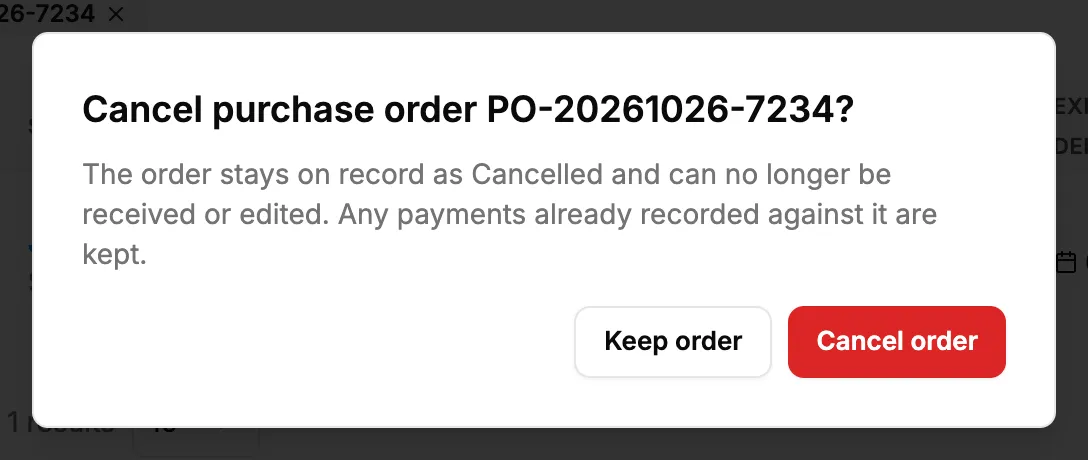
Step 2. The Cancel purchase order box with Keep order and Cancel order. -
Select Cancel order. Keep order closes the box without a change.
You can also choose Cancelled in Status on Edit Purchase Order and select Update Purchase Order.
Result
The message "Purchase order [number] cancelled" shows. The order is Cancelled on the list. It leaves Pending Receipts, cannot be edited, emailed, duplicated or printed, and the supplier ledger counts its value as zero.
Payments recorded against it stay. On PO Payments the order shows Cancelled, or Cancelled, has transactions if it had payments. There is no way to undo a cancellation on screen.
If something is different
- Cancel Order is greyed: "This purchase order has received stock. Return the stock to the supplier first, then cancel the order.": see A purchase order with received stock cannot be cancelled.
- No Cancel Order in the row menu: the order is Delivered, Returned or already Cancelled, or you do not have Delete on Purchase orders or Can see purchase costs.
- You want it gone from the list: a draft or sent order with no history can be deleted instead. See Delete a purchase order.