
Before you start
- You need Receiving Order and Add on Receivings.
- Serial numbers are required for items in the AC Systems, Controls, Equipment and Ductwork categories, received in a countable unit and a whole quantity. Bulk units, such as metres, never take serial numbers.
- The Delivery Items box is open, with Receiving Now entered on the line. See Receive a delivery against a purchase order.
Steps
-
On the line, select Add Serial in Serial Numbers (a red * means the line needs them). "Add Serial Numbers" opens: "Enter serial numbers for [item] (Receiving: [quantity], Remaining: [remaining], Max Serial Numbers: [number])".
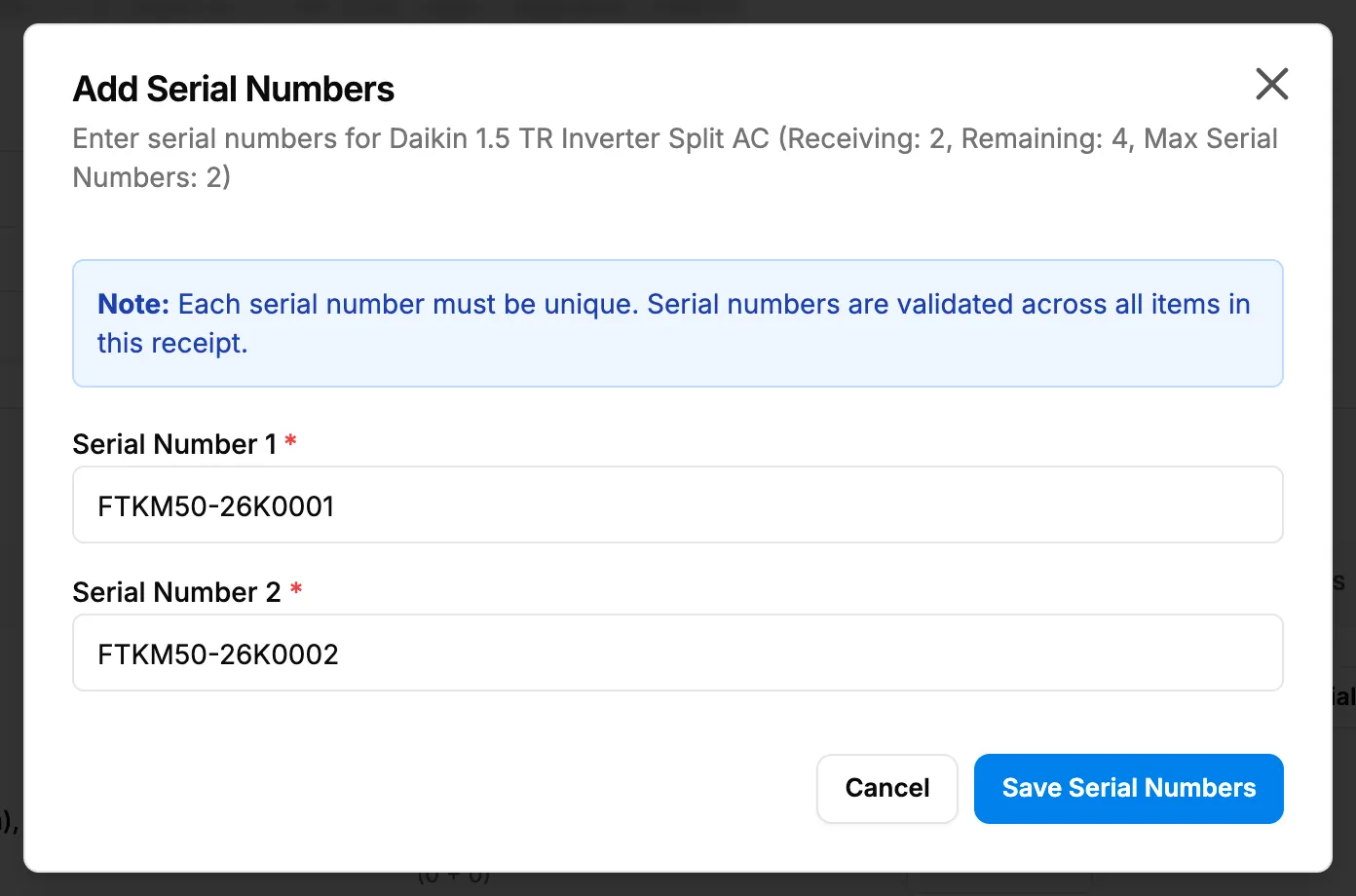
Step 1. The Add Serial Numbers box with one field per unit and the uniqueness note. -
In the first Serial Number box, type the first unit's serial number.
-
Fill in one field for each unit you are receiving. Use Add Another Serial Number if a field is missing; the trash button removes an extra one.
-
Check that no field shows a message. Each number is checked as you type.
-
Select Save Serial Numbers.
-
Back in Delivery Items, check that the line's button now shows "[number] Serial(s)".
-
Repeat for each serialised line, then select Process Receipt.
"Note: Each serial number must be unique. Serial numbers are validated across all items in this receipt." The box does not close if you click outside it or press Escape; use Cancel.
Result
"Serial numbers saved successfully" shows. The serial numbers are kept on the line and saved with the receipt when you select Process Receipt. Each unit becomes its own lot in stock, which you can follow on the item's page. See Read an item's lots, serial numbers and movements.
If something is different
- "Serial number is required": a field is empty. Fill it or remove it.
- "Duplicate serial number": the same number is twice in this box.
- "Serial number already exists in another item": another line on this receipt has it.
- "Serial number already exists in stock": a unit in your stock has that number. Check the label with the supplier.
- "Note: You need [number] serial numbers based on remaining quantity ([remaining]).": you are receiving more than is left; only the remaining quantity takes serial numbers.
- Add Serial is greyed: enter Receiving Now first ("Please enter a received quantity first").
- "N/A": "Bulk item ([unit]): serial numbers apply to countable units only".
- "Serial-numbered items must be received in whole units (no decimals)": enter a whole number in Receiving Now.
- A serial number was typed wrong after the receipt was saved: correct it with Edit Receipt while the unit is in stock. See Edit a receipt: serial numbers, supplier invoice, date and notes.