
Before you start
- You need Supplier Management and View on Suppliers.
- To export, Can export lists.
Steps
Find a supplier
-
In the sidebar, select Catalog & Inventory › Suppliers.
-
Type in the search box: "Search by name, contact person, or email...".
-
To narrow the list, choose a category (All Categories or one of yours) and a status (All Status, Active, Inactive, Pending).
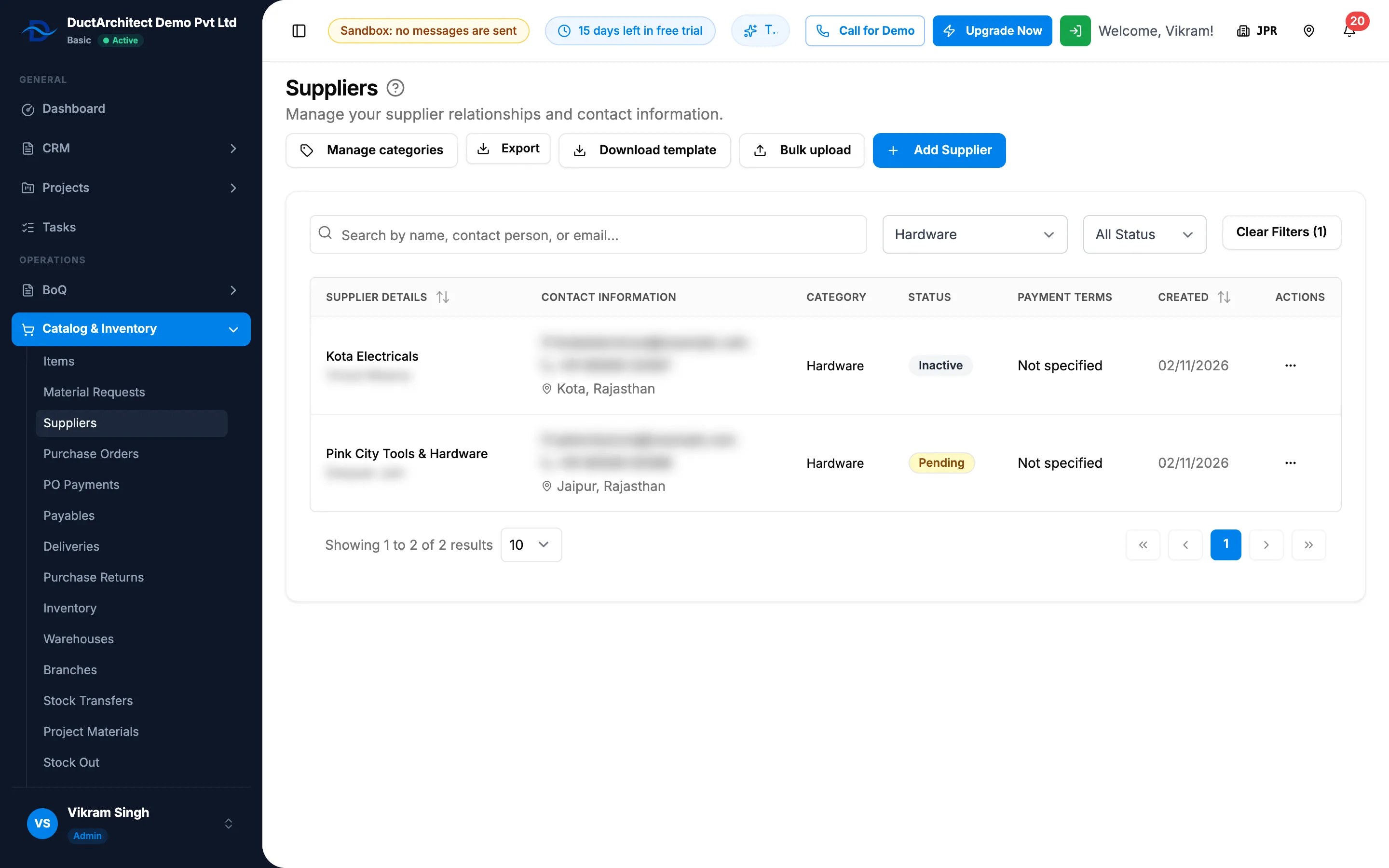
Step 3. The Suppliers list with the search box, the category and status filters and the columns. -
Clear Filters ([number]) shows once a filter is set, and removes every filter.
Each row shows Supplier Details (name and contact person), Contact Information, Category, Status, Payment Terms ("Not specified" when empty) and Created. The newest supplier is at the top. Select the Supplier Details or Created header to sort.
Open a supplier's page
- On the supplier's row, open the row menu and select View Details. The page is titled with the supplier's name, with its contact person, status and category under it.
- Select a tab:
- Details: contact person, email, phone, payment terms, address, the tax number (GSTIN in India), created date and notes. It is read only; edit from the list with Edit Supplier.
- Ledger: what you ordered, received, returned and paid. It needs Purchase Orders and Can see purchase costs. See Read a supplier's ledger.
- History: every change to the supplier's record. It shows when your company keeps the activity log and you may view it. See View the activity and access logs.
- Select the back arrow (Back to Suppliers) to return to the list.
Export the list
- Set the search and filters you want.
- Select Export, then Export Excel or Export PDF.
Result
The list shows the suppliers that match. Export: a file named after "Suppliers" downloads with the same columns, in the list's order.
If something is different
- "No suppliers found": "Try adjusting your search criteria or add a new supplier."
- "Supplier not found" on the page: it was deleted. Select Back to Suppliers.
- "You do not have access to supplier amounts." on the page: you have neither tab. See Purchase amounts show Restricted or are refused.
- No Export button: you do not have Can export lists.
- The supplier box on Purchase Orders or Deliveries: selecting a supplier's name there opens its details, with Open in Suppliers. From Deliveries, Open in Suppliers opens the whole list, not that supplier; search for it.
- No Suppliers in the sidebar: see Suppliers, Purchase Orders or another purchase page is missing.