
Before you start
- You need Purchase Orders and Can see purchase costs, with Add on Purchase orders for a new order or Edit for an existing one.
- The warehouse is active. A warehouse is what is also called a godown. See Add a warehouse.
- On an existing order: it is Draft or Sent, and nothing has been received on it.
Steps
Deliver to a warehouse
-
Open Add Purchase Order (see Create a purchase order), or Edit Order in the order's row menu.
-
In Deliver to, pick the warehouse. It starts on your branch's default warehouse, or your company's default warehouse.
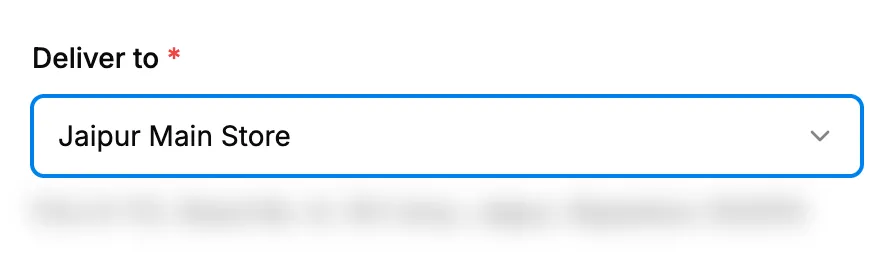
Step 2. Deliver to with a warehouse picked and its address under it. -
Check the address shown under it. "No address recorded for this warehouse" means the warehouse has none; add it on Warehouses if the supplier needs it. See Edit, set default, deactivate or reactivate a warehouse.
-
Save the order.
Deliver to another address
- In Deliver to, pick Other address.
- To copy a client's name and address, pick the client in Fill from client (optional). This only copies the text; the order is not linked to the client.
- Type or check Location name (optional).
- Type or check Address. It is required.
- Save the order.
Result
The order keeps the place you chose. View Details shows it under Deliver to, the PDF prints it as SHIP TO, and the receive box shows "Deliver to: [name], [address]".
When the delivery comes, Receive into starts on this warehouse if it is still active. See Receive a delivery against a purchase order.
If something is different
- "Deliver to cannot be changed after material has been received." in a grey box: stock has arrived on the order. The field stays as it was.
- "This warehouse is inactive. Leave it as is, or choose another.": the saved warehouse was deactivated. You can keep it; to change it, pick an active one. "[warehouse] is inactive. Choose an active warehouse." means you picked an inactive one.
- "Choose a warehouse": pick a warehouse or Other address.
- "Address is required for an other address": fill in Address.
- No Fill from client (optional): you cannot see clients.
- Only one warehouse in the list: your company has one active warehouse.