
Before you start
- You need Delete on Invoices and Can see selling prices.
- The invoice is Draft, Issued or Overdue. A paid invoice cannot be cancelled, and the list does not offer it for a partially paid one.
- To give back part of an invoice instead, for goods the client returned, see Record a sales return or issue a credit note from an invoice.
Steps
-
On Financial › Invoices, open the row menu of the invoice and select Cancel Invoice. "Cancel Invoice" asks: "Are you sure you want to cancel invoice [number]? This action cannot be undone."
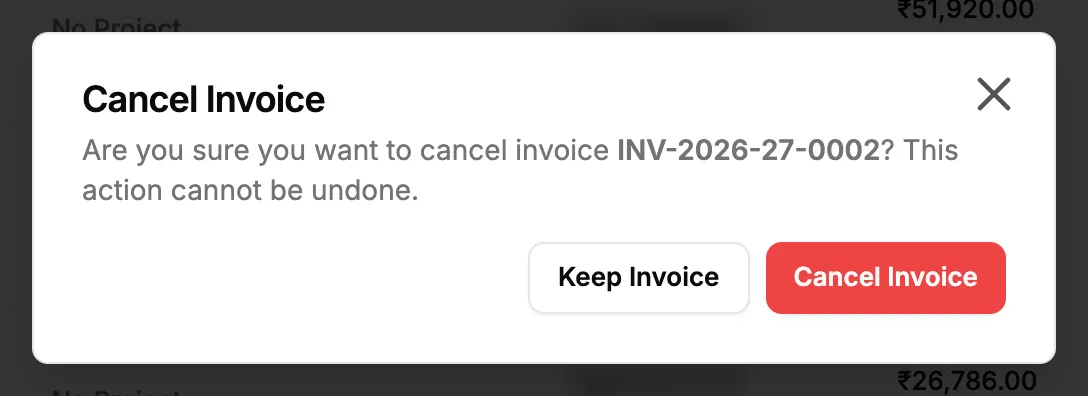
Step 1. The Cancel Invoice box with Keep Invoice and Cancel Invoice. -
Select Cancel Invoice. It reads "Cancelling..." while it works. To stop, select Keep Invoice.
Result
The message "Invoice cancelled successfully" shows. The invoice is Cancelled. It stays on the list, with only View Invoice in its row menu. Its sales voucher in your accounts is cancelled. Payments and credit notes never undo the cancel.
A draft that is cancelled keeps the seller details it had at that moment.
If something is different
- No Cancel Invoice: you need Delete on Invoices, and the invoice is not paid, partially paid or already cancelled. See An invoice cannot be cancelled or deleted.
- "Paid invoices cannot be cancelled" or "Invoice is already cancelled": see An invoice cannot be cancelled or deleted.
- Cancel Invoice on the Edit Invoice page: it cancels at once, with no question. Use the list's row menu so you are asked first.
- The invoice was linked to a stock out: deleting the stock out cancels its invoice only when the person may cancel invoices and no other stock is issued against it. Otherwise cancel it here. See Deleting a stock out did not cancel its invoice.
- You want the invoice gone, not cancelled: no screen deletes an invoice. See An invoice cannot be cancelled or deleted.