
Before you start
- You need Edit on Invoices and Can see selling prices.
- The invoice is Draft, Issued or Overdue. A paid or cancelled invoice cannot be edited, and the list and the invoice page do not offer Edit for a partially paid one.
Steps
-
On Financial › Invoices, open the row menu of the invoice and select Edit Invoice. Or, on the invoice's page, select Edit. "Edit Invoice" opens, with the invoice type and a Total Amount card.
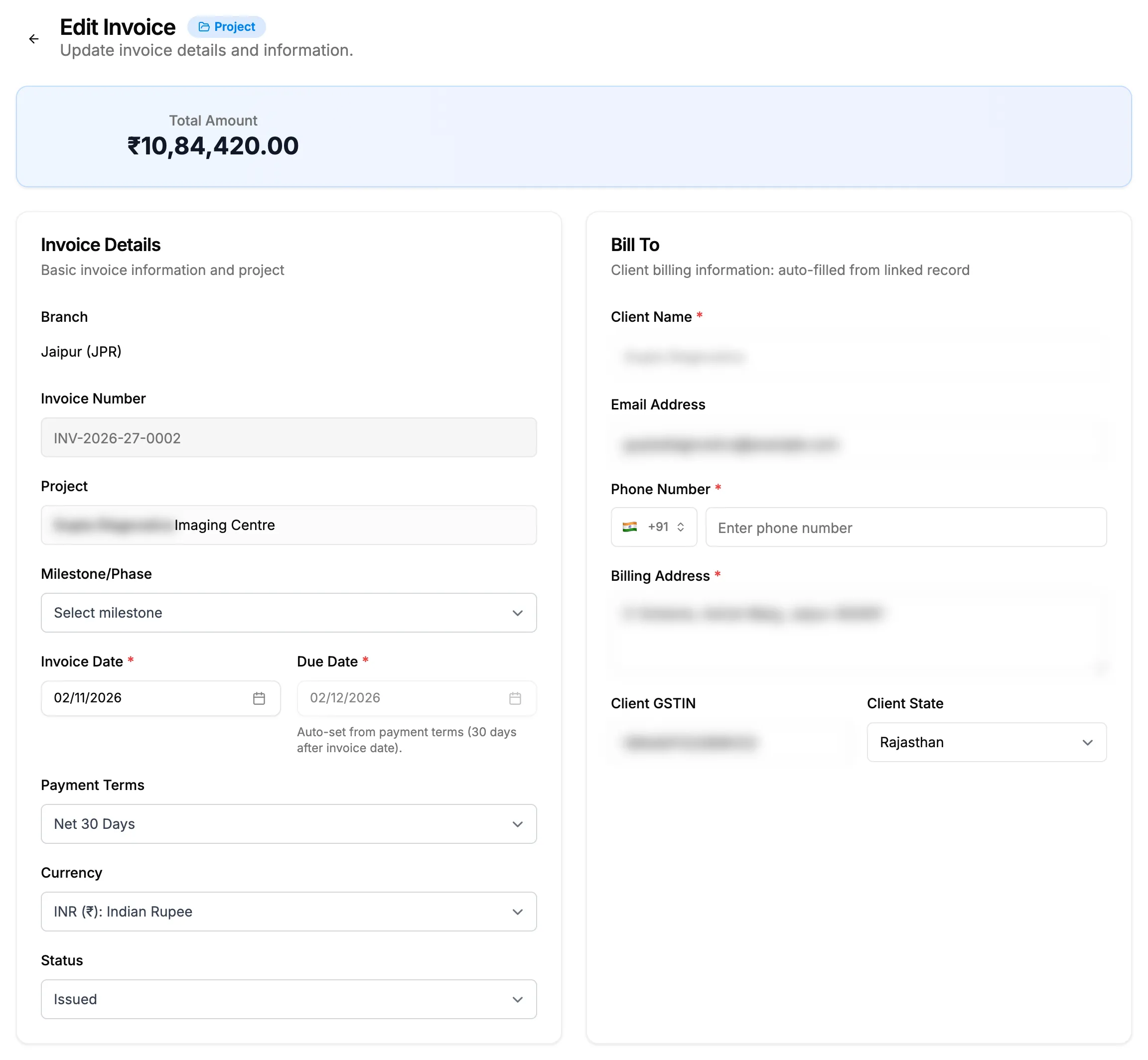
Step 1. Edit Invoice with the Total Amount card and the Invoice Details card. -
Change what you need under Invoice Details, Bill To and Line Items. Once the invoice is issued, Branch shows as a label and Invoice Number is read only.
-
If you change the Invoice Date or the Payment Terms, check the Due Date.
-
To change the status by hand, choose it in Status: Draft, Issued, Overdue or Cancelled. Paid and part-paid are not offered: they come from recorded payments.
-
Under the documents card, add files with Upload New Proofs, or remove one from Current Documents. A removed file reads "To be deleted" until you save.
-
Select Update Invoice. It reads "Updating..." while it saves.
Every field is described in Create and Edit Invoice: every field.
Result
The message "Invoice updated successfully" shows. Only the dates you changed are saved; a date you did not touch stays as it was. For an issued invoice the sales voucher in your accounts is updated to match. The status is worked out again from the payments.
If something is different
- No Edit or Edit Invoice: you need Edit on Invoices, and the invoice is not paid, partially paid or cancelled. See An invoice cannot be edited, or its branch and number are locked.
- "View only. You cannot edit invoices." and no Update Invoice: you have View but not Edit on Invoices.
- Update Invoice reads "Invoice Paid" or "Invoice Cancelled" and is greyed out: "A paid invoice cannot be edited." or "A cancelled invoice cannot be edited."
- "The branch cannot change after the invoice is issued." or "The invoice number cannot change after the invoice is issued.": see An invoice cannot be edited, or its branch and number are locked.
- Status is a grey box, "[Paid, Part-paid or Pending] from recorded payments": "Paid and part-paid come from recorded payments. Record a payment (or use Mark paid) instead." See Record a payment against an invoice.
- "Saved due date. The payment terms ([days] days) would give [date]...": the saved due date differs from the terms. It follows the terms once you change the invoice date or the terms.
- "Failed to update invoice" or "Validation Error - Please check the form for errors": read the box "Please fix the following errors:" and see An invoice cannot be saved.
- Setting Status back to Draft on an issued invoice: the number and branch stay, and the sales voucher is cancelled. Issue it again when it is ready.