
Before you start
- You need Financial Management and View on Payments. The Payments Pending tab also needs View on Invoices.
- To export, you need Can export lists.
Steps
See payments received
-
In the sidebar, select Financial › Payment Status. "Payment Status" opens: "Track payments received and outstanding balances still pending from clients."
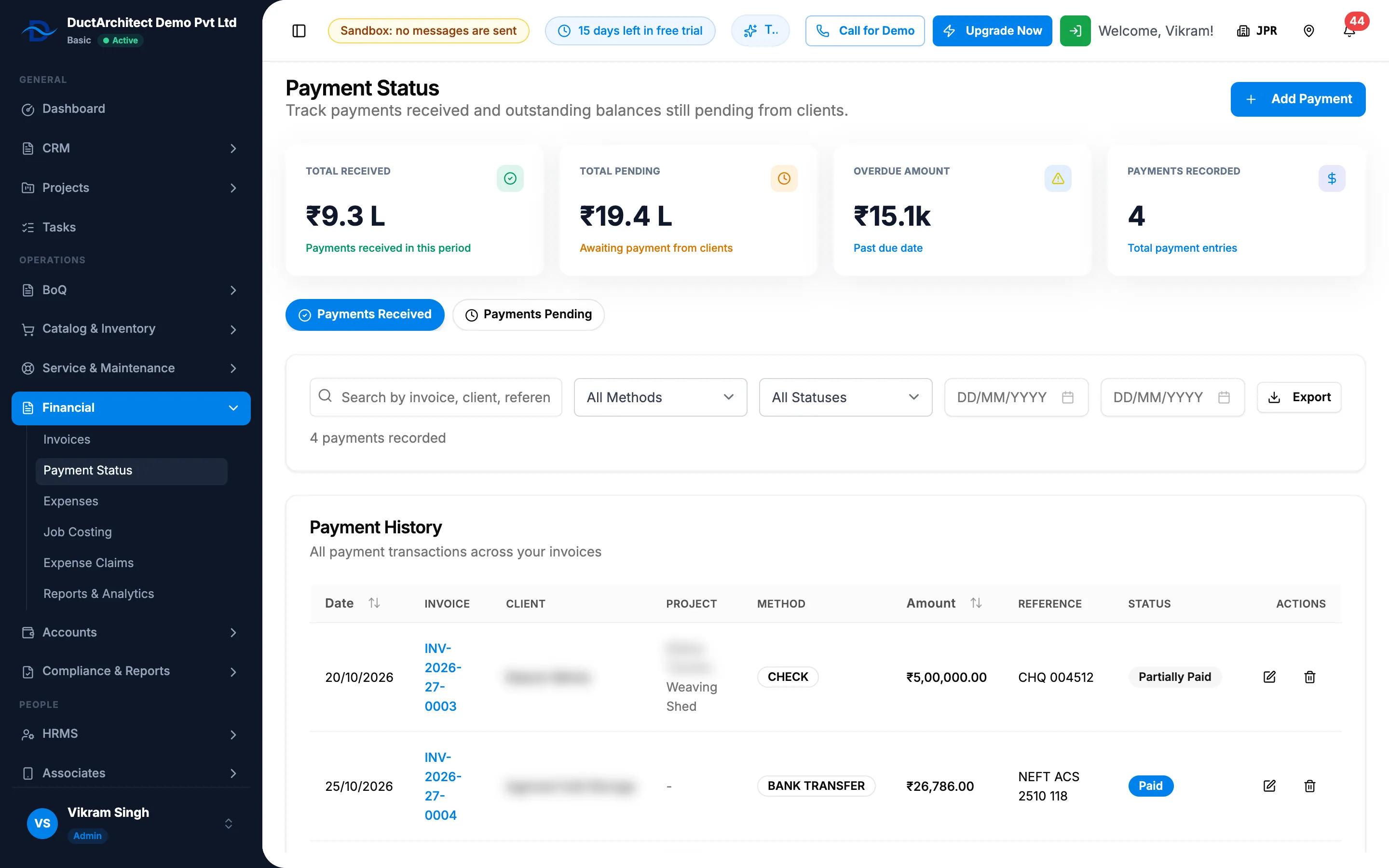
Step 1. Payment Status with the four cards and the Payments Received tab. -
Read the cards: Total Received, Total Pending, Overdue Amount and Payments Recorded.
-
On Payments Received, search by invoice, client, reference or amount ("Search by invoice, client, reference, or amount...").
-
To narrow it, choose a method (All Methods, Cash, Bank Transfer, Check, Credit Card), an invoice status, and the payment dates (two boxes showing "DD/MM/YYYY"). Clear Filters starts again.
-
Read Payment History: Date, Invoice, Client, Project, Method, Amount, Reference, Status (the invoice's) and Actions. The line "[number] payment(s) recorded" counts them.
See what is still pending
- Select the Payments Pending tab. Outstanding Balances: "Invoices that are not fully paid, with the amount still pending from each client."
- Search by invoice, project, client or amount, or set the dates. Clear starts again.
- Read Invoice, Client, Project, Invoice Total, Received, Pending, Due Date and Status.
- To record a payment for one, select Add Payment on its row. See Record a payment against an invoice.
Export either list
- Set the tab and filters you want.
- Select Export, then Export Excel or Export PDF. The file is named Payments from Payments Received, or Pending-Payments from Payments Pending.
Result
You see the payments and the open balances that match. With nothing to show on Payments Received: "No payments found". On Payments Pending with no open invoices: "No pending payments" and "Every invoice is fully settled."
If something is different
- No Payments Pending tab: you need View on Invoices.
- A payment's status reads Draft, or an invoice reads Sent: the badges on this page are worked out differently. See An invoice's status reads Draft, Sent or Part-paid on another screen.
- Payments of cancelled invoices are missing: they are hidden from All Statuses. Choose Cancelled in the status filter.
- Overdue rows in red on Payments Pending: they are past their due date. See An invoice became Overdue.
- No Export: you do not have Can export lists.
- Edit or delete a payment from the list: see Edit or delete a payment.