
Before you start
- You are the Owner, Admin or HR. A person who is not an Owner or Admin also needs Can manage permissions for other people, and cannot change the role their own permissions come from.
- You can give only permissions you hold yourself.
Steps
-
In the sidebar, select Management › Roles, or HRMS › Roles.
-
On the role's row, select the edit icon (Edit). The "Edit Role" box opens.
-
Under Default Permissions, tick or untick permissions.
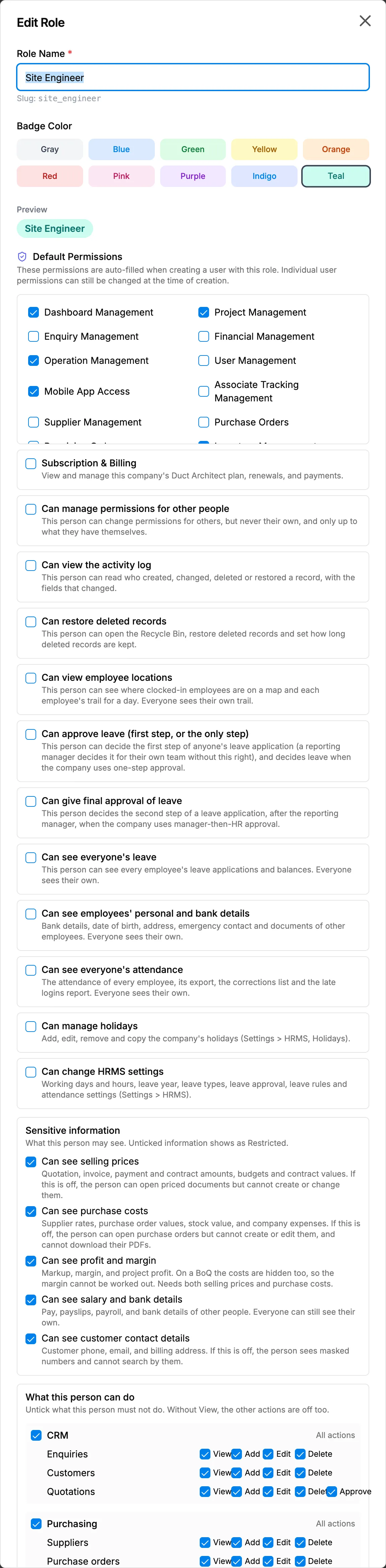
Step 3. The Edit Role box with Default Permissions and the count of permissions selected. -
Select Update.
Result
The message "Role updated" shows and the list shows the new number of permissions.
"These permissions are auto-filled when creating a user with this role. Individual user permissions can still be changed at the time of creation." Users who already have the role keep the permissions they were given. To change them, edit each user. See My change to a role did not reach existing users.
Next: Change what a role can do inside a module.
If something is different
- The role is Worker: "Associate role uses the dedicated mobile associate panel for access. Feature module permissions do not apply to associates and cannot be set here."
- A box is greyed out: you do not hold that permission yourself.
- "You cannot change the role your own permissions or restrictions come from. Ask an administrator.": ask an Owner or Admin.
- The Roles picker words one box differently: Associate Tracking Management here is Worker Tracking Management on Users.