
Before you start
- You know the email address you sign in with, and you can open that inbox now.
- No permission is needed.
- Do every step in the same browser tab.
Steps
-
Open DuctArchitect at
https://ductarchitect.com/auth/login. -
Select Forgot password?. The screen shows "Forgot Password?".
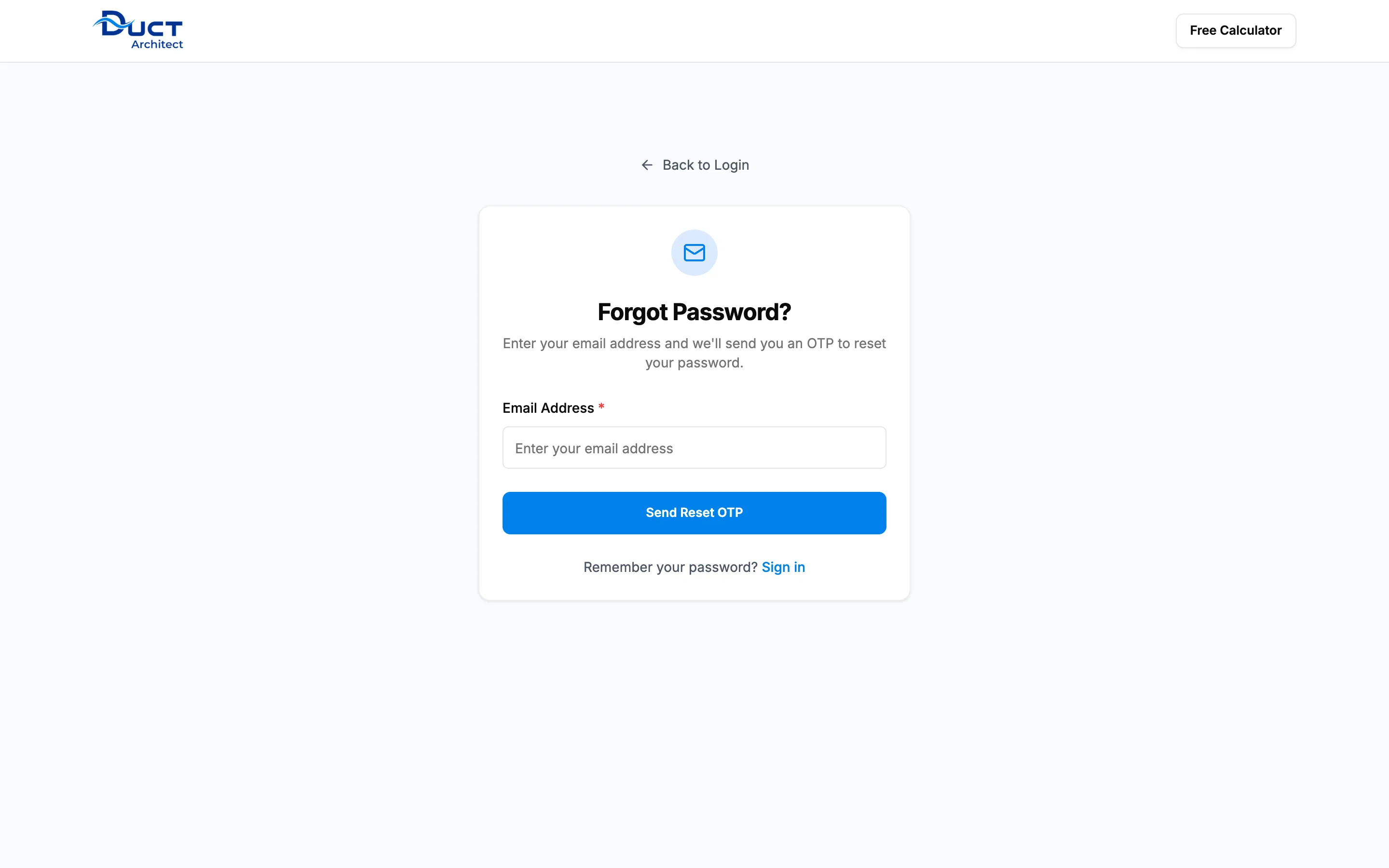
Step 2. The Forgot Password? screen. -
In Email Address, enter your email.
-
Select Send Reset OTP. After a message, the "Verify OTP" screen opens.
-
Open the email from DuctArchitect and note the 6-digit code.
-
In Enter 6-digit OTP, enter the code.
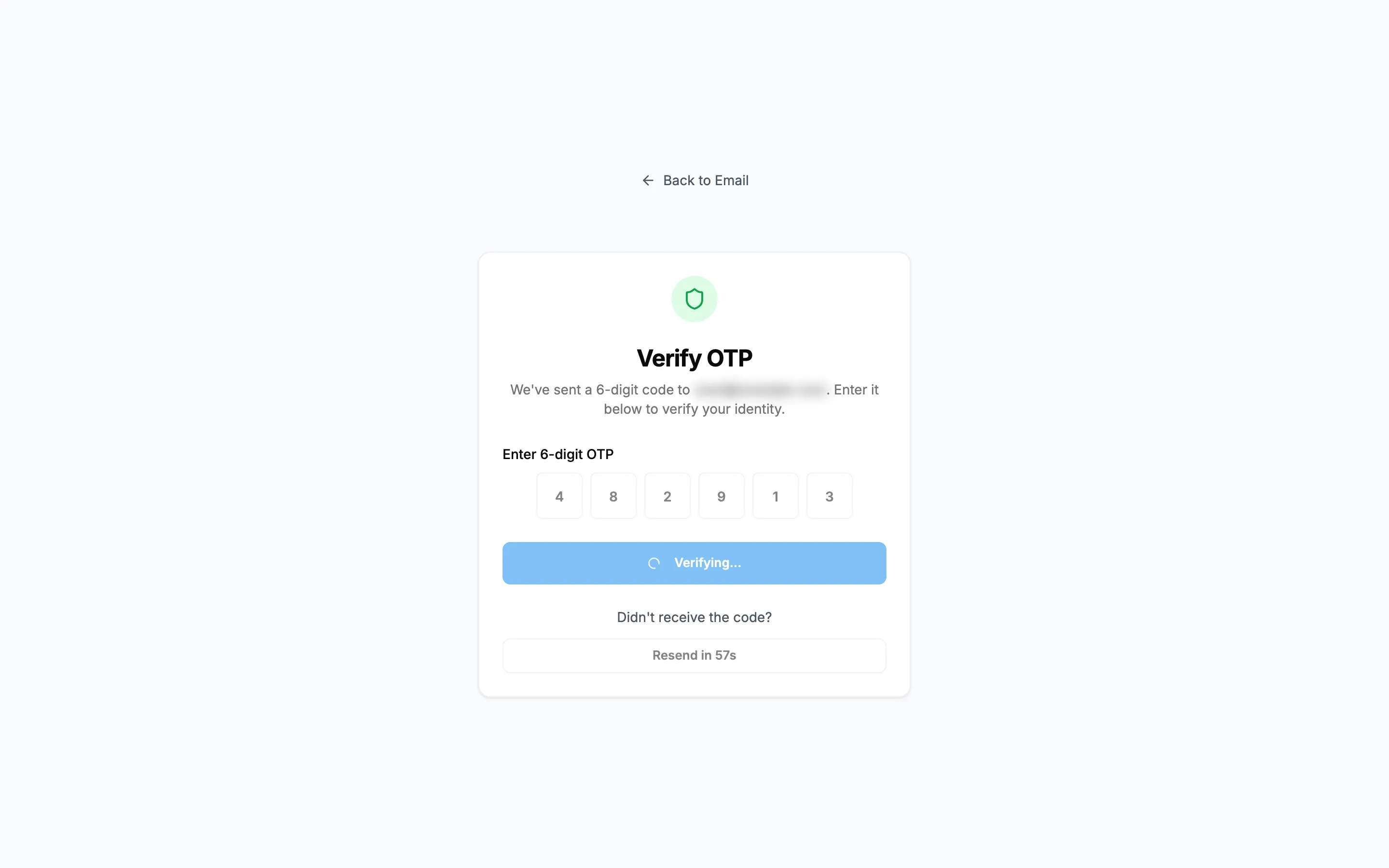
Step 6. The Verify OTP screen with the 6-digit code entered. -
Select Verify OTP. The "Reset Password" screen opens.
-
In New Password, enter your new password. It must be at least 8 characters. The meter shows "Weak", "Fair", "Good" or "Strong".
-
In Confirm New Password, enter it again.
-
Select Reset Password.
Result
The screen shows "Password has been reset successfully." and opens the sign-in screen after a few seconds. Sign in with the new password.
Next: Sign in.
If something is different
- No email with a code arrived: see I did not get the reset password email.
- "Invalid OTP. Please try again.": check the code and enter it again. To get a new code, wait for the countdown "Resend in" to finish and select Resend OTP.
- You are sent back to "Forgot Password?": the reset was started in another tab or the page was reloaded. Start again from step 3.
- Your administrator manages your login: you can also ask them to set a new password for you on Management › Users.