
Before you start
- You are signed in. No permission is needed; everyone can change their own profile.
- To change your password, you know your current password. If you do not, see Reset a forgotten password.
Steps
Change your name, email or phone number
-
Select your name at the bottom of the sidebar.
-
Select Profile. "Profile Settings" opens on the Personal Info tab.
-
Change First Name, Last Name, Email or Phone Number.
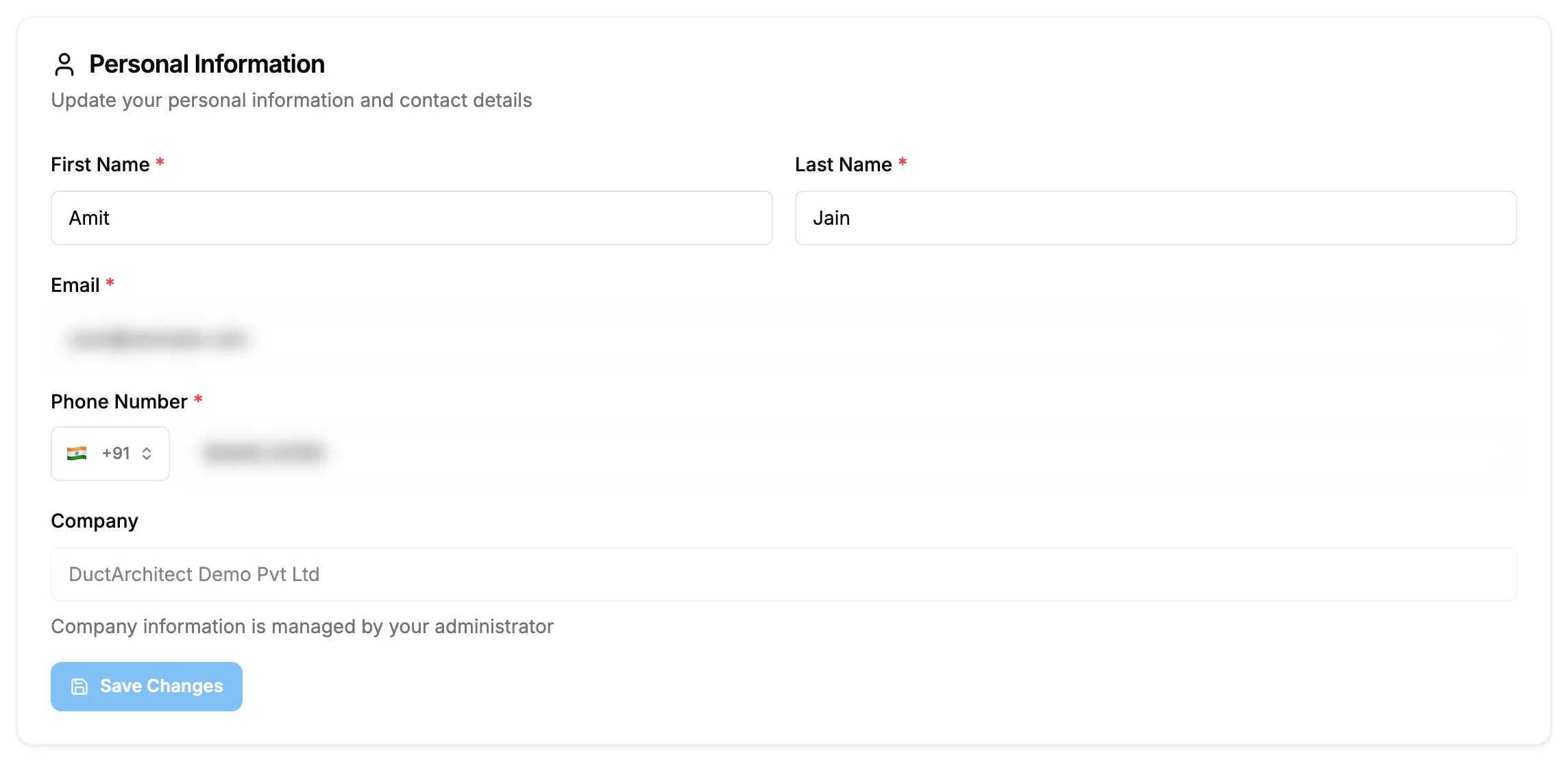
Step 3. The Personal Information card on Profile Settings. -
Select Save Changes.
Change your password
-
Select your name at the bottom of the sidebar.
-
Select Profile.
-
Select the Security tab.
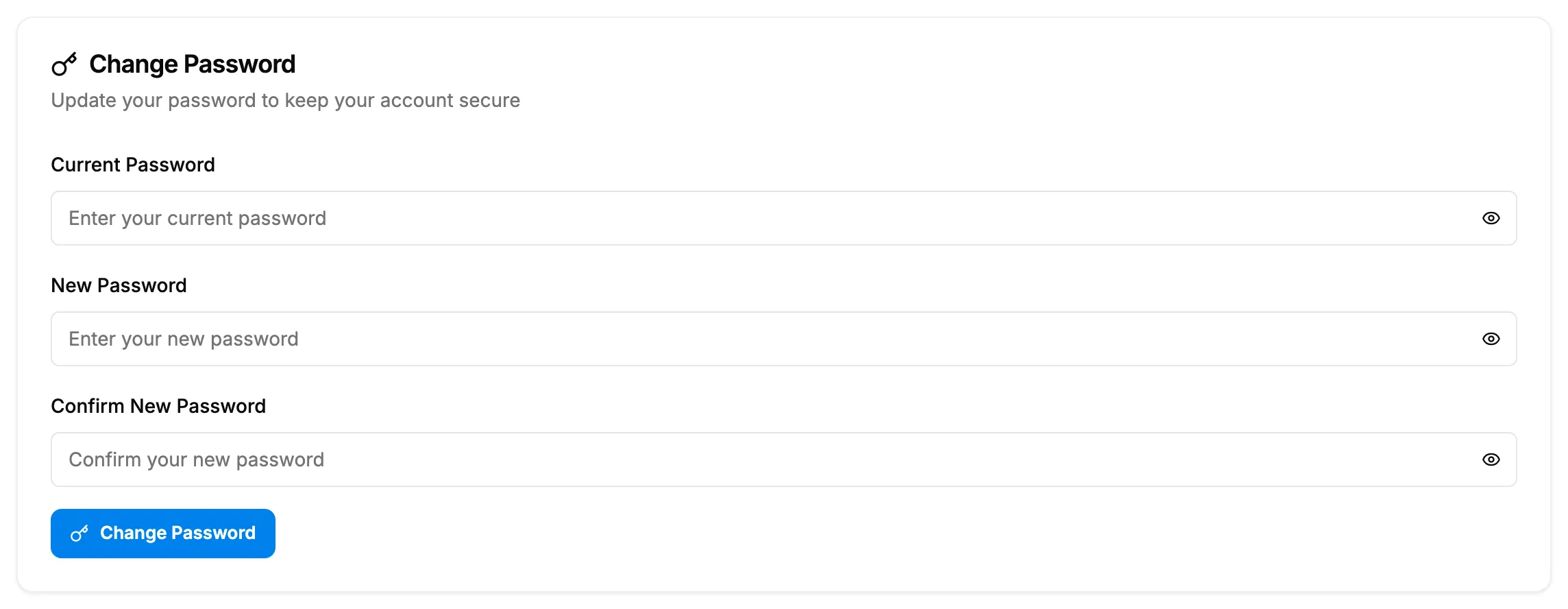
Step 3. The Change Password card on the Security tab. -
In Current Password, enter your current password.
-
In New Password, enter the new password. It needs at least 8 characters, an uppercase letter, a lowercase letter, a number and a special character.
-
In Confirm New Password, enter the new password again.
-
Select Change Password.
Result
Change your name, email or phone number: the message "Profile updated successfully!" shows. If you changed your email, sign in with the new email from now on.
Change your password: the message "Password changed successfully!" shows. Use the new password the next time you sign in.
If something is different
- Save Changes is greyed out: a field is not valid. First and last name need at least 2 characters, and the phone needs the country code.
- You want to change the company name: the Company field is read-only. See I can't change the company name on my profile.
- "Failed to update profile": try again. If it repeats, submit a request.
- "Passwords don't match": type the same new password in both boxes.
- "Failed to change password": check your current password and try again.
- The Security tab also shows Two-Factor Authentication, Session Timeout and Login Alerts: these are saved but do not change how sign-in works today. See My security and notification settings have no effect.