
Before you start
- You are signed in. No permission is needed to read, mark read or delete your own notifications.
- To filter notifications on the Notifications page, you need User Management. Owner, Admin and HR have it by default.
Steps
Read a notification
-
In the header, select the bell. Its tooltip reads "Notifications". A red count on it shows how many are unread.
-
In the panel, select the notification you want. Each one shows its title, a category tag, a criticality tag, the message and how long ago it arrived.
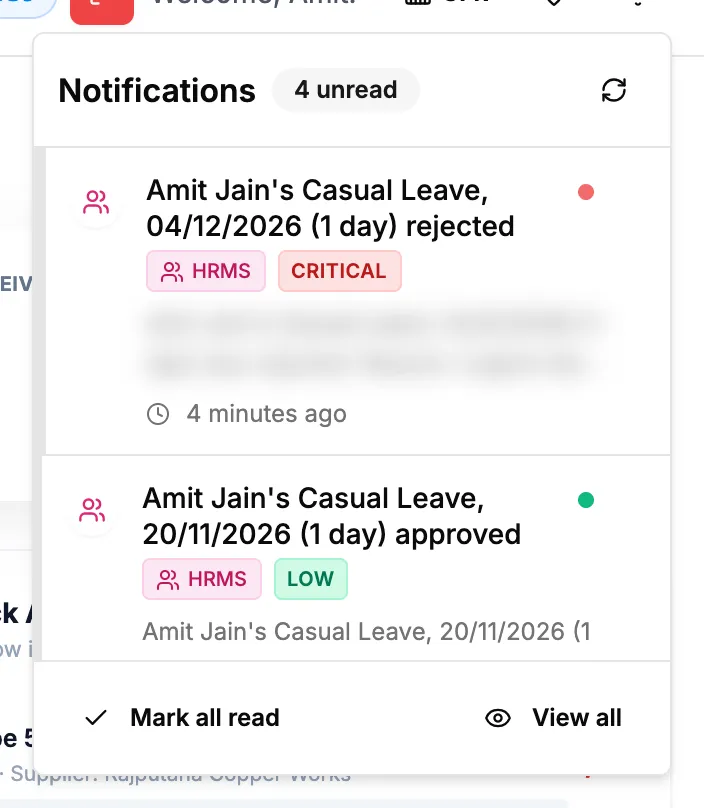
Step 2. The notifications panel with unread notifications.
Mark all notifications as read
-
In the header, select the bell.
-
At the foot of the panel, select Mark all read.

Step 2. The foot of the notifications panel with Mark all read and View all.
Delete a notification
-
In the header, select the bell.
-
On the notification you want to remove, select the X.
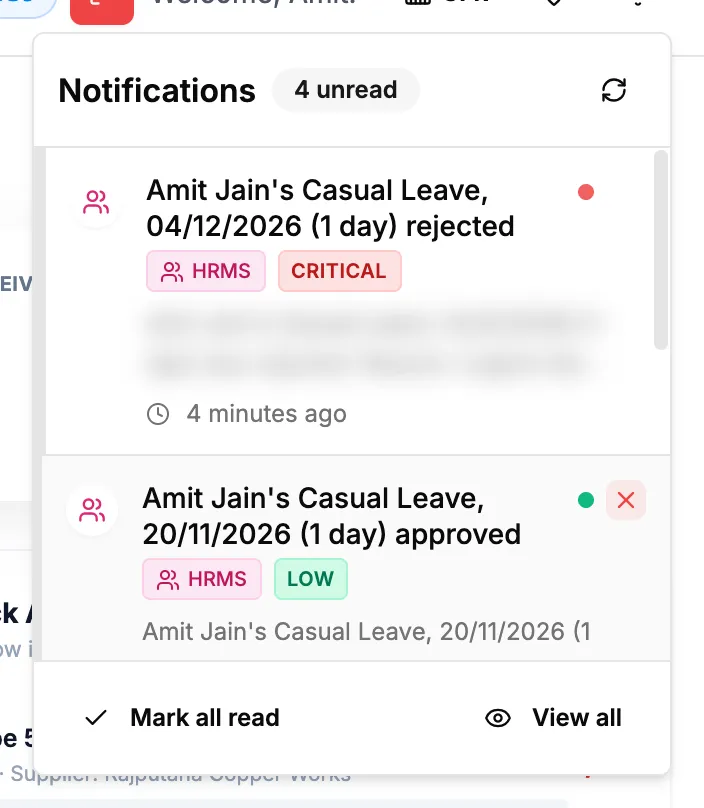
Step 2. A notification in the panel with its X.
Filter notifications on the Notifications page
-
In the header, select the bell.
-
Select View all. The "Notifications" page opens.
-
Choose one filter:
- Select a card at the top, Critical, High, Medium or Low, to show only that criticality.
- Select a category chip, for example Projects.
- In Filters, type in Search notifications..., or choose a type (Info, Success, Warning, Error) or Unread Only.
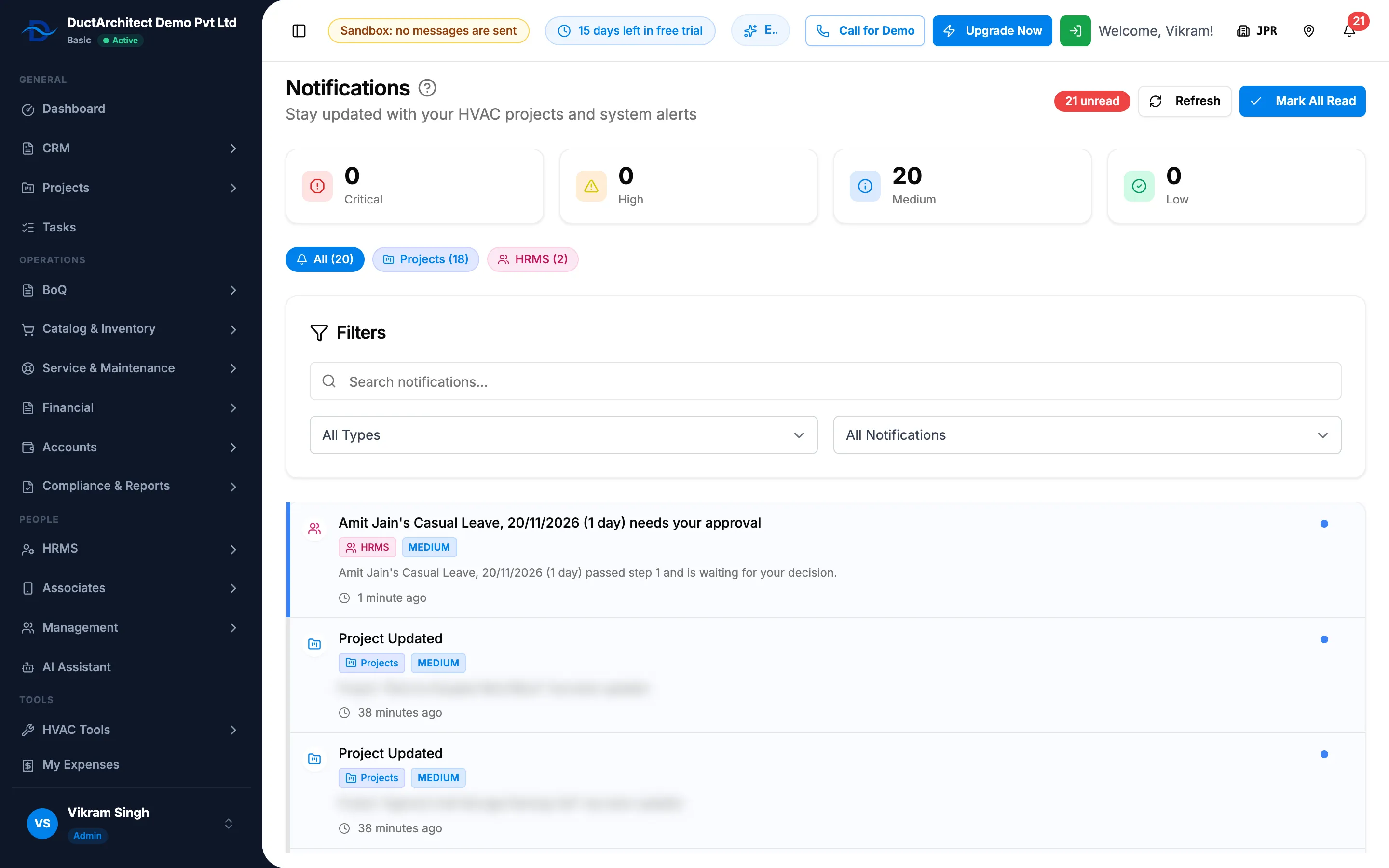
Step 3. The Notifications page with the criticality cards, category chips and Filters card. -
To see older notifications, select Load More at the foot of the list.
Result
Read a notification: the notification is marked read and the page it is about opens. The unread count drops by one.
Mark all notifications as read: every notification is marked read and the red count leaves the bell.
Delete a notification: the notification leaves your list. Deleting does not change the record it was about.
Filter notifications: the list shows only matching notifications, with "Showing" and the count at the foot.
If something is different
- "Access Denied" opens after View all: you do not have User Management. See Access Denied opens when I open a page.
- The panel shows "No notifications" and "You're all caught up!": you have no notifications.
- No Mark all read button: you have no unread notifications.
- On the Notifications page: the same action is Mark All Read at the top, and each row has its own delete button.
- "No notifications found": change or clear the filters.
- On a phone: the panel opens as a side sheet.
- A short pop-up appeared while you worked: DuctArchitect checks for new notifications every 10 seconds and shows a pop-up when one arrives. Open the bell to see it.