
Before you start
- You need User Management. The Approvals card on Settings shows only to Owner and Admin.
- The Approvals module is on for your company. See Switch a module on or off.
- To name chosen people, those people hold Approve on the subject: Material requests or Expense claims. See Change what a role can do inside a module.
Steps
-
From the profile menu in the header, select Settings.
-
Select the Approvals card: "Who approves material requests, when they are approved automatically, and whether a person may approve their own." "Approvals" opens: "How each kind of request is approved. A company without a saved rule needs an approval, approves nothing automatically and never lets a person approve their own request."
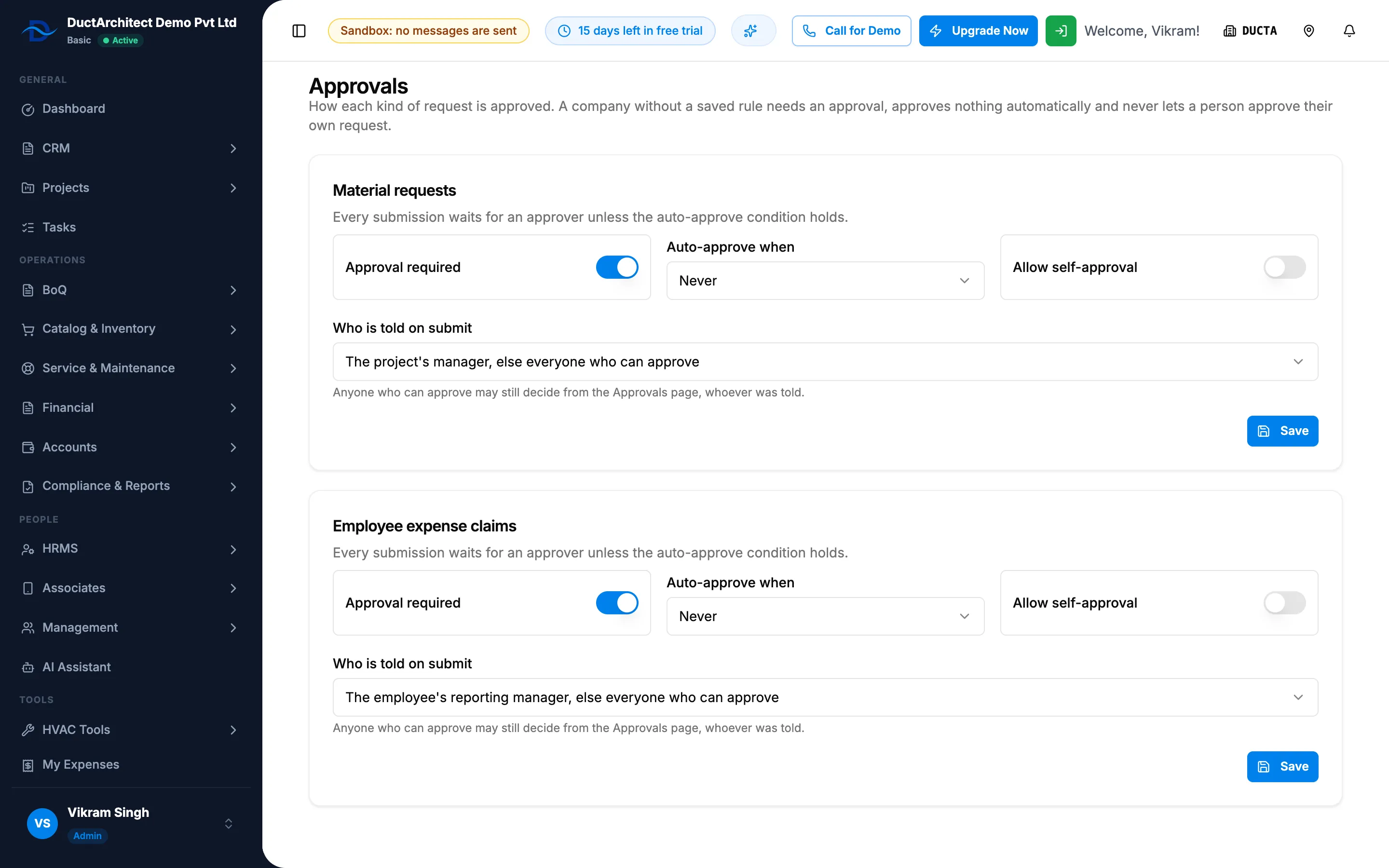
Step 2. Settings, Approvals with the Material requests and Employee expense claims cards. -
Find the card for the kind of request: Material requests or Employee expense claims.
-
Set the rule:
Field Required What to enter Approval required No On by default. Off: submissions are approved at once. Auto-approve when No Never (default), or for material requests Within the quoted quantity (every line quoted and within what remains). Not available while Approval required is off. Allow self-approval No Off by default. On: a person may approve a request they raised. Who is told on submit No The project's manager, else everyone who can approve (for expense claims: The employee's reporting manager, else everyone who can approve); Everyone who can approve; or Chosen people (who can approve). -
Read the help under Who is told on submit: "Anyone who can approve may still decide from the Approvals page, whoever was told."
-
If you chose Chosen people (who can approve), tick the people in the box of names under that help. It has no label. Tick at least one. The box lists the people who hold Approve on this kind of request.
-
Select Save on that card.
-
Repeat for the other card if you need to.
Result
The message "Approval rule saved" shows. The card's description reads "Every submission waits for an approver unless the auto-approve condition holds." or "Submissions are approved at once; nothing waits." Requests submitted from now on follow the rule. See How an approval request moves from Pending to a decision.
If something is different
- No Approvals card on Settings: the Approvals module is off, or you are not an Owner or Admin. See The Activity log or Recycle bin card is missing from Settings.
- "Choose at least one person for this scope.": with Chosen people (who can approve), tick at least one person.
- "Nobody holds Approve on this subject yet.": nobody can be chosen. Give Approve on Material requests or Expense claims to a role or a person first.
- "One of the chosen people is not in this company.": reload the page and choose again.
- "That auto-approve condition does not apply to this subject type.": Within the quoted quantity is for material requests only.
- A service request still waits: automatic approval never applies to a service contract or visit. See A request was approved automatically, or is never approved automatically.
- Leave applications and tasks are not on this page: leave follows the leave approval setting on Settings › HRMS (see Choose who approves leave); tasks have no rule here.
- The reporting manager: for expense claims, the first choice tells the employee's reporting manager, set on the employee. See Set the reporting manager.