
Before you start
- You need HRMS Management and Edit on Employees. HR has both by default; other roles have View only.
- Only the Owner or an Admin can change an Owner's or Admin's account.
- The employee is working. A former employee's record is read only: see Change an employee's status, or bring a former employee back.
Steps
Edit the details
-
In the sidebar, select HRMS › Employees. To find the person, see Find employees: search, filter and export.
-
On the employee's row, open the menu and select Edit. The box "Edit Employee" opens.
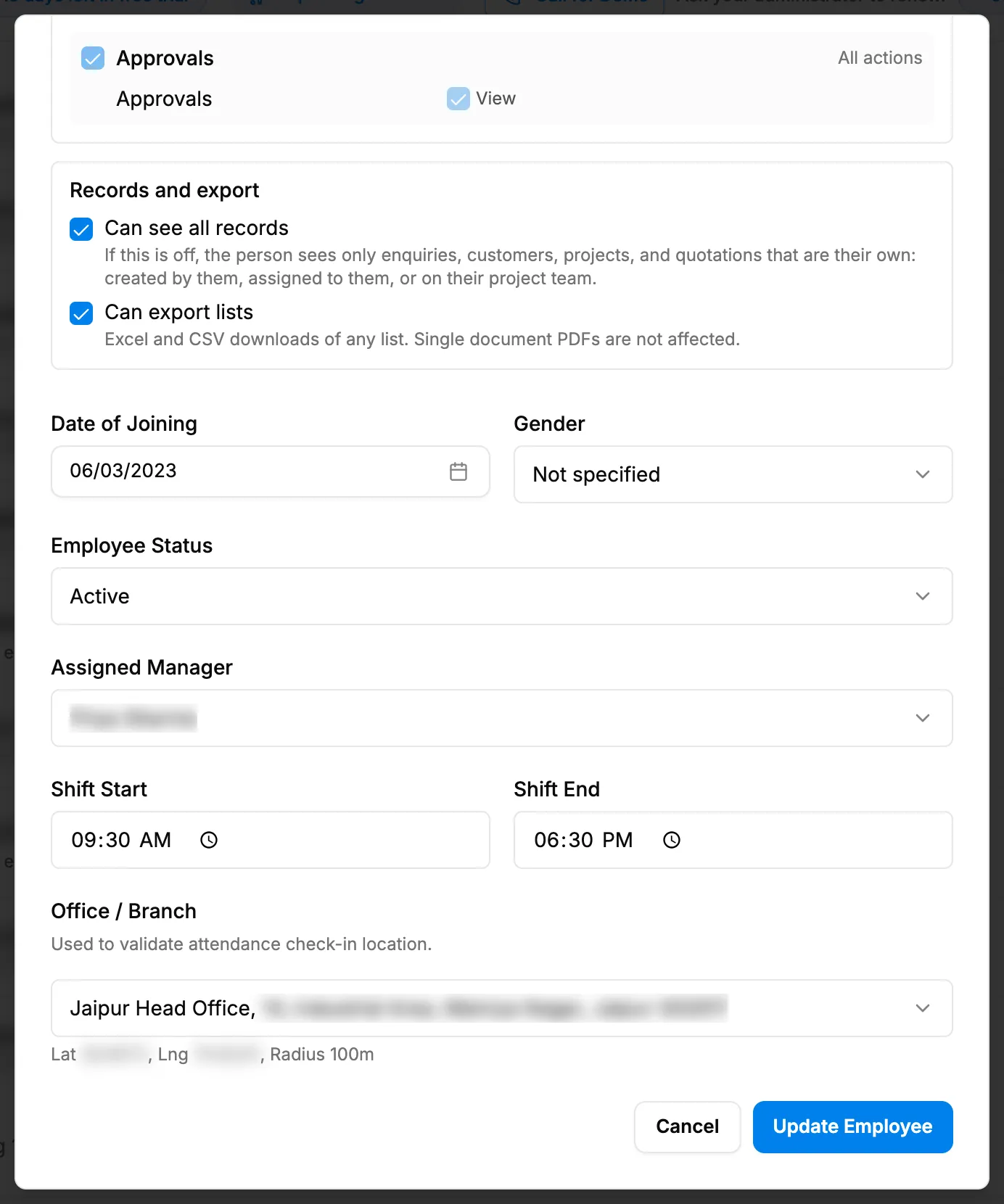
Step 2. The Edit Employee box with Assigned Manager and Office / Branch. -
Change First Name, Last Name, Phone, Designation, Date of Joining, Gender, Shift Start or Shift End. Email cannot be changed here.
-
Select Update Employee.
For every field, see Add New Employee and Edit Employee: every field.
Change the role
- In HRMS Role / Department (select one), tick the new role. The box shows "Selected: [name]".
- Check Permissions and the sections under it, down to Records and export (Can see all records, Can export lists). To keep this person's own settings, see Give one person different permissions from their role.
- Select Update Employee.
Set the reporting manager
- In Assigned Manager, choose the person this employee reports to. The list holds working employees with a login. No manager clears it.
- Select Update Employee.
The reporting manager:
- decides the first step of the employee's leave, without any leave right, when your company uses "Reporting manager, then HR". See How a leave application moves from Submitted to Approved;
- sees the employee as a direct report on the Manager Dashboard and on Leave Requests;
- is the person told first when the employee submits an expense claim, if your company's rule says so. See Set how requests are approved.
Change the office
- In Office / Branch, choose the office. The box shows "Lat [lat], Lng [lng], Radius [r]m", or "No GPS coordinates: attendance location validation is skipped for this office."
- Select Update Employee.
The office is used when your company marks attendance by office, and in the Employee Locations office filter. See Mark attendance for employees who did not clock in.
Result
The message "Employee updated" shows. The row shows the new designation, role badge and status.
Next: Mark attendance for employees who did not clock in, or Give or remove an employee's login.
If something is different
- No Edit on the row: you do not have Edit on Employees.
- "Only an administrator can change an administrator's account.": the employee is an Owner or Admin. Ask the Owner or an Admin.
- "An employee cannot be their own manager", "That would make a loop: the chosen manager reports, directly or through others, to this employee." or "Manager not found": choose another manager. A manager who no longer works for you shows " (no longer works here)" and cannot be chosen again. See An employee's record is read only, or a change is refused.
- Every field but the status is greyed out: the employee no longer works here. See Change an employee's status, or bring a former employee back.
- "You cannot change your own role, permissions or restrictions. Ask an administrator.": ask the Owner or an Admin.
- Office / Branch says "No offices available": add an office first. See Add, edit or delete an office.
- The office's radius does not stop clock ins from elsewhere: see Employees can clock in away from their office.