
Before you start
- You need Can see everyone's attendance. HR has it by default; Owner and Admin always pass.
- Your company's time zone is confirmed.
Steps
See one day
-
In the sidebar, select HRMS › Attendance. "Attendance" opens: "Days are derived from clock ins, supervisor marks, corrections, leave and holidays, in [timezone]."
-
Read today's counts: Present today, Absent today, On leave today, Late today, Not marked today and Missing clock out.
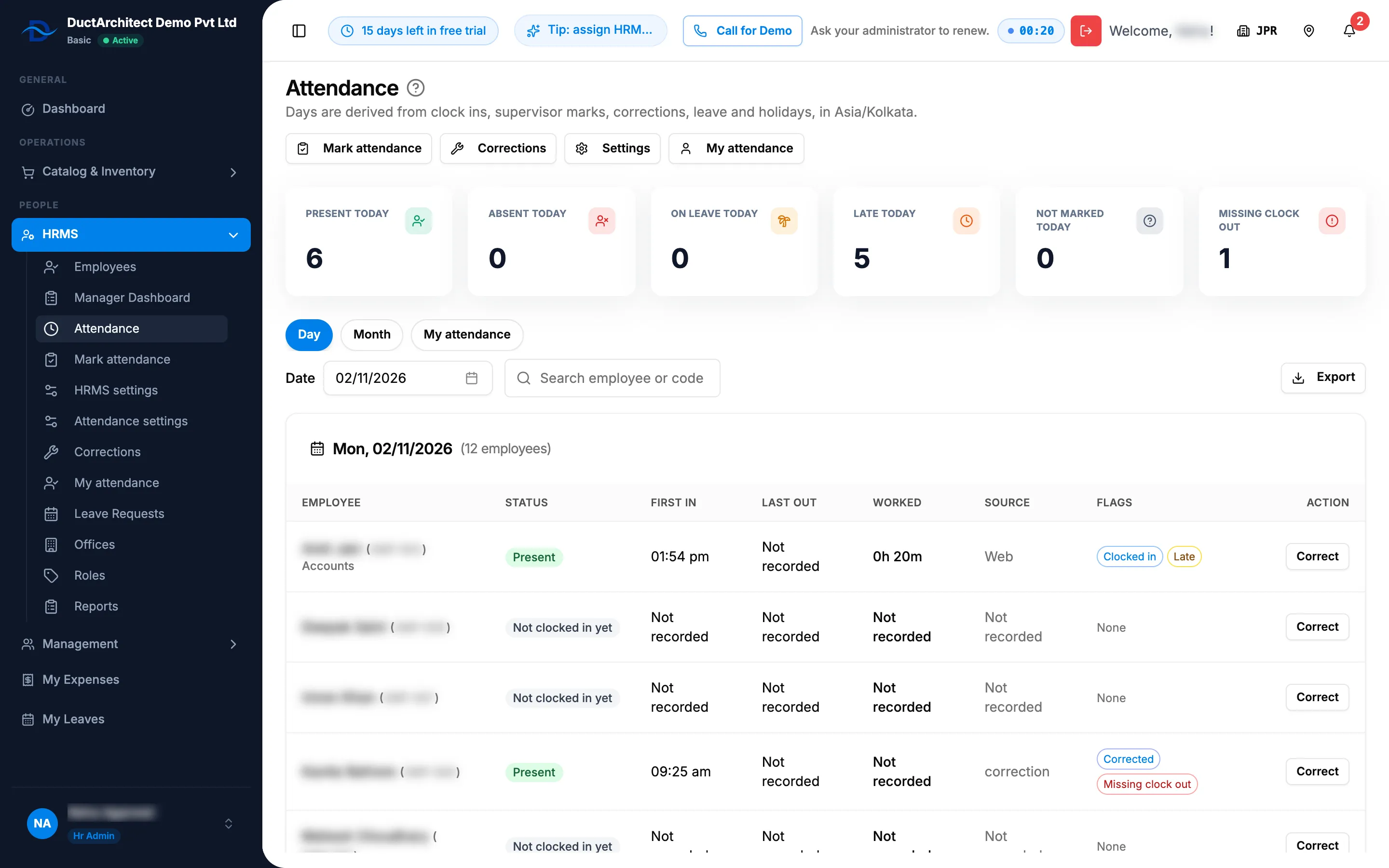
Step 2. Attendance with today's counts and the Day tab table. -
On the Day tab, choose the Date. It starts on your company's today; Today brings you back.
-
To find someone, type in Search employee or code.
-
Read each row: Employee (name, code and department), Status, First in, Last out, Worked, Source and Flags. Action has Correct for people who can correct attendance.
See one employee's month
- Select the Month tab.
- In Employee, choose the employee ("Choose an employee to see the month"), then choose the Month.
- Read the counts Present, Half day, Absent, On leave, Late and Not marked, and the day table.
Export a day
- On the Day tab, choose the date.
- Select Export and choose Excel or PDF. The file "Attendance" downloads with Employee, Status, First in, Last out, Worked, Source and Flags.
Result
You see each employee's day as DuctArchitect works it out. For what each status, flag and source means, see How an attendance day gets its status and HRMS screens: badges, flags and labels. To change a day, see Correct an attendance day.
If something is different
- No Attendance in the sidebar: you do not have Can see everyone's attendance, or HRMS is missing. See HRMS or My Leaves is missing from the menu.
- Only the My attendance tab shows: the Day and Month tabs need Can see everyone's attendance. "You can see your own attendance only. Everyone's attendance needs the right to see it."
- No today's counts: they show only to the Owner, Admin, HR and Manager roles.
- No Correct in the Action column: you do not have Attendance Marking. Correct is greyed out on a row with "No day computed" or Not applicable.
- "Set your timezone to start using attendance": see Attendance says "Set your timezone to start using attendance".
- "No employees to show" or "No attendance for this employee and month": choose another date, employee or month.
- The Month tab starts on another month: it starts on your computer's month, not your company's.