
Before you start
- You need Can view employee locations and HRMS Management. By default only the Owner and Admins have it; HR does not.
- The Employee Locations (HRMS) module is on for your company. It is on by default.
- Positions are sent by the mobile app while Collect positions from the mobile app is on in the attendance settings. See Set the working day, weekly offs and attendance rules.
Steps
See where employees were last seen today
-
In the sidebar, select HRMS › Employee Locations. The page says "Where clocked-in employees were last seen today, one employee's trail for a day, and the kilometres travelled per day. Times are in the company time zone."
-
On the Map tab, narrow the list with Office ("Every office") or Search by name.
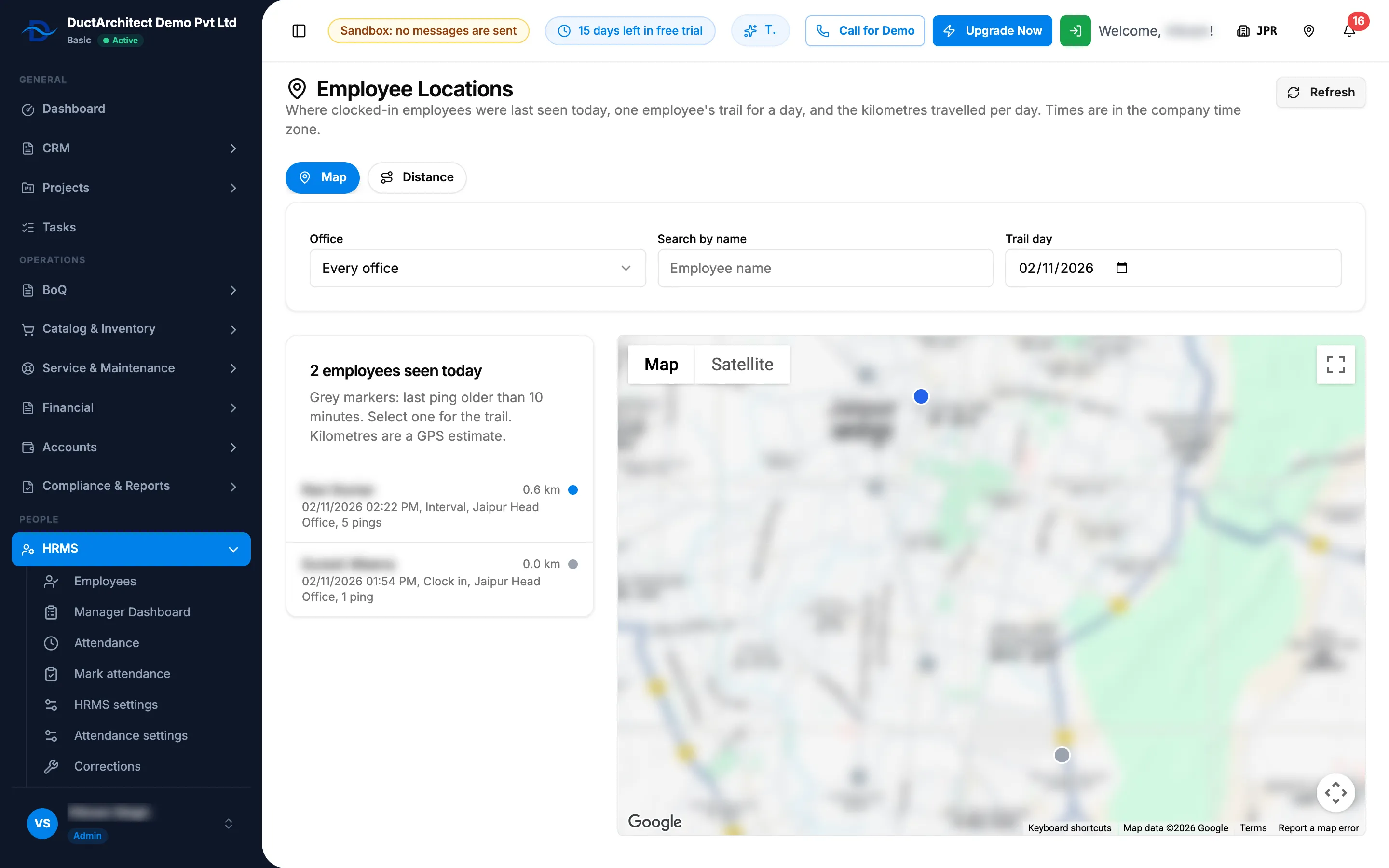
Step 2. The Map tab with the side list of employees seen today and the markers. -
Read the side list "[number] employee(s) seen today". Each row shows the name, today's kilometres, a blue dot (recent) or grey dot (older), the last time, where the position came from, the office or department and the number of positions. The help says "Grey markers: last ping older than [minutes] minutes. Select one for the trail. Kilometres are a GPS estimate."
-
To load new positions, select Refresh.
See one employee's trail
- Select the employee in the side list, or their marker on the map. The map draws their trail for the day.
- Read the trail card "Trail: [name] on [day], [number] point(s), [km]", with "First [time] ([source]), last [time] ([source])." The badge "GPS estimate" explains the method in its tooltip.
- To see another day, choose it in Trail day. Only days within the number of days positions are kept can be chosen.
See the distance per day
- Select the Distance tab.
- Choose From and To. They start on the last 7 days; you can show up to 92 days, at most a year back.
- Read the table: one row per employee (with their office), one column per day (today marked "(today)"), and Total. The card says "Kilometres per employee per company day, from [from] to [to] (at most 92 days). Closed days are stored nightly; today is computed live. Straight lines between recorded positions, not road distance."
- To download it, select the Excel or PDF export. The file "Employee-Distances" downloads.
Result
You see the positions the mobile app sent, as the screen shows them. Each position is labelled "Clock in", "Clock out", "Interval", "Task update" or "Service visit". Only people with Can view employee locations can open this page.
If something is different
- "You do not have the right to view employee locations." or no menu item: see Employee Locations is missing or shows no positions.
- "The Employee Locations module is switched off for your company (Settings, Modules).": an Owner or Admin switches Employee Locations (HRMS) on. See Switch a module on or off.
- "Location tracking is switched off in Attendance settings: no new positions arrive.": tracking is off. See Turn location tracking on or off.
- "No positions today for these filters.", "No positions on this day." or "Too few usable positions to measure a distance.": there is nothing to show for that employee or day.
- No export button: you do not have Can export lists.
- "Could not load the distances.": reload the page, or choose fewer days.