
Before you start
- You need Can see everyone's attendance or Can see everyone's leave. HR has both by default.
- Late Login Report needs Can see everyone's attendance; Leave Statistics needs Can see everyone's leave.
- Payroll Register shows while payroll is available for your company.
Steps
-
In the sidebar, select HRMS › Reports. "HRMS Reports" opens.
-
Select a report: Employee Master List, Leave Summary, Late Login Report, Leave Statistics or Payroll Register.
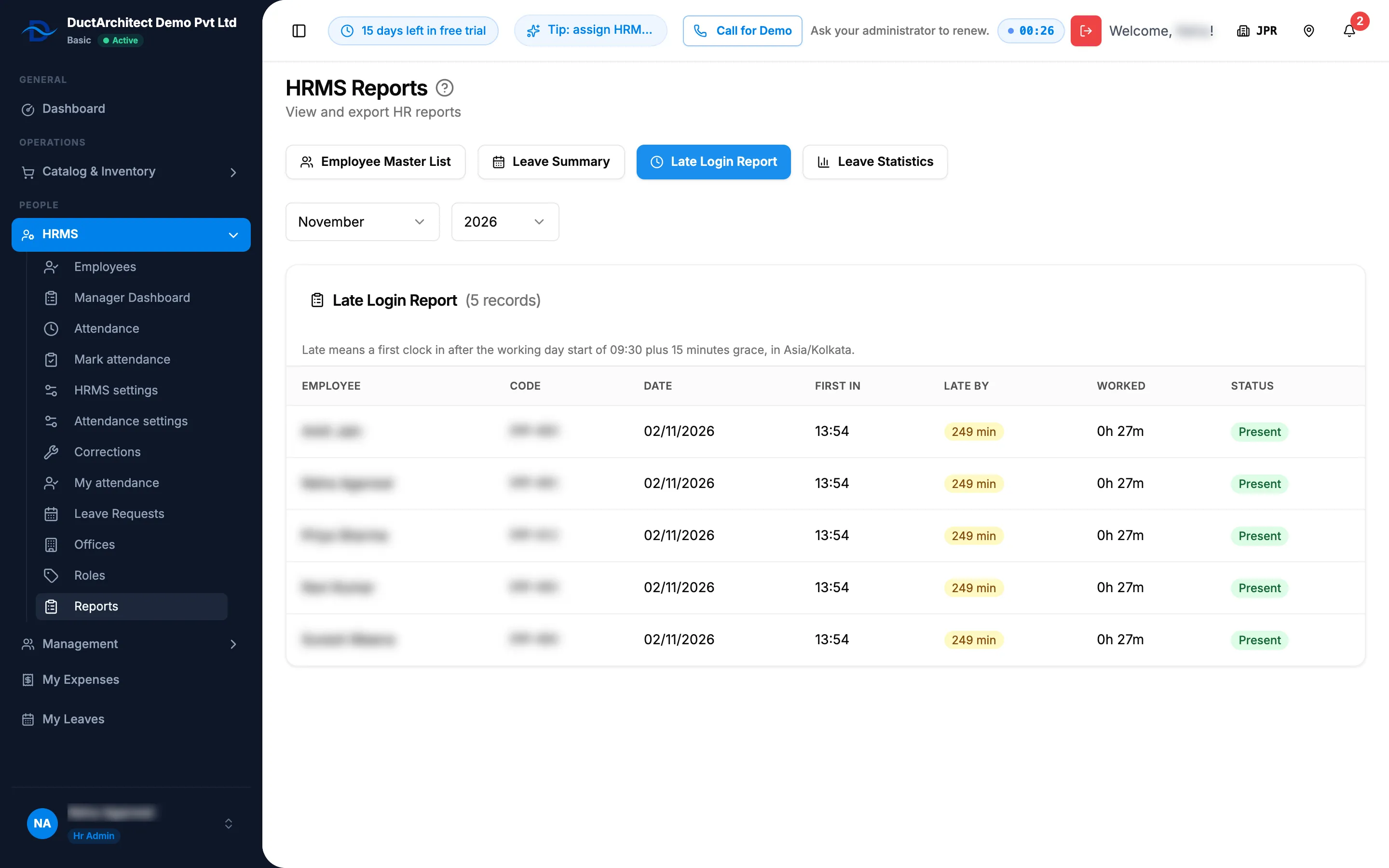
Step 2. HRMS Reports with the report buttons, the month and year pickers and a report table. -
For every report except the master list, choose the month and the year.
-
Read the report under its name and "([number] records)".
| Report | Columns |
|---|---|
| Employee Master List | Emp ID, Name, Email, Designation, Department, Joined, Status. Every employee, former ones included. |
| Leave Summary | Leave that overlaps the month: Employee, Leave Type, From, To, Days, Status |
| Late Login Report | "Late means a first clock in after the working day start of [start] plus [grace] minutes grace, in [timezone]." Employee, Code, Date, First in, Late by, Worked, Status |
| Leave Statistics | By Leave Type (requests, approved, rejected, pending, days taken), By Employee (requests, days taken, pending), and each type's balances (employees, allocated, used, remaining) |
| Payroll Register | Emp ID, Name, Designation, Gross, Deductions, Net Pay, Status |
Result
The report shows on screen for the month you chose. It is read only.
If something is different
- No export: the page says "View and export HR reports", but it has no export button. To download, use the export on Employees, Attendance, Leave Requests or Payroll.
- "The leave summary needs the right to see everyone's leave.": Leave Statistics needs Can see everyone's leave.
- "No data found for this report", "No late logins found for this period" or "No leave data found for this period": choose another month.
- "Failed to load report", "Failed to load late login report" or "Failed to load leave statistics": try again.
- The master list shows a status as "On_leave": it is the On Leave status, written as the app stores it.
- The Leave Summary colours stages differently: approved is green, waiting yellow, and everything else red.
- No Reports in the sidebar: you have neither right. See An HRMS page says only administrators can use it, or that I need a right.