
Before you start
- You need Attendance Marking. HR has it by default; Owner and Admin always pass. "Correcting attendance needs the right to mark attendance."
- The Corrections list and the Correct button on Mark attendance show only to the Owner, Admin and HR roles.
- The date is not in the future and not before your attendance start date, and the employee was working on that day.
Steps
Correct a day from Attendance
-
In the sidebar, select HRMS › Attendance. On the Day tab, choose the date.
-
On the employee's row, select Correct. The box "Correct attendance" opens: "[name], [date]. Times are in [timezone]."
-
Fill in the correction.
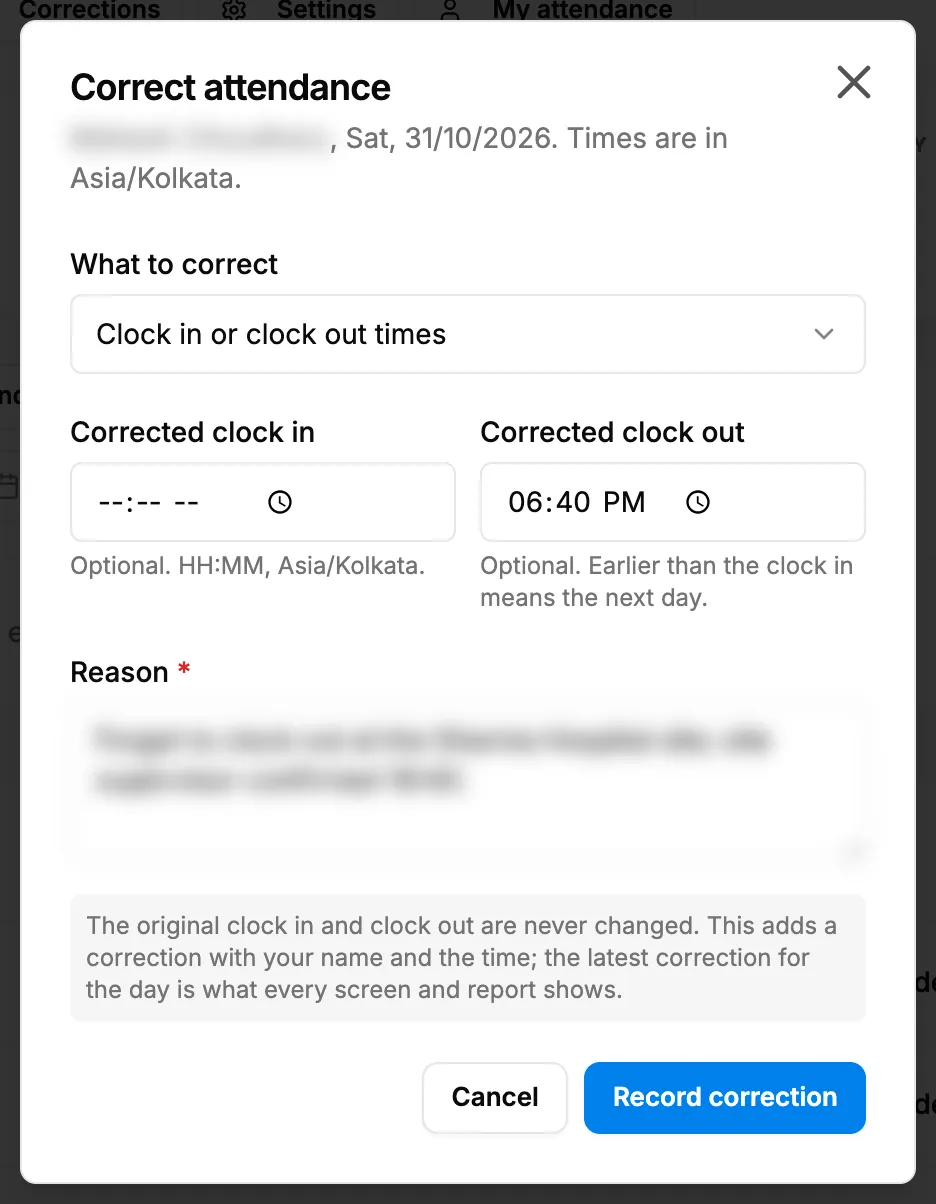
Step 3. The Correct attendance box with What to correct and the corrected times. Field Required What to enter What to correct Yes Clock in or clock out times, or Override the day's status. Session No When there were several sessions that day: Session [n] of [n]. Starts on the latest. Corrected clock in No Times mode. HH:MM in your company's time zone. Give a clock in, a clock out, or both. Corrected clock out No Times mode. Earlier than the clock in means the next day. Status for the day No Override mode: Absent, Present or Half day. "An override wins over whatever was recorded for the day." Reason Yes Why this correction is needed. -
Select Record correction.
You can also select Correct on a row of the Clocked in card on Mark attendance.
From the Corrections list
- In the sidebar, select HRMS › Corrections. "Attendance corrections" opens: "Sessions with no clock out in the last 31 days. A correction records the real times; the original session is never changed."
- In "Missing clock outs ([number], [from] to [to])", find the session. Clock out shows "Missing clock out", or "Closed by the system" when the system closed it at the next clock in.
- Select Correct, enter the Corrected clock out and the Reason, then select Record correction.
Result
The message "Correction recorded" shows. The day shows the flag "Corrected" with the corrected times or status, on every screen and report. "The original clock in and clock out are never changed. This adds a correction with your name and the time; the latest correction for the day is what every screen and report shows." A corrected session leaves the Corrections list.
If something is different
- "Enter a corrected clock in, a corrected clock out, or both": fill in at least one time, or choose Override the day's status.
- "The corrected clock in must fall on [date] in [timezone]." or "The corrected clock out must be after the clock in.": check the times.
- "A future date cannot be corrected.", "Attendance starts on [date]; earlier dates cannot be corrected." or the employee is not working: see Marking or a correction is refused.
- "Only administrators can record corrections": the Corrections list shows only to the Owner, Admin and HR roles. See An HRMS page says only administrators can use it, or that I need a right.
- Correct is greyed out: the row has "No day computed", or the day is Not applicable.
- A correction was wrong: a correction cannot be edited or deleted. Record a new one; the latest wins.
- "No missing clock outs in the last 31 days": nothing is waiting. Older days are corrected from Attendance.