
Before you start
- You need Can manage holidays. HR has it by default.
- Holidays can be edited in two places. Settings › HRMS has templates, copy and optional holidays; the Holidays card on Attendance settings adds and removes holidays only.
Steps
Add holidays on Settings › HRMS
-
In the sidebar, select HRMS › HRMS settings. Go to the section Holidays: "Days the company is closed. A holiday is not a leave day and reads Holiday in attendance. An optional holiday is a working day unless the employee takes leave on it."
-
Choose the year.
-
Select Add [number] [country] template holiday(s). Holidays marked "Estimated" are "lunar calendar dates from the template; check them against the official list." For a year with no template dates for those holidays, the section says "The template has no dates for [year] for holidays that follow a lunar calendar: add them below once they are announced."
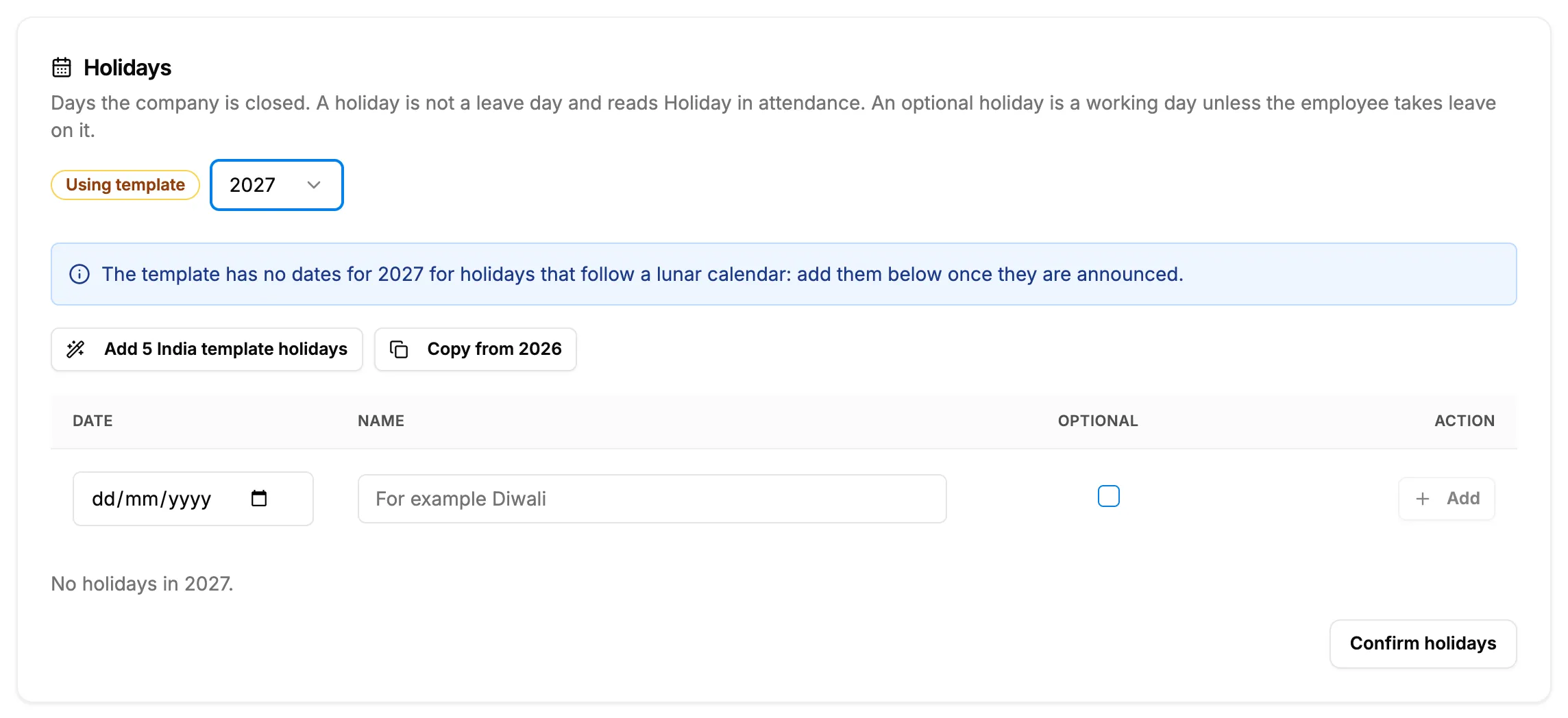
Step 3. The Holidays section with the template button, Copy from last year and the holiday table. -
To add one more, fill in the empty row: Date, Name (for example Diwali) and Optional. Select Add.
-
To change a holiday, edit its row and select Save. To remove one, select the remove icon and confirm "Remove [name] on [date]?".
-
When the list is right, select Confirm holidays.
Copy last year's holidays
- In the Holidays section, choose the new year.
- Select Copy from [last year].
- Check every date: "Check the dates: some holidays move from year to year." Change the ones that moved, then select Confirm holidays.
Add or remove a holiday on Attendance settings
- In the sidebar, select HRMS › Attendance settings. In the Holidays card under Working day ("A day with no clock in on a holiday reads Holiday. Clocking in on one is flagged."), choose the year.
- To add, choose the Date, type the Name, and select Add holiday.
- To remove, select Remove on the row and confirm "Remove [name] on [date]?".
Result
The message "Holiday added", "Holiday saved", "Holiday removed", "[number] template holiday(s) added" or "[number] holiday(s) copied to [year]" shows. Confirming the section shows "Saved". On a holiday that is not optional, attendance reads Holiday, and leave inside your dates does not count it. Employees see the year's holidays on My Leaves, with an "Optional" badge on optional ones.
If something is different
- "A holiday needs a date and a name": fill in both.
- "[date] is already a holiday ([name]).": that date has a holiday. Copy and template adds say "[number] skipped (already holidays)".
- The template button reads "Every [country] template holiday is in [year]": every template holiday is in the list already.
- "There are no holidays in [year] to copy." or "Choose a different year to copy from.": choose another year.
- "Holidays: managing holidays needs its own right." or "You do not have the right to manage holidays.": you need Can manage holidays. See An HRMS page says only administrators can use it, or that I need a right.
- The Holidays card on Attendance settings does not show: that page's form shows only to the Owner, Admin and HR roles. Use Settings › HRMS.