
Before you start
- No permission is needed. My Leaves is in the sidebar while HRMS is available and switched on for your company.
- You are a working employee.
- HR has set up the leave types and your balances. See Set up leave types.
Workers apply for leave on Leaves in the Associate Portal. The worker app has no leave screen. See Apply for leave or cancel it in the Associate Portal.
Steps
-
In the sidebar, select My Leaves. The page says "Apply for leave, follow each application to its decision, and cancel one you no longer need."
-
Read your balance cards for "Leave year [label]": each leave type shows "available: [remaining] left, [pending] pending", "Unpaid", "No limit" or "Not set".
-
Check the card "Holidays [year]": "The company's holidays are not leave days. An optional holiday is a working day unless you take leave on it."
-
Select Apply for leave. The box says "Weekly offs and the company's holidays inside your dates are not counted."
-
Fill in the application.
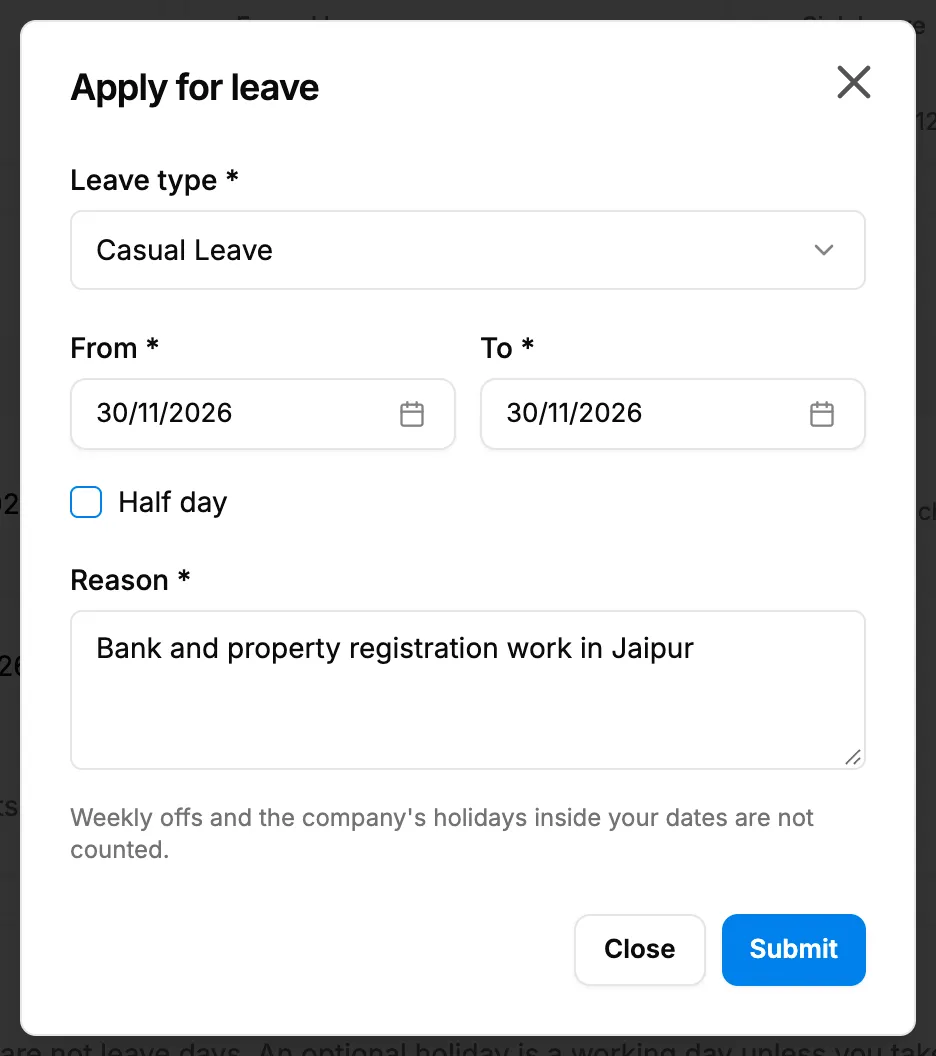
Step 5. The Apply for leave box with Leave type, From, To, Half day and Reason. Field Required What to enter Leave type Yes The active leave types that apply to you. From Yes The first day of leave. Picking it moves To if To is earlier. To Yes The last day of leave. Half day No Tick for half a day. Greyed out with "(not allowed for this leave type)" when the type has no half days. Reason Yes Up to 1000 characters. -
Select Submit.
Result
The message "Leave application submitted successfully" shows. The application is in My applications as Submitted, with "Waiting for your manager, [name]", "Waiting for your manager" or "Waiting for approval". The days show as pending on your balance. The first people who may decide are told. See How a leave application moves from Submitted to Approved.
Next: Follow, withdraw or cancel your own leave.
If something is different
- No My Leaves in the sidebar: see HRMS or My Leaves is missing from the menu.
- "Leave type, start date and end date are required" or "A reason is required": fill in every field with a *.
- "You already have a leave application for overlapping dates", a balance refusal, "[type] is no longer offered." or a refusal about past dates or notice: see My leave application is refused.
- A leave type shows "Not set" and "Ask HR to set this balance": ask HR to fill your balance. See My leave balance shows Not set or the wrong number of days.
- Your company counts weekly offs and holidays between leave days (the sandwich rule): a Friday and a Monday off can count as four days.
- "Your leave could not be loaded." and no Apply for leave button: reload the page.