
Before you start
- You are the Owner, an Admin or HR, with HRMS Management and Add on Employees. HR has both by default.
- Your company has room in its employee limit. The Employees page shows "[count] of [limit] employees".
- To give a login, your plan has a free seat.
- The employee's role exists on Roles / Departments. See Add a role.
- If you use offices, add them first. See Add, edit or delete an office.
To add many employees at once, see Import employees from Excel.
Steps
-
In the sidebar, select HRMS › Employees. "Employees" opens: "Manage your company employees".
-
Select Add Employee. The box "Add New Employee" opens.
-
Choose Give login access:
- On, if the person will sign in: "Signs in on the web and in the app with this email and password. Takes one paid seat."
- Off, for an HRMS record only: "An HRMS record only: attendance, leave and payslips, no sign-in and no seat. Email is optional; a login can be given later."
-
Fill in the employee.
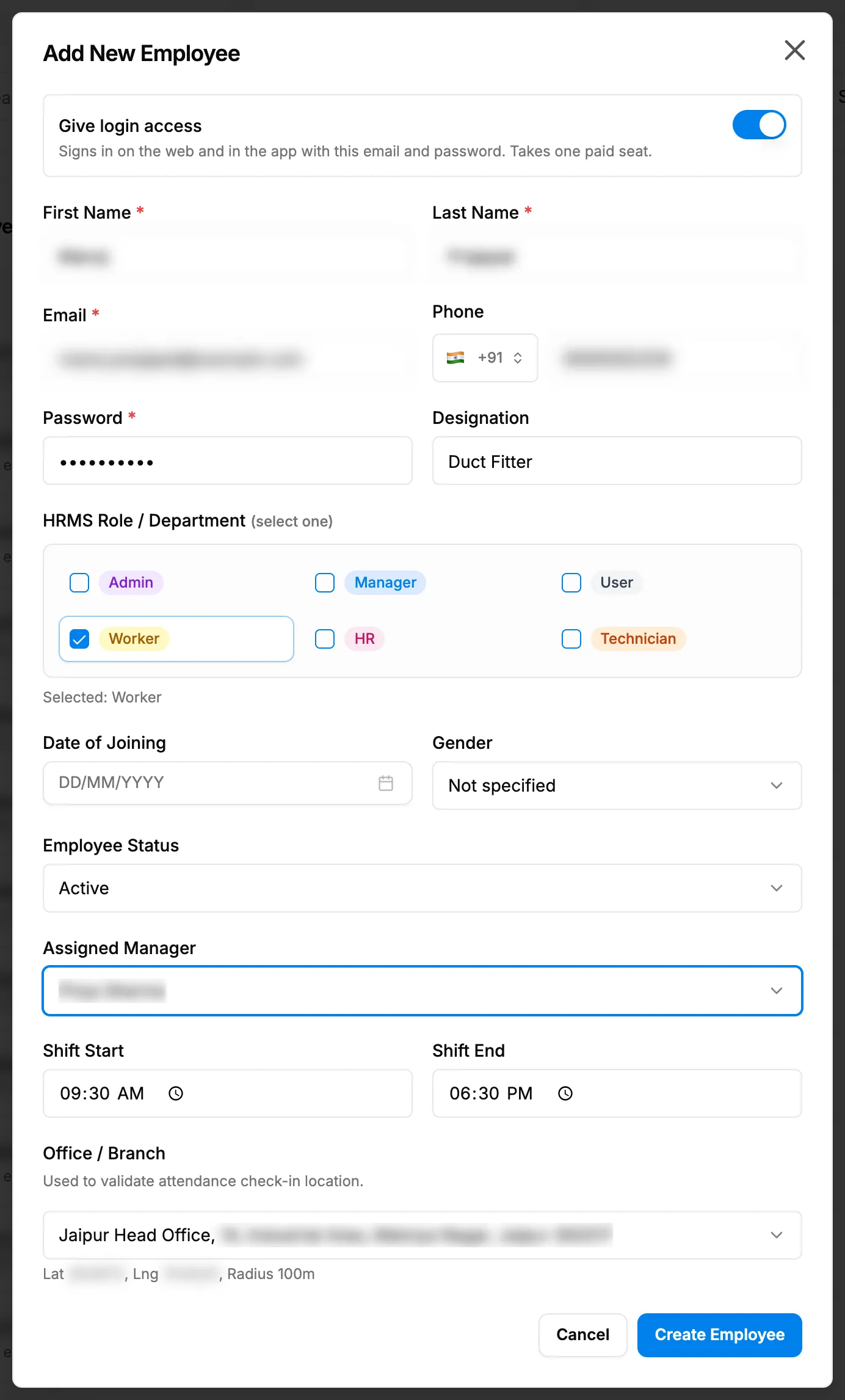
Step 4. The Add New Employee box with Give login access on and the role badges. Field Required What to enter First Name Yes The first name. Last Name No Required with a login. Email No Required with a login. It becomes the sign-in email. Phone No In your company's country format. Must not be another employee's phone. Password No With a login only. At least 8 characters. Designation No For example Senior Engineer. HRMS Role / Department (select one) No Required with a login. Tick one role. It fills the permissions below. Date of Joining No A date. Gender No Not specified, Male, Female or Other. Starts as Not specified. Employee Status No Starts as Active. Assigned Manager No The reporting manager, who decides the first step of their leave. Working employees with a login. Shift Start / Shift End No Times. Start at 09:30 AM and 06:30 PM. Attendance does not use them; it uses the company working day. Office / Branch No From HRMS, Offices. Chosen for you when there is exactly one office. -
Check Permissions and the sections under it. They start from the role's defaults. To change them for this person, see Give one person different permissions from their role.
-
Select Create Employee.
Result
The message "Employee created" shows. The employee is in the Employee List with Active (or the status you chose) and the next employee code under Emp ID. An employee without a login shows the badge "No login".
With a login, the person can sign in on the web and in the app with the email and password, and takes one seat. See Sign in.
Next: Edit an employee: details, role, reporting manager and office, to set their reporting manager.
If something is different
- No Add Employee button: you are not the Owner, an Admin or HR, or you do not have Add on Employees.
- "Seat limit reached", the employee limit, "Email already in use" or a phone already used: see Add Employee or Give login is refused.
- "Select at least one HRMS role": tick a role. With "No roles found. Create roles at HRMS → Roles first.", add a role first.
- "No offices exist yet, create one in HRMS → Offices first.": add an office, or leave Office / Branch empty.
- The person must not change permissions: without the right to manage permissions, "The employee gets this role's default permissions. Changing them needs the right to manage permissions."
- A custom role's sensitive information or record actions do not reach the person: set them on the person with Custom for this person. See My change to a role did not reach existing users.
- A plan box opens: your plan is not active. See Every page sends me to Plans & Pricing.
- No HRMS group in the sidebar: see HRMS or My Leaves is missing from the menu. You can still add a user on Management › Users. See Add a user.