
Before you start
- HRMS is available and switched on for your company. Otherwise there is no Clock In in the header.
- Your company's time zone is confirmed. Until then the attendance pages show only a notice.
- Field staff (workers and technicians) may have to clock in from the mobile app, if your company says so in its attendance settings.
- My attendance is in the sidebar for people with HRMS Management (HR by default). It is also a tab on Attendance for people who can see everyone's attendance.
Steps
Clock in and out
- At the top of any page, select Clock In. Its tooltip says "Clock In (web, no location check)".
- The header shows a blue pill with how long you have been clocked in, as hours and minutes, for example "00:19".
- When you stop work, select Clock Out.
See your own attendance
-
In the sidebar, select HRMS › My attendance. "My attendance" opens: "Your days as the company records them, in [timezone]."
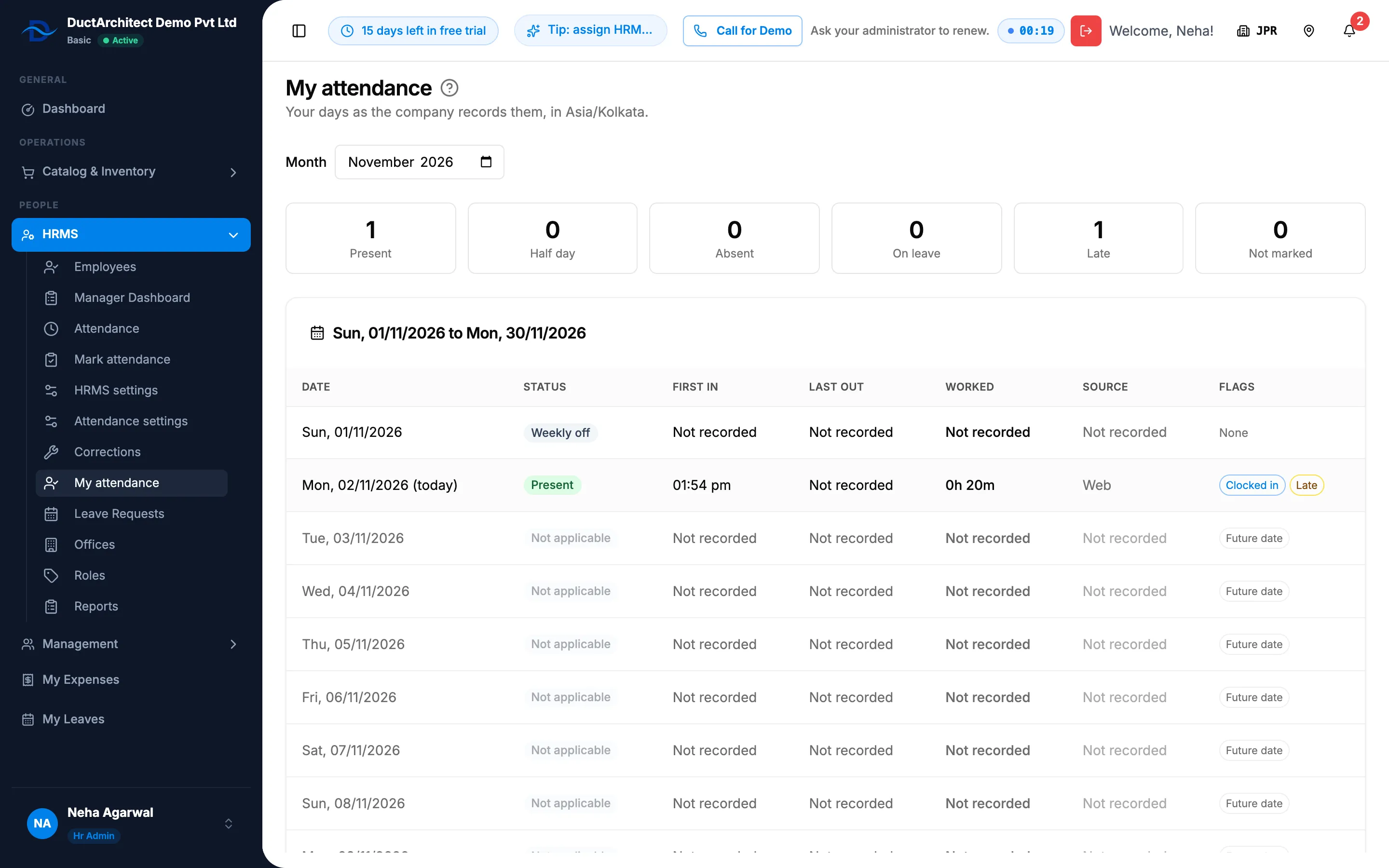
Step 1. My attendance with the month picker, the six counts and the day table. -
In Month, choose the month.
-
Read the counts Present, Half day, Absent, On leave, Late and Not marked.
-
Read the day table: Date (today marked "(today)"), Status, First in, Last out, Worked, Source and Flags. Times are in your company's time zone.
Result
Each clock in and clock out is recorded as a session. Today's row reads Present with the flag "Clocked in" while you are clocked in. Once the day has ended, it shows your first in, last out and worked time, and "Late" if you clocked in after the working day start plus the grace. For what each status and flag means, see How an attendance day gets its status.
If something is different
- No Clock In in the header: HRMS is not available or is switched off for your company. See HRMS or My Leaves is missing from the menu.
- A grey pill says "Clock in from the mobile app.": your company holds field staff to the mobile app. Clock in there. See An employee shows Absent or Not marked, or cannot clock in on the web.
- No My attendance in the sidebar: the item needs HRMS Management, although the page itself opens for everyone who signs in. Ask your Owner or Admin. See An HRMS page says only administrators can use it, or that I need a right.
- "Set your timezone to start using attendance": see Attendance says "Set your timezone to start using attendance".
- You forgot to clock out: the day shows "Missing clock out". Ask HR to record a correction. See Correct an attendance day.
- The month picker starts on another month: it starts on your computer's month, not your company's. Choose the month you want.
- "Your attendance could not be loaded" or "No days in this month": reload the page, or choose another month.