
Before you start
- You are the Owner, an Admin or HR. Other roles are sent to Access Denied, whatever their permissions.
- You need HRMS Management, Add on Employees to add an office and Edit on Employees to edit or delete one. HR has them by default.
Steps
Add an office
-
In the sidebar, select HRMS › Offices. "Offices / Branches" opens: "Manage office locations used to validate employee attendance check-ins."
-
Select Add Office. The box says "Pick a location on the map or enter coordinates manually. Lat/long are optional."
-
Fill in the office.
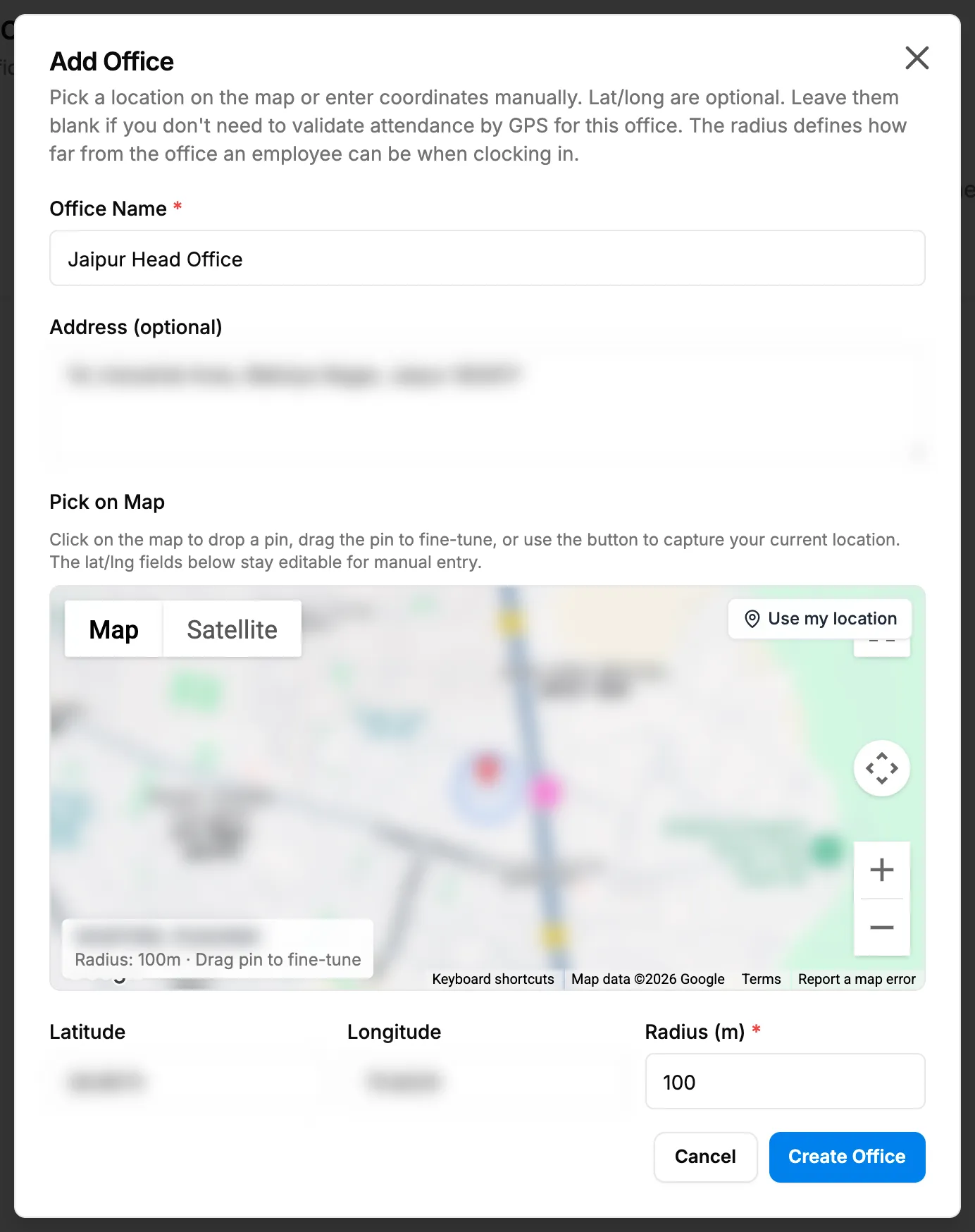
Step 3. The Add Office box with the map picker, Latitude, Longitude and Radius. Field Required What to enter Office Name Yes For example Head Office or Mumbai Branch. Must not match another office. Address (optional) No Filled from the map when you pick a place. You can change it. Pick on Map No Click the map to drop a pin, drag it to fine-tune, or use the button to capture your current location. Latitude No From -90 to 90. Give both latitude and longitude, or neither. Longitude No From -180 to 180. Radius (m) Yes From 10 to 100000 metres. Starts at 100. -
Select Create Office.
Edit an office
- On the office's row, select the pencil icon (Edit).
- Change the fields, then select Update Office.
Delete an office
- On the office's row, select the bin icon (Delete). The box "Delete Office" says "Delete [name]? Employees currently assigned to this office will be unassigned. The office is removed from the list; the record is kept."
- Select Delete.
Result
- Added or edited: the message "Office created" or "Office updated" shows. The office is in All Offices with its Name, Address, Coordinates and Radius (m). It is offered in the employee's Office / Branch. See Change the office.
- Deleted: the message "Office deleted" shows. The office leaves the list and goes to the Recycle bin, and its employees have no office.
If something is different
- No Offices in the sidebar, or Access Denied: you are not the Owner, an Admin or HR.
- "An office with this name already exists", or a deleted office of that name is in the Recycle Bin: choose another name, or restore the deleted office. A deleted office's name stays taken until it is removed from the Recycle bin. See Recycle bin: restore records and set retention.
- "Provide both latitude and longitude, or leave both empty", "Latitude must be between -90 and 90" or "Radius must be between 10 and 100000 meters": correct the location.
- No coordinates: the employee form says "No GPS coordinates: attendance location validation is skipped for this office."
- The radius does not stop clock ins from elsewhere: the screens say offices validate check-ins, but no check is made today. See Employees can clock in away from their office.