
Before you start
- You need HRMS Management to open Leave Requests. HR has it by default.
- To decide the open step:
- the first step ("Reporting manager"): you are the employee's reporting manager, or you have Can approve leave (first step, or the only step);
- the final step ("Final approval"): you have Can give final approval of leave;
- one-step approval ("Leave approver"): you have Can approve leave (first step, or the only step).
- HR has both leave rights by default; Owner and Admin pass every check.
Steps
Find an application
- In the sidebar, select HRMS › Leave Requests. The page says "Leave applications to decide and follow. Your own leave is on My Leaves."
- Read the cards Waiting, Approved, Rejected and Cancelled.
- Narrow the Applications list with the stage (Every stage, Submitted, Manager approved, Approved, Rejected, Cancelled), the employee, the leave type, and the from and to days.
- Read Employee (name and code), Leave type, Dates, Days ("Half day" or a number), Stage, Applied and Action.
To download the list, select the Excel or PDF export. The file "Leave-Requests" downloads with the same filters.
Open and decide
-
On the application's row, select Open. The box "[first name] [last name]: [leave type]" shows Dates:, Reason:, Stage: and the approval panel.
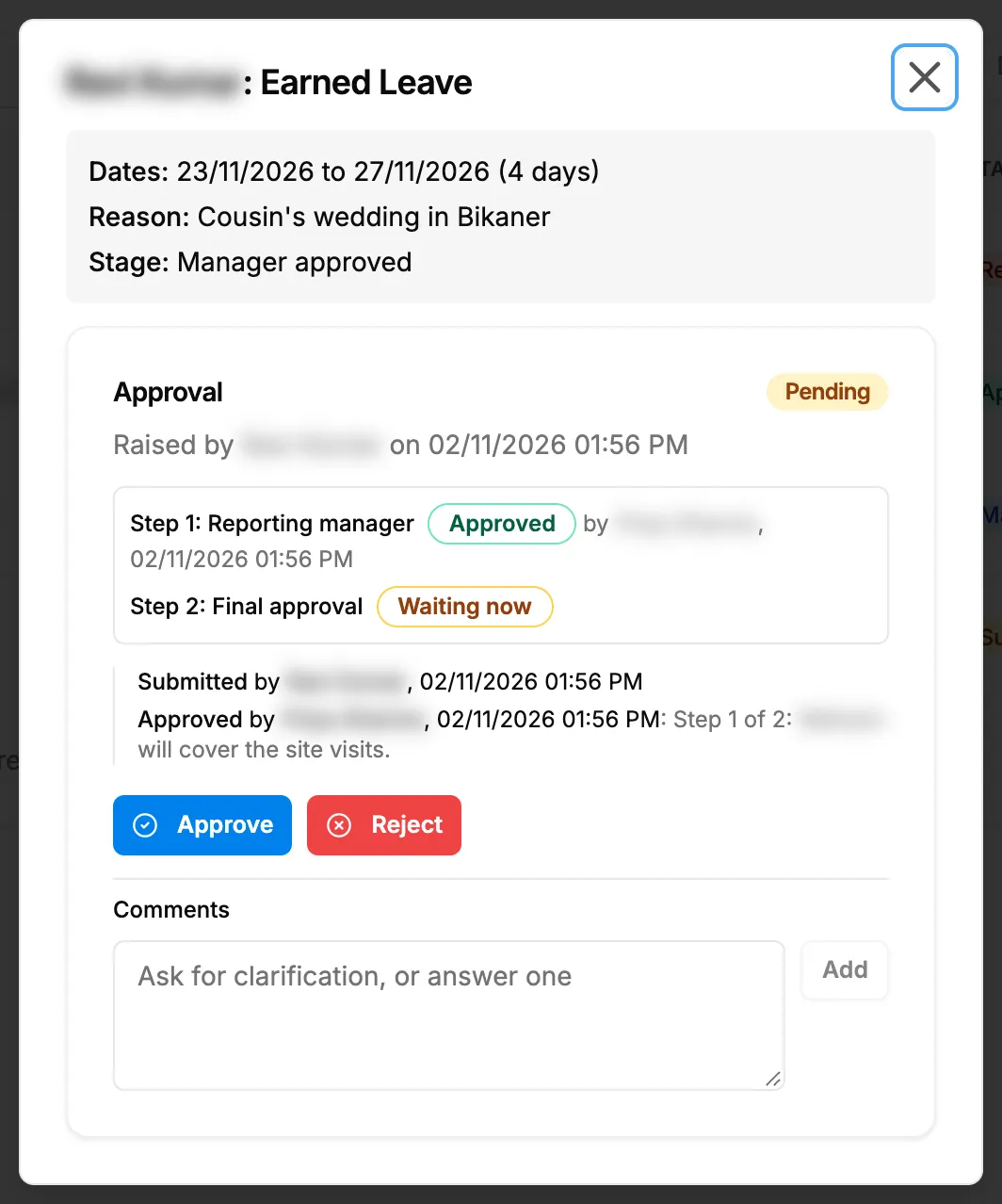
Step 1. The leave application box with the approval panel, its steps and Approve and Reject. -
Read the steps, for example "Reporting manager" approved and "Final approval" waiting now.
-
To ask a question first, type it under Comments ("Ask for clarification, or answer one") and select Add. The stage does not change.
-
To approve, select Approve. The box says "An optional note goes to the person who raised it." Type in Note (optional) if you want, and select Approve. See Approve.
-
To reject, select Reject. The box says "Say why. The person who raised it will see the reason." Type the reason in Reason, add a Note (optional) if you want, and select Reject. See Reject.
Result
- First step approved, final step open: "Approved by the manager; waiting for final approval". The stage reads Manager approved.
- Last step approved: "Leave application approved". The stage reads Approved, the days come off the balance and attendance reads On leave on those days.
- Rejected: the stage reads Rejected and the employee sees your reason on My Leaves.
Next: Set or revise an employee's salary structure.
If something is different
- "This application has no approval request yet.": it has no chain to decide. Submit a request with the employee and dates.
- No Approve or Reject, or "This step is waiting for someone else.": the open step is not yours. See I can't approve, reject or cancel a leave.
- The list shows only your own and your team's leave: seeing everyone's leave needs Can see everyone's leave or a leave approval right.
- The approval is refused because of the balance: see My leave balance shows Not set or the wrong number of days.
- The leave is approved and must be undone before it starts: see Cancel an employee's approved leave.
- You prefer the team view: the Manager Dashboard lists the same pending leave. See Use the Manager Dashboard: today's team and pending leave. The Approvals page also has a Leave applications filter. See Decide an approval request.