
Before you start
- You need Can change HRMS settings, and you are the Owner, an Admin or HR. HR has the right by default.
- The Owner or an Admin has set and confirmed your company's time zone. See Change your company's time zone.
The sections Weekly offs and working hours and Attendance marking and clock in on Settings › HRMS save the same settings. See Walk through HRMS setup.
Steps
-
In the sidebar, select HRMS › Attendance settings, or Settings on the Attendance page. "Attendance settings" opens.
-
Check the time zone line: "Timezone confirmed: [zone], on [time]." If it says the zone is not confirmed, or "No time zone is set for the company. Set it in Settings, Time zone.", ask the Owner or an Admin first.
-
In the Working day card, fill in the settings.
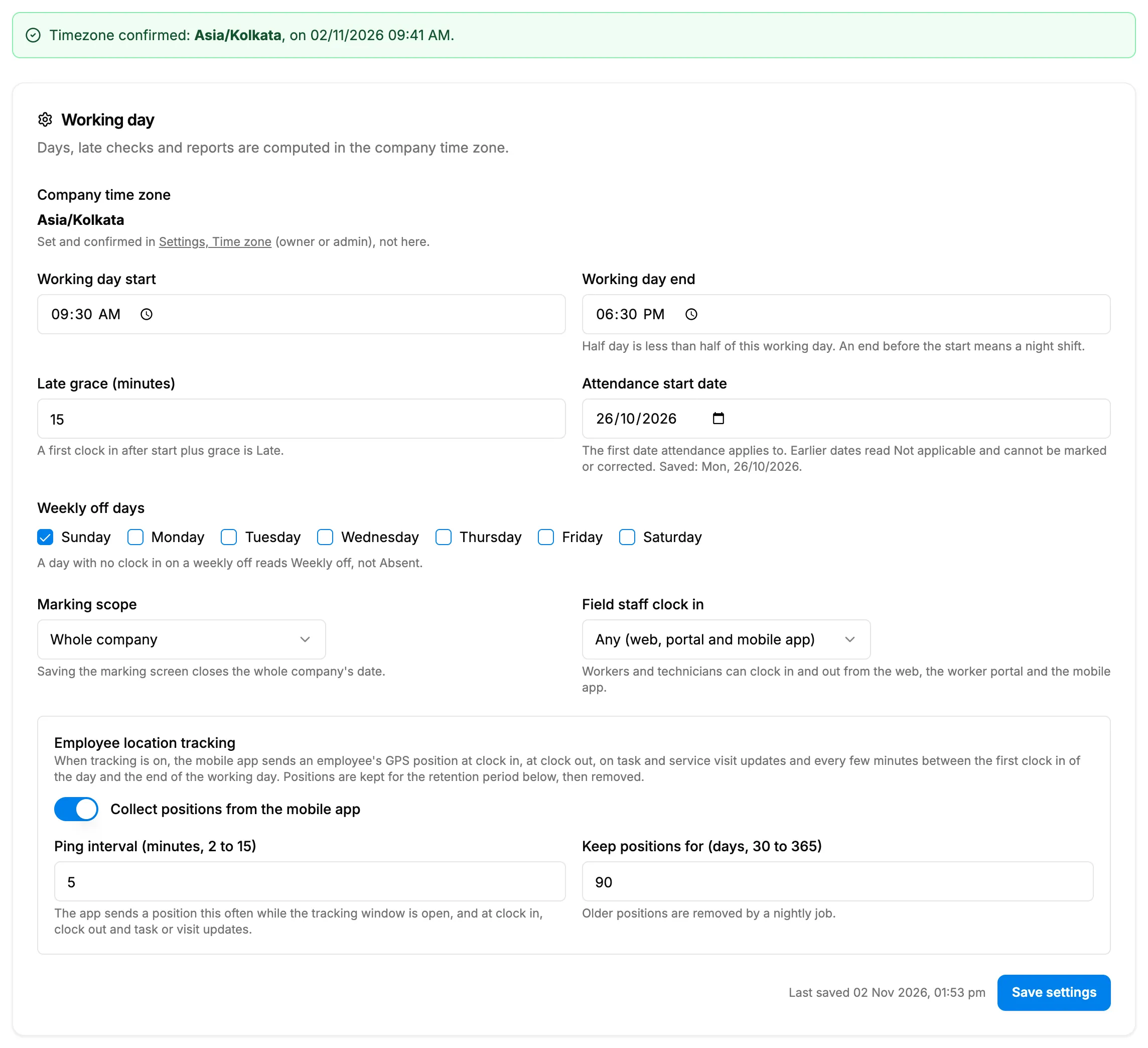
Step 3. The Working day card with the working day, weekly offs, marking scope and location tracking. Field Required What to enter Company time zone No Read only. "Set and confirmed in Settings, Time zone (owner or admin), not here." Working day start Yes HH:MM. Starts at 09:30. Working day end Yes Starts at 18:30. "Half day is less than half of this working day. An end before the start means a night shift." Late grace (minutes) Yes 0 to 240. Starts at 15. "A first clock in after start plus grace is Late." Attendance start date Yes A date. "Earlier dates read Not applicable and cannot be marked or corrected." Weekly off days No Tick Sunday to Saturday. Starts on Sunday. At least one day must be a working day. Marking scope Yes Whole company, or By office: the supervisor picks an office and saves one office at a time. Field staff clock in Yes Any (web, portal and mobile app), or Mobile app only for workers and technicians. -
Select Save settings. The first time, the button reads Confirm timezone and save.
Turn location tracking on or off
- Under Employee location tracking, turn Collect positions from the mobile app on or off.
- With it on, set Ping interval (minutes, 2 to 15) (starts at 5) and Keep positions for (days, 30 to 365) (starts at 90). "Older positions are removed by a nightly job."
- Select Save settings.
Result
The message "Attendance settings saved" shows, with "Last saved [time]". "Attendance runs in [timezone]. Every day, late check and report uses these settings." See How an attendance day gets its status.
With location tracking off, Employee Locations warns "Location tracking is switched off in Attendance settings: no new positions arrive." See See where employees were last seen, their trail and distance.
The Holidays card under Working day on this page adds and removes holidays. See Add, copy or remove holidays.
If something is different
- "Only administrators can change attendance settings": the form shows only to the Owner, Admin and HR roles. See An HRMS page says only administrators can use it, or that I need a right.
- "You do not have the right to change HRMS settings." when you save: you do not have Can change HRMS settings.
- "Confirm the company time zone in Settings, Time zone, first": see Attendance says "Set your timezone to start using attendance".
- "At least one day must be a working day": untick at least one weekly off.
- "Late grace must be a whole number of minutes from 0 to 240.", "Working day end must differ from its start." or another value message: correct the value.
- The hint under Attendance start date says "Defaults to today in the chosen timezone.": the time zone is not chosen on this page any more; it is read from Settings.
- Shift Start and Shift End on the employee are different: attendance does not use them. Late is worked out from this working day.