
Before you start
- You need HRMS Management, Can change HRMS settings and Can manage holidays. HR has all three by default.
- HRMS is available for your company. Otherwise the Data Import cards read "Coming soon".
- The Owner or an Admin has confirmed your company's time zone. See Confirm your company's time zone.
Steps
-
Select your name at the bottom of the sidebar, then select Data Import.
-
On the HRMS setup card ("Your working week, leave year, leave types, holidays and who approves leave. Each starts from a template; save or confirm each one."), select Open HRMS setup or Review HRMS setup. You can also select Walk through HRMS setup on Settings › HRMS.
-
"HRMS setup" opens with the step bar 1. Weekly offs and working hours, 2. Leave year, 3. Leave types, 4. Holidays, 5. Leave approval and Done. A saved step has a tick.
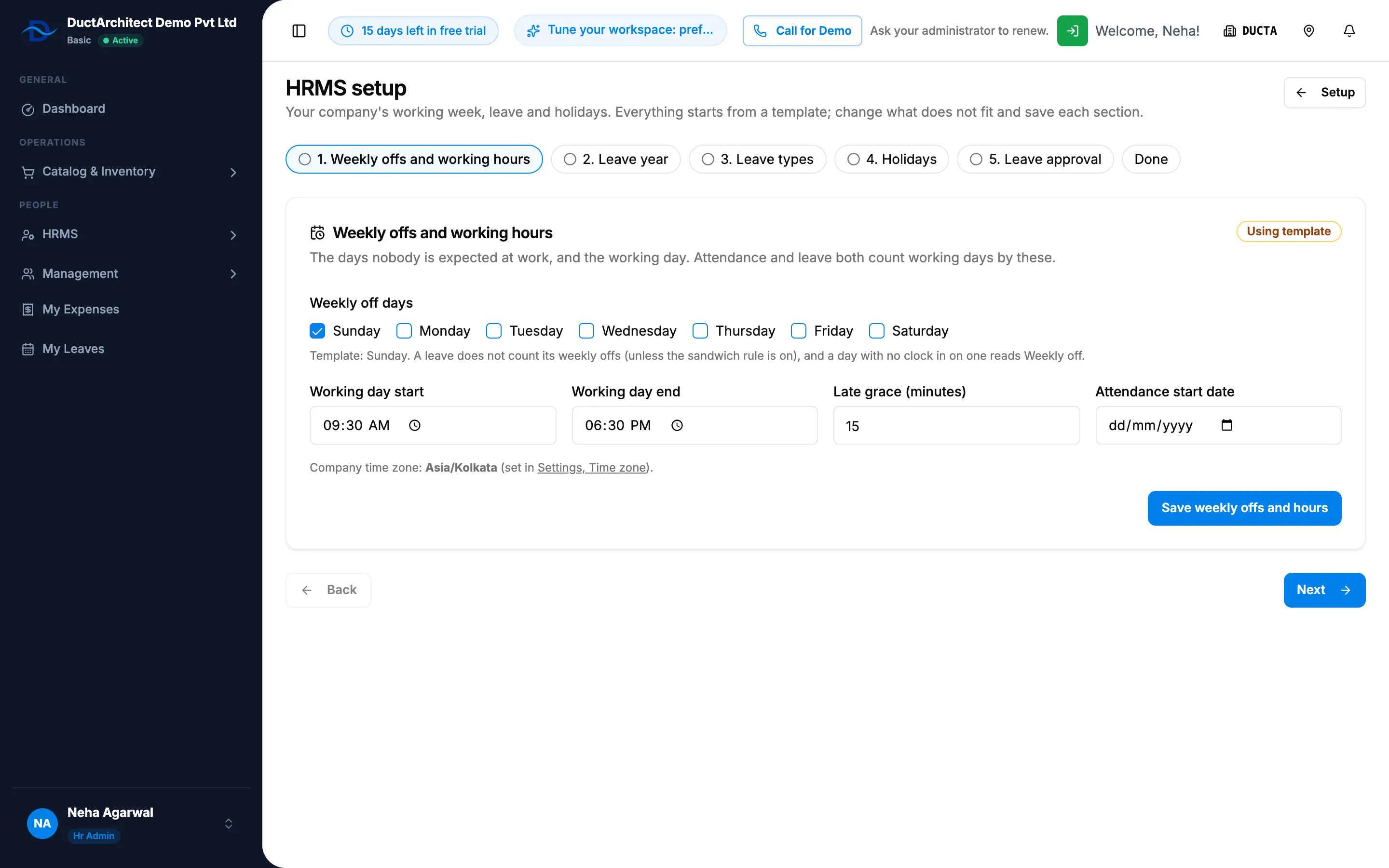
Step 3. HRMS setup with the step bar and the Weekly offs and working hours step. -
In Weekly offs and working hours, check Weekly off days, Working day start, Working day end, Late grace (minutes) and Attendance start date. Select Save weekly offs and hours, then Next. See Set the working day, weekly offs and attendance rules.
-
In Leave year, choose Leave year starts in. Select Save leave year, then Next. See Set the leave year and open the next one.
-
In Leave types, check the template types and change them as you need. Select Confirm leave types, then Next. See Set up leave types.
-
In Holidays, add your country's template holidays and check their dates. Select Confirm holidays, then Next. See Add, copy or remove holidays.
-
In Leave approval, choose Reporting manager, then HR or One step (anyone who can approve leave). Select Save approval. See Choose how leave is approved and counted.
-
Select Done.
Result
The Done step says "HRMS setup is complete." and "Change any of it later in Settings, HRMS." The HRMS setup card on Data Import shows Done, and Settings › HRMS stops showing "Setup: [saved] of [total] sections saved."
Next: Add an employee.
If something is different
- "Still on the template: [sections].": "Save or confirm each of them once; the setup page counts this step only then." Go back to each named step and save it, even if you keep the template.
- "The HRMS setup needs the rights to change HRMS settings and to manage holidays.": you need both rights. See An HRMS page says only administrators can use it, or that I need a right.
- The HRMS setup card says "Coming soon", or there is no card: HRMS is not available for your company yet. See HRMS or My Leaves is missing from the menu.
- Save weekly offs and hours is greyed out: the company time zone is not valid. See Attendance says "Set your timezone to start using attendance".
- Settings › HRMS has two more sections: Leave rules and Attendance marking and clock in are not in the walkthrough. See Set the leave rules and Set the working day, weekly offs and attendance rules.