
Before you start
- You are the Owner, an Admin or HR, with Edit on Employees.
- To give a login: the employee has none yet (their row shows "No login"), they are working, and your plan has a free seat.
- To remove a login: it is not your own, not the Owner's, and not the company's last administrator.
Steps
Give a login
-
In the sidebar, select HRMS › Employees.
-
On the employee's row, open the menu and select Give login. The box "Give login" says "[name] will sign in on the web and in the app with this email and password. A login takes one paid seat."
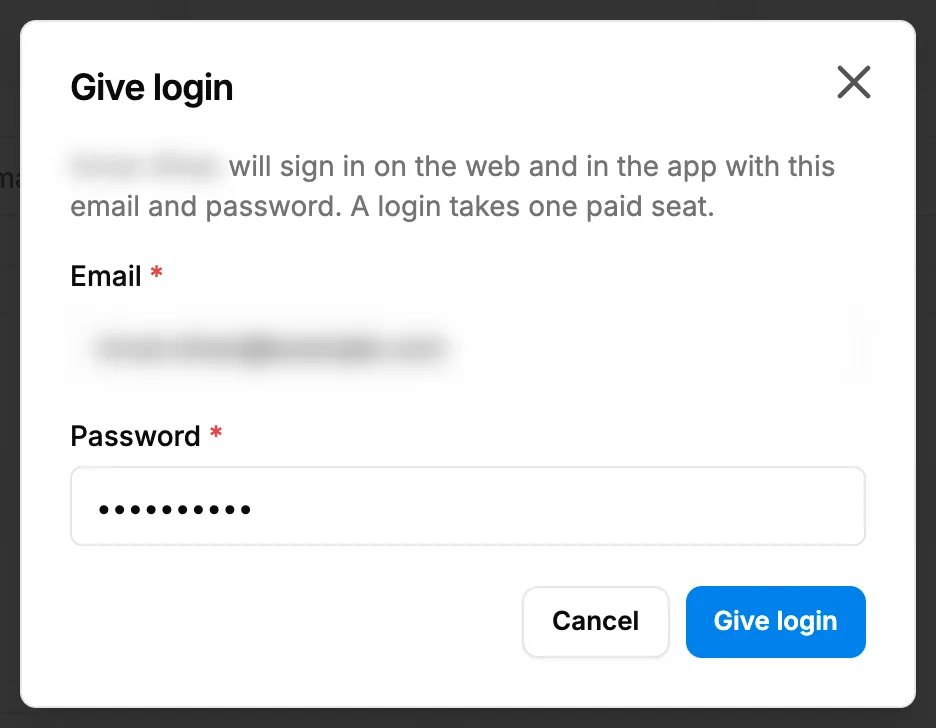
Step 2. The Give login box with Email and Password. -
In Email, type the sign-in email, for example name@company.com.
-
In Password, type at least 8 characters.
-
Select Give login.
Remove a login
- On the employee's row, open the menu and select Remove login. The box "Remove login" says "[name] will be signed out on the web and in the app and will no longer take a seat. Their HRMS record, attendance and payslips stay."
- Select Confirm.
Result
Give login: the message "Login given" shows and the "No login" badge goes. The person signs in with the email and password and takes one seat. See Sign in.
Remove login: the message "Login removed" shows. The person is signed out at once on the web and in the app, the seat is freed, and the row shows "No login". The employee's status does not change.
If something is different
- No Give login or Remove login on the row: you are not the Owner, an Admin or HR, or you do not have Edit on Employees. Give login shows only for an employee with no login.
- "Add an email to give this employee a login." or "Set a password of at least 8 characters": fill in both fields.
- "Seat limit reached", "Email already in use", "This employee already has a login" or "This employee no longer works here. Bring them back (set a working status) before giving a login.": see Add Employee or Give login is refused.
- "You cannot remove your own login.", "The owner's login cannot be removed" or the last administrator message: ask another administrator, or make someone else an administrator first.
- The person forgot the password: see Reset or change a user's password.
- The person has left: change their status instead. See Change an employee's status, or bring a former employee back.