
Before you start
- You need Attendance Marking. HR has it by default; Owner and Admin always pass. The sidebar item also needs HRMS Management.
- Your company's time zone is confirmed.
- The date is between your attendance start date and today.
- Your company marks either for the whole company or by office (Marking scope in the attendance settings). See Set the working day, weekly offs and attendance rules.
Steps
-
In the sidebar, select HRMS › Mark attendance, or Mark attendance on the Attendance page. The page says "For employees who did not clock in. Saving closes the date for the whole company: everyone left Absent reads Absent." (by office: "for the chosen office only").
-
Choose the Date, or select Today.
-
If your company marks by office, choose the Office. Until you do: "This company marks attendance by office. Choose an office to see its employees."
-
Check the badge: "Not saved yet for this date", or "Marking done [time] by [name]".
-
In the card "To mark, [date]", narrow the list with Department or Office if you need to. "Filters only change what is listed. Save writes every employee above, filtered or not."
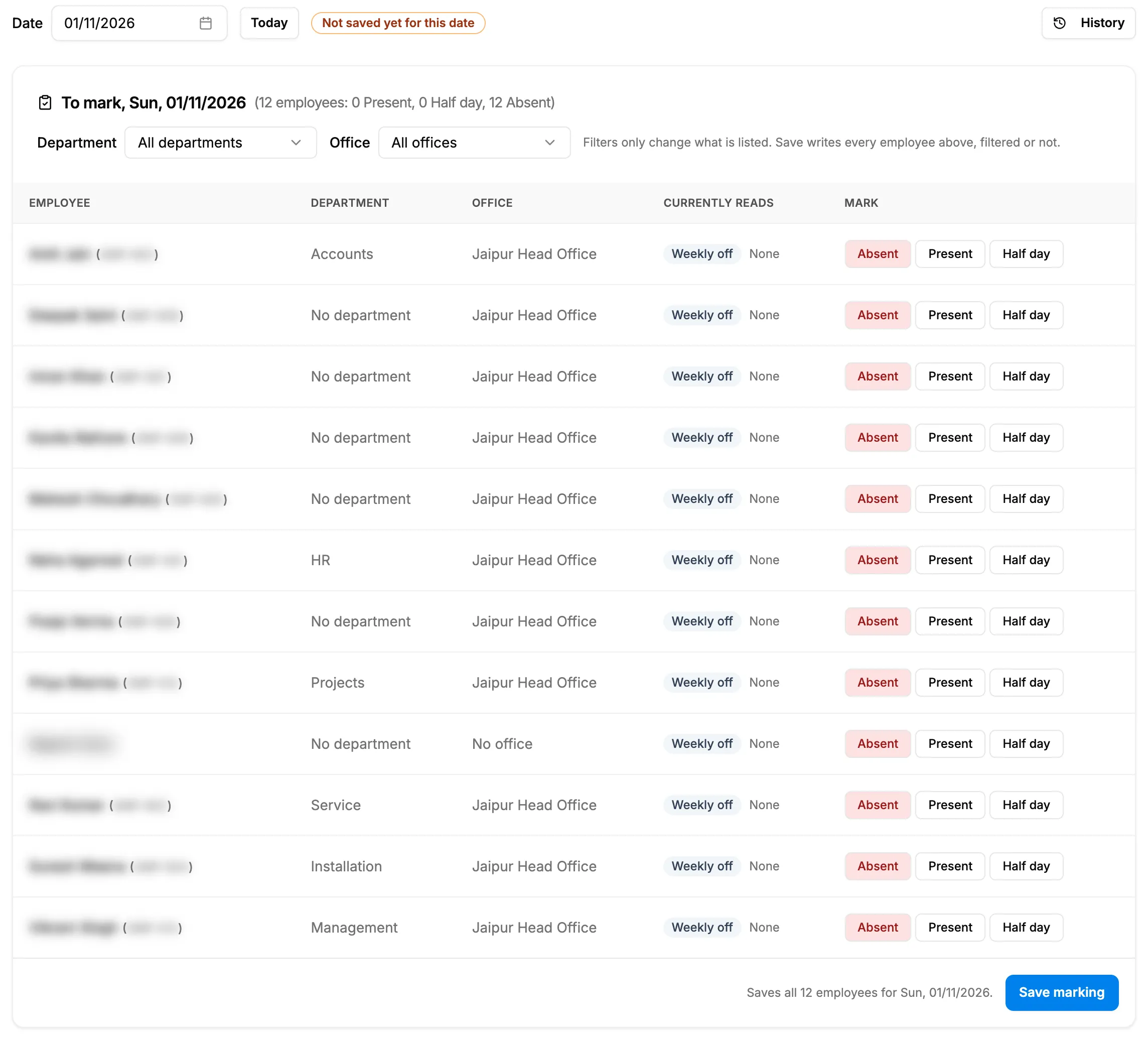
Step 5. The To mark card with the Absent, Present and Half day toggles and Save marking. -
For each employee who worked, set Mark to Present or Half day. Everyone starts as Absent, or as their saved mark. Currently reads shows their day now.
-
Read the footer "Saves all [number] employees for [date]." and select Save marking.
The card Clocked in lists people who clocked in that day: "read only: the session is the record". To change their times, use Correct. See Correct an attendance day.
See who changed a mark
- Select History. "Marking history" shows "Who changed what for [date], newest first.", with When, Employee, Change and By.
Result
The message "Saved: [number] mark(s) changed. Everyone else is Absent for [date]." shows (or "Saved. Everyone else unmarked is Absent for [date]."). The badge reads "Marking done [time] by [name]". Marked employees read Present or Half day with "Marked by supervisor"; everyone left unmarked reads Absent. You can change a mark later and save again.
Next: Decide a leave request on Leave Requests.
If something is different
- "You do not have the marking permission": ask for Attendance Marking.
- You have Attendance Marking but no menu item: the item also needs HRMS Management. See An HRMS page says only administrators can use it, or that I need a right.
- A mark is refused ("[name] clocked in that day; use a correction instead of a mark.", a future date, a date before the start, an employee who joined later or is not in the office): see Marking or a correction is refused.
- "Everyone clocked in, is on leave, or the day does not apply": nobody is left to mark for this date.
- "Marking done for the whole company (closed before the switch to by-office marking)": the date was saved before your company moved to marking by office.
- "Set your timezone to start using attendance": see Attendance says "Set your timezone to start using attendance".
- "The marking screen could not be loaded for this date": reload the page or choose another date.