
Before you start
- You need HRMS Management and Edit on Employees. HR has both by default.
- You cannot change your own status, and the company's last active administrator or owner cannot stop working.
- To bring someone back: your company has room in its employee limit and, for an employee with a login, a free seat.
For what each status does, see How an employee moves between working and not working.
Steps
Set an employee On Leave, Inactive or Resigned
- In the sidebar, select HRMS › Employees.
- On the employee's row, open the menu and select Edit.
- In Employee Status, choose On Leave, Inactive or Resigned.
- Select Update Employee.
To stop someone working today, you can also use Deactivate on the row: it sets them Inactive with today as the last working day. See I can't deactivate or delete a user.
Set a former employee's last working day
-
On the row of an Inactive or Resigned employee, open the menu and select Edit. The box says "[name] no longer works here: the record is read-only. You can set their last working day, or bring them back by choosing a working status."
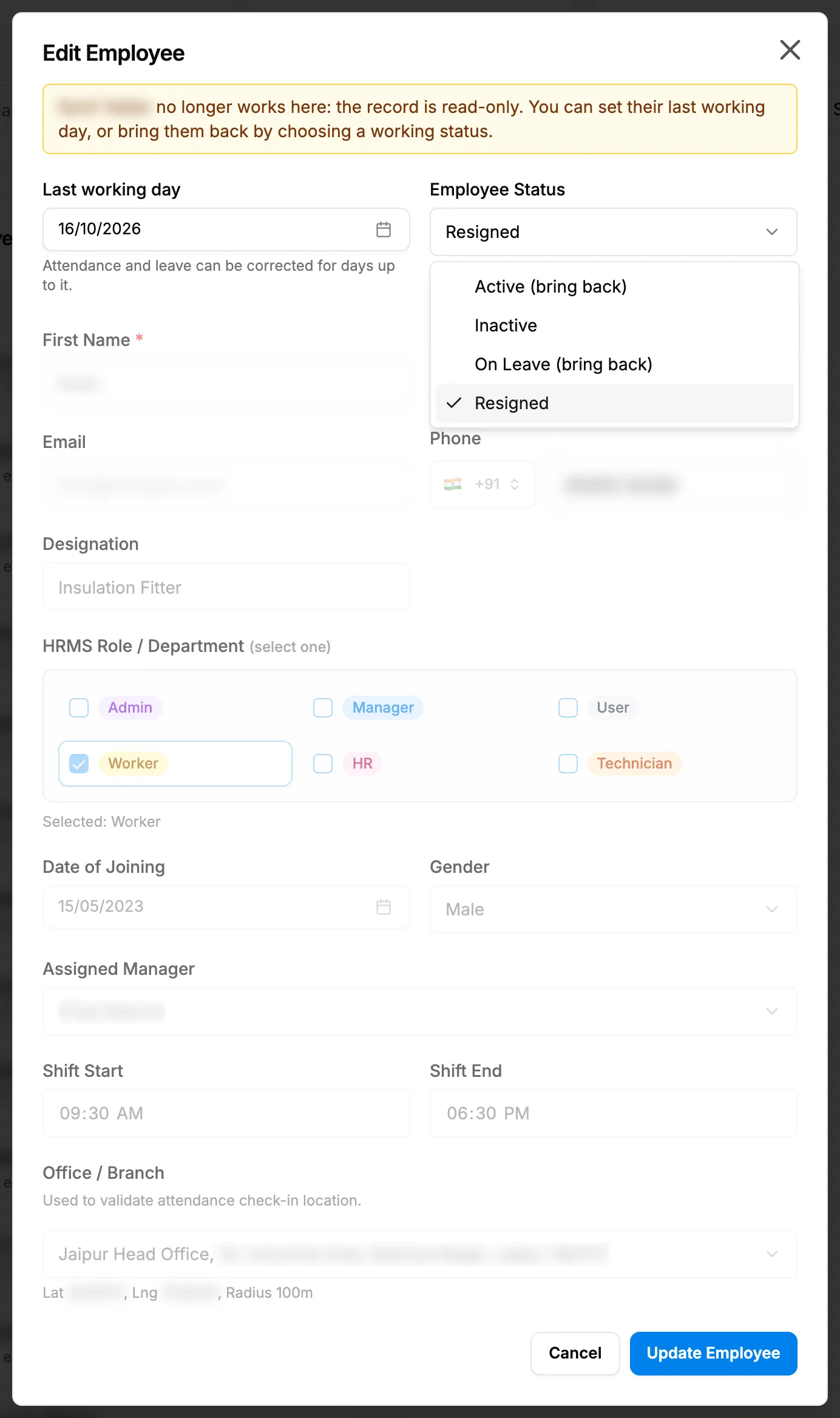
Step 1. Edit Employee for a former employee, with Last working day and Employee Status. -
In Last working day, choose the date, up to today. "Attendance and leave can be corrected for days up to it."
-
Select Update Employee.
Bring an employee back
- On the row of an Inactive or Resigned employee, open the menu and select Activate. The box "Activate Employee" asks "Activate [name] and restore their system access?"
- Select Confirm.
Or select Edit and choose Active (bring back) or On Leave (bring back) in Employee Status, then Update Employee.
Result
- On Leave: the message "Employee updated" shows and the row shows On Leave. The employee is still working.
- Inactive or Resigned: the row shows Inactive or Resigned. The person is signed out everywhere, their seat is freed, and they cannot be given new work. Attendance days after the last working day read Not applicable.
- Brought back: the message "Employee activated" (or "Employee updated") shows, with Active. The last working day is cleared and the employee gets this leave year's missing leave balances. With a login, they can sign in again.
Next: Give or remove an employee's login, if a returning employee needs a login.
If something is different
- "You cannot deactivate your own account.": ask another administrator.
- "This is the last active administrator of the company. Make someone else an administrator before deactivating, deleting or removing the login of this account.": give another person the Admin role first.
- "Seat limit reached" or the employee limit when bringing someone back: see Add Employee or Give login is refused.
- "The last working day cannot be before the joining day ([date])." or "The last working day cannot be after today.": choose another date.
- "Only the status and the last working day can change.": the record is read only while the employee is not working. Bring them back first. See An employee's record is read only, or a change is refused.
- An employee on approved leave still shows Active: approved leave does not change the status. Set On Leave by hand if you want it shown.