
Before you start
- You need Can change HRMS settings. HR has it by default.
- Your leave types are set up. Only a paid type with a yearly limit keeps a balance. See Set up leave types.
- The employee is working. A former employee's balance cannot be changed.
For how balances are given and used, see How leave balances are given, used and carried forward.
Steps
- In the sidebar, select HRMS › Leave Requests.
- Select Manage Balances. The box "Manage leave balances" says "Every working employee gets this leave year's balance of each paid leave type with a yearly limit when they join and when a type is added. Fill the ones still missing:".
Fill missing balances
- Select Fill missing balances.
Set one employee's balance
-
Under Set one employee's balance, fill in the balance.
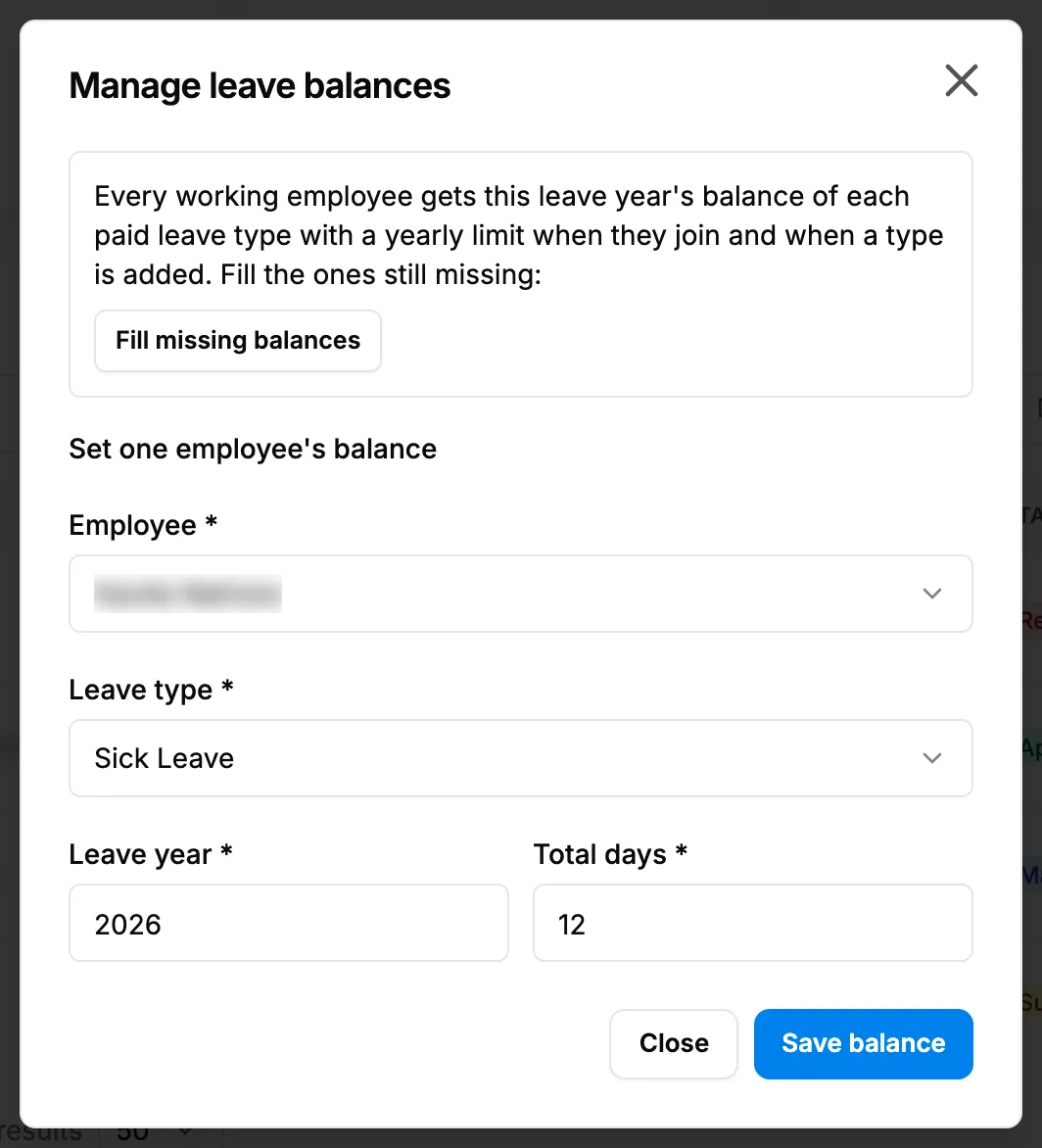
Step 1. The Manage leave balances box with Fill missing balances and Set one employee's balance. Field Required What to enter Employee Yes The employee. Leave type Yes The leave type. Leave year Yes A number. Starts on the current leave year. Total days Yes The days for the year, in steps of 0.5. For example 12. -
Select Save balance.
-
Select Close when you are done.
Result
- Fill missing balances: "[number] missing balance(s) created for [year].", or "Every employee already has a balance for [year]."
- Save balance: "Balance updated". The employee's card on My Leaves shows the new days, less any pending leave.
If something is different
- No Manage Balances button: you do not have Can change HRMS settings.
- "Employee, leave type, leave year and total days are required": fill in every field.
- The employee is not working: "[name] is inactive and cannot be given new work. Reactivate the employee first." See Change an employee's status, or bring a former employee back.
- An unpaid type or a type with no limit has no balance: that is expected; they read "Unpaid" or "No limit".
- Next year's balances: see Set the leave year and open the next one.