
Before you start
- You need HRMS Management and View on Employees. By default HR has both; Owner and Admin always pass.
- To export, you also need Can export lists.
Steps
Find an employee
-
In the sidebar, select HRMS › Employees. Under the title, the page shows "[count] of [limit] employees", or "[count] employee(s)" when your plan has no limit.
-
Read the cards Total, Active, On Leave and Inactive. They count every employee that the filters match.
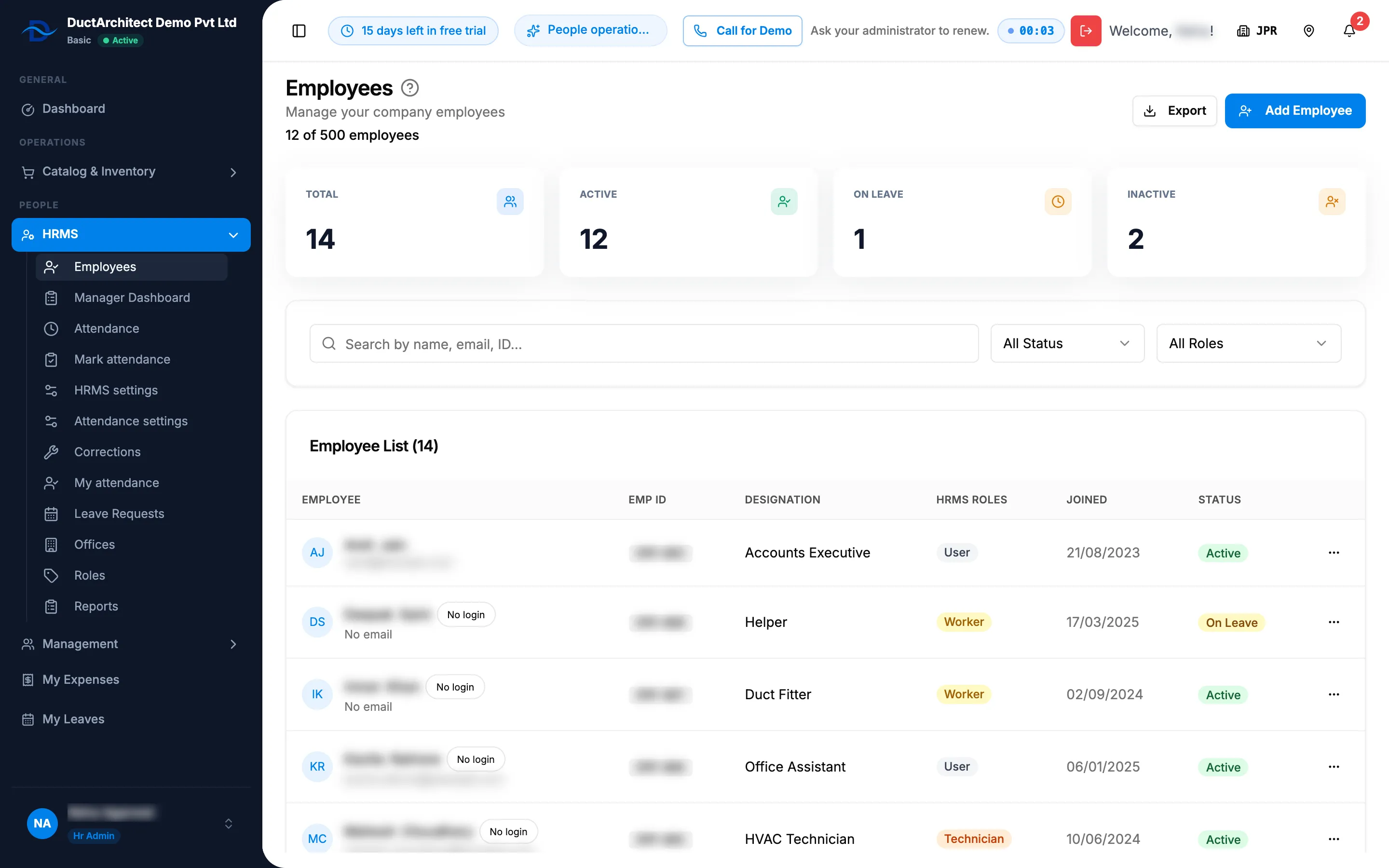
Step 2. The Employees page with the four cards, the filters and the Employee List. -
In Search by name, email, ID..., type part of a name, an email or an employee code.
-
To narrow the list, choose a status (All Status, Active, On Leave, Inactive, Resigned) or a role (All Roles, then each role by name).
-
Read the Employee List ([total]): Employee (with "No login" when the employee has no sign-in), Emp ID, Designation, HRMS Roles, Joined, Status, and the row menu.
The list always includes former employees. Choose Active to hide them.
Export the list
- Set the filters you want.
- Select the Excel or PDF export. The file "Employees" downloads with the columns Employee, Emp ID, Designation, HRMS Roles, Joined and Status, for the same filters.
Result
The list shows the employees that match, page by page. From the row menu you can edit, deactivate, activate, give or remove a login, or delete. See Edit an employee: details, role, reporting manager and office.
If something is different
- "No employees found": clear the search and set the filters to All Status and All Roles.
- No export buttons: you do not have Can export lists. See Restrict what a role can see and export.
- Resigned employees are not in the cards: there is no Resigned card. Choose Resigned in the status filter.
- No HRMS group or no Employees in the sidebar: see HRMS or My Leaves is missing from the menu.