
Before you start
- You need View on Approvals, and the right to decide the request's subject:
- a material request: one of Inventory Management, Project Management or Operation Management, and Approve on Material requests;
- an employee expense claim: Employee Expenses and Approve on Expense claims;
- a leave application: the leave approval rights of HRMS. See Decide a leave request on Leave Requests.
- The Approvals module is on for your company.
- The request is Pending, its open step is yours, and you did not raise it (unless your company's rule allows self-approval).
- Use the office app: "Decisions are made in the office app."
Steps
Open the request
-
In the sidebar, select Approvals. Its badge shows how many requests wait for you. "Approvals" opens: "Decide what people submit, and follow what you raised."
-
On the To approve tab, the status filter starts on Pending. To see one kind of request, choose it in the type filter: All types, Material requests, Employee expense claims or Leave applications. The newest requests are first.
-
On the request's row, select Decide. Its Approval card opens in the right column, beside the list. Until you pick a request, that column reads "Pick a request to see its trail and decide."
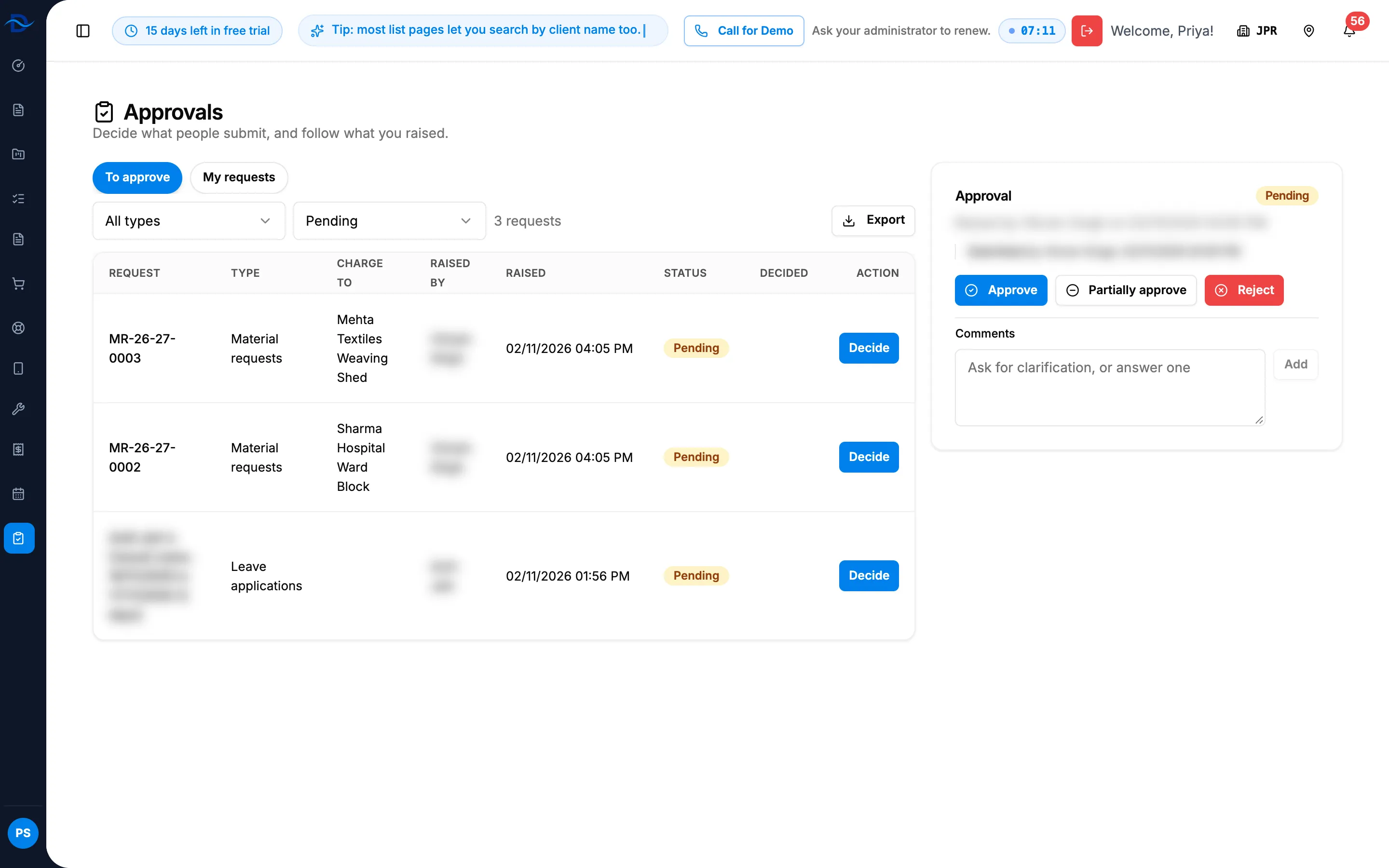
Step 3. The Approvals page, To approve tab, with a request's Approval card open and its buttons. -
Read the card: "Raised by [name] on [date and time]", any note, the steps and the trail, oldest first ("Submitted by [name]", then "Approved by [name]"). To see the material request, claim or leave itself, select its link in the Request column.
You can also decide from the Approval card on the subject's own page, such as a material request's page or a to-do's Material requests drawer.
Ask a question first
- Under Comments ("Ask for clarification, or answer one"), type your question.
- Select Add. The message "Comment added" shows, and the person who raised it is told.
Approve
- Select Approve. The box "Approve" opens: "An optional note goes to the person who raised it."
- In Note (optional), add anything the requester should know.
- For an expense claim paid by company card, choose Paid from: the bank or cash account it was paid from.
- Select Approve.
Approve part of a material request
- Select Partially approve. The box "Partially approve" opens: "Set the approved quantity on each line; a cut line needs a reason."
- On each line, set the approved quantity. It starts at the requested quantity and can go from 0 up to it.
- On each line you cut, fill in Reason if cut.
- Add a Note (optional) if you want.
- Select Approve the lines.
Reject
- Select Reject. The box "Reject" opens: "Say why. The person who raised it will see the reason."
- In Reason, say why ("Why this is rejected"). Up to 500 characters.
- Select Reject.
To close any of these boxes without deciding, select Cancel.
Export the list
- Set the tab and filters you want.
- Select Export, then Excel or PDF. The file is named Approvals-Pending from To approve, or Approvals-Mine from My requests.
Result
The message shows the decision: "Request approved", "Request partially approved" or "Request rejected". For a company card expense claim: "Approved and paid by company card". The person who raised it is told, and the Decided column reads "[date and time], [name]".
For a material request:
| You chose | Request | Lines |
|---|---|---|
| Approve | Approved | Every line approved in full. |
| Partially approve | Partially approved | Each line Approved, Partially approved (with your reason) or Rejected (0). |
| Reject | Rejected | Every line set to 0. |
Next, for an approved material request: Issue stock or raise a purchase order against a request line.
When a request has more than one step, such as a leave application with a reporting manager and a final approval, approving your step opens the next one. The message then reads "Request pending", and the request stays Pending until the last step is decided.
If something is different
- No Approvals in the sidebar: see Material Requests or Approvals is missing.
- The row says Open, not Decide, or the card says "Waiting for a decision.": you cannot decide this request. See I can't approve a request, or it is not on my To approve list.
- "You cannot approve your own request.", "This request has already been decided." or "This step is waiting for someone else.": see I can't approve a request, or it is not on my To approve list.
- No Partially approve button, or it is refused: see Partially approve is missing or refused.
- "A rejection reason is required.": fill in Reason.
- "Choose the account this company card claim was paid from.": choose Paid from before you approve.
- "Nothing is waiting for your decision.": nothing is pending for you. Requests decided earlier show when you set the status filter to another status.
- The Request column says "(removed)": the material request, claim or leave it was for has been deleted.
- A task approval is not in the type filter: the filter has no Tasks option. Choose All types.
- Want to send it back for changes: there is no send back. Ask in Comments, or reject it with the reason. See How an approval request moves from Pending to a decision.