
Before you start
- You need one of Inventory Management, Project Management or Operation Management, and Add on Material requests. Your company's plan is active.
- The Material Requests module is on for your company. See Switch a module on or off.
- The project exists. To compare the lines with what was quoted, the project has an accepted quotation.
- The items are in the catalog. An item that is not can be typed as free text; the store then picks or creates it. See Add an item to the catalog.
Steps
Start from Material Requests
-
In the sidebar, select Catalog & Inventory › Material Requests. "Material Requests" opens.
-
Select New request. "New material request" opens.
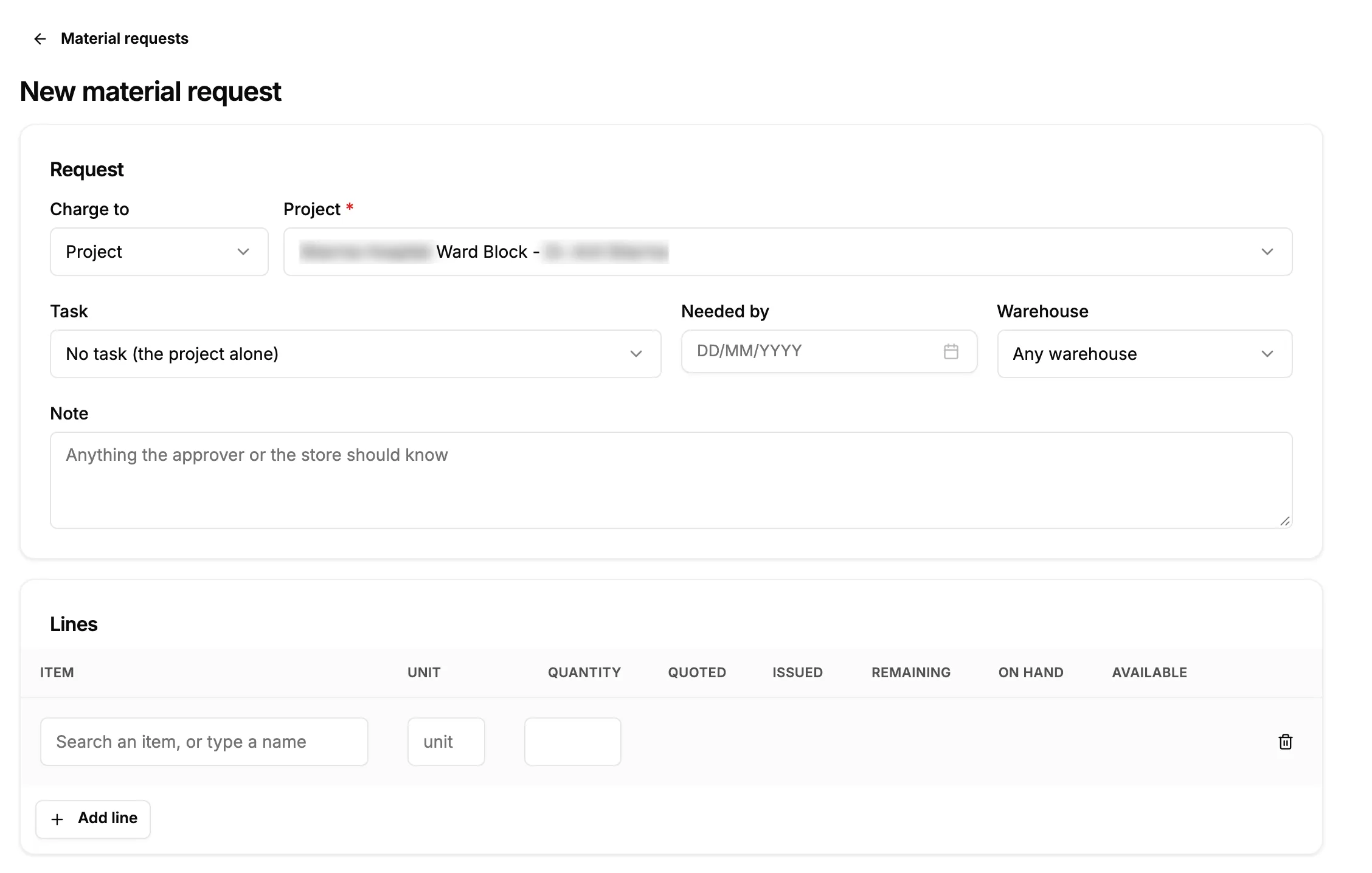
Step 2. New material request with the Request card and one empty line under Lines. -
Fill in the Request card:
Field Required What to enter Charge to Yes Project. For a service contract or visit, see Raise a material request for a service contract or visit. Project Yes Choose a project. Task No One of the project's to-dos, or No task (the project alone). Needed by No A date. Can be cleared. Warehouse No One of your active warehouses, or Any warehouse. Note No Anything the approver or the store should know. Up to 1000 characters. -
Under Lines, in Item, search for the item ("Search an item, or type a name") and choose it. For an item that is not in the catalog, type its name. The line then shows "Not in the catalog: the store picks or creates the item before issuing."
-
Check the Unit. It comes from the item.
-
Enter the Quantity. It must be above 0.
-
Read the figures on the line: Quoted, Issued and Remaining for the project's quotation, then On hand and Available for stock. "Exceeds quotation" shows when you ask for more than the quotation allows.
-
For each other item, select Add line and repeat steps 4 to 7. To drop a line, select Remove line.
-
Select Save draft.
Start from the project page
- Open the project.
- On the Material Requests card in the header, select New. "New material request" opens.
- Check the Project, then continue from step 3 above.
Start from the project's Costing tab
- On the project page, open the Costing tab and its Materials. See Reconcile a project's materials on job costing.
- Select Request material. "New material request" opens for the project, with a line for every quoted item that still has room left, at the quantity left.
- Change or remove lines as you need, then continue from step 3 above.
Result
The message "[number] saved as a draft" shows, and the request's page opens. The request is a Draft: "A draft. Submit it for approval when the lines are right." It is on the Material Requests list and on the project's Material Requests card.
Nobody has been asked to approve it yet. Next: Submit a material request for approval.
If something is different
- No New request button, no New link or no Request material: you need Add on Material requests. See Material Requests or Approvals is missing.
- "Material Requests is turned off": the module is off for your company. "An administrator can turn it on in Settings, Modules."
- "Nothing quoted is left to request on this project": from the Costing tab, no quoted item has room left. Start from New request and add the lines yourself.
- The Task list is empty: choose the project first. The list shows that project's to-dos. To raise a request from a to-do itself, see Request material for a to-do.
- "Not quoted" or "Exceeds quotation" on a line: see A line says Exceeds quotation or Not quoted.
- The request is refused on save: see A material request cannot be saved.
- No Costing tab: the tab belongs to job costing, which is off by default for Design & Consultation firms.