
Before you start
- You need Edit on Material requests. To create a new item you also need Add on Items.
- Use the office app. The request is not Cancelled.
- The line was typed as free text: its Item shows "Not in the catalog" and Pick or create item.
Steps
Pick an item already in the catalog
-
Open the request. See Find, open and export material requests.
-
On the line, select Pick or create item. The box "Item for "[name]"" opens: "Pick the catalog item this line means, or create it."
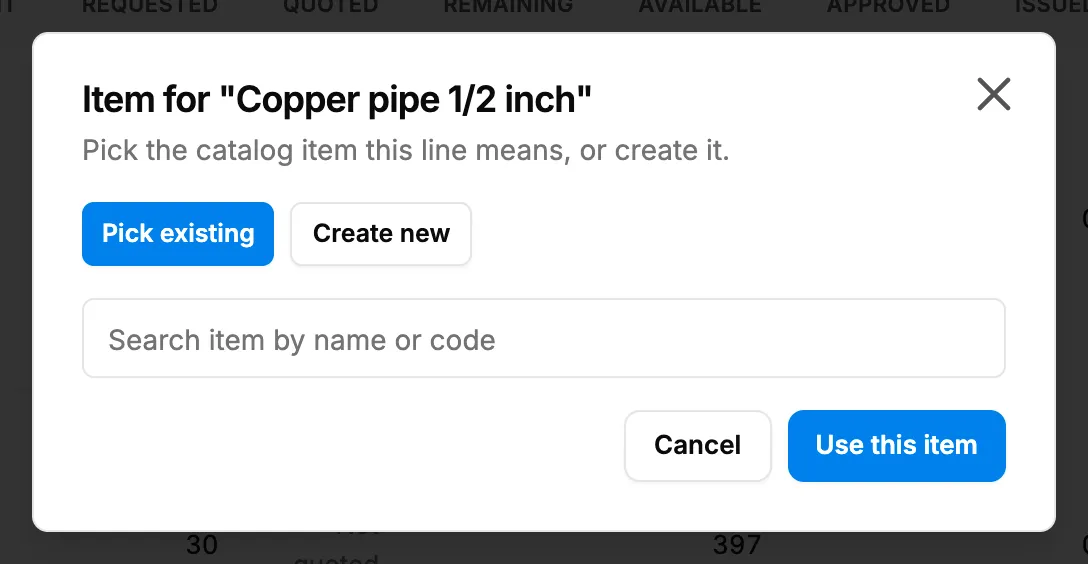
Step 2. The Item for box with Pick existing and Create new, and the item search. -
Leave Pick existing selected. In the search ("Search item by name or code"), find the item and choose it.
-
Select Use this item.
Create the item
- On the line, select Pick or create item.
- Select Create new.
- Enter the Name, choose the Category, then choose the Unit from that category's units.
- Select Create and use.
The item is added to the catalog with the name, category and unit you gave. To add its other details, edit it on the Items page. See Edit an item or change its status.
Result
The message "Item set on the line" shows. The line now names the catalog item, and "Not in the catalog" is gone. Once the line is approved, it can be issued or ordered. See Issue stock or raise a purchase order against a request line.
If something is different
- No Pick or create item on the line: the line already has a catalog item, the request is cancelled, or you do not have Edit on Material requests.
- "You cannot add items. Pick an item already on file, or ask someone who may add items.": you do not have Add on Items. Pick an existing item, or ask someone who has it.
- "Name and unit are required": enter a name and choose a unit before Create and use.