
Before you start
- You need one of Inventory Management, Project Management or Operation Management, and View on Material requests.
- The Material Requests module is on for your company.
- To export, you also need Can export lists.
Steps
Find a request
-
In the sidebar, select Catalog & Inventory › Material Requests. "Material Requests" opens: "What projects ask for, what was approved, and what has been issued or ordered."
-
In the search box ("Search number, project, contract or item"), type part of the request number, a project, a contract or an item.
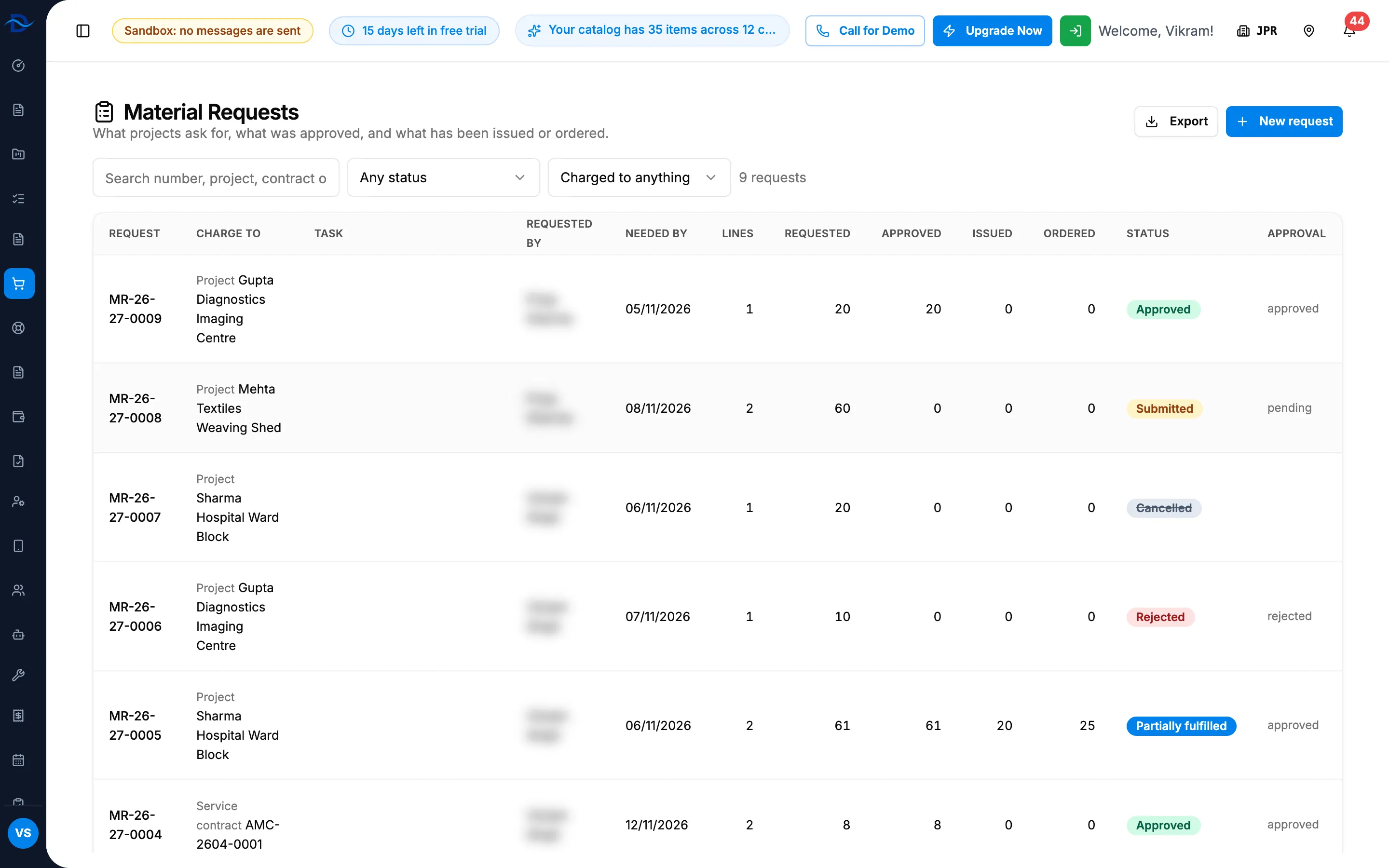
Step 2. The Material Requests list with the search box, the status and charge to filters, and the count. -
To narrow it, choose a status (Any status, or one of the eight request statuses) and what it is charged to (Charged to anything, Project, Service contract or Service visit).
-
Read the count, for example "9 requests". The newest requests are first. Use Previous and Next to move between pages ("Page [n] of [m]").
See one project's requests
- On the project page, on the Material Requests card, select View. The list opens for that project.
- To see one to-do's requests, choose it in the task filter (All tasks, or one of the project's to-dos).
- To see every project again, select Clear project filter.
Opened from a service contract or visit, the list shows Clear service filter instead.
Open a request
- Select the request's row. Its page opens with the number and the status badge, then what it is charged to, the to-do, who raised it and when, the date it is needed by and the warehouse.
- Read the Lines, the Approval card and Issued and ordered on the right. See Material requests: list columns, line quantities and badges.
- For a printable copy, select PDF. It is in the row of buttons under the description line, or at the top right beside the title on a Partially fulfilled request.
A cancelled request also shows "Cancelled [date and time] by [name]. Reason: [reason]".
Export the list
- Set the search and filters you want.
- Select Export, then Export Excel or Export PDF. The file is named Material-Requests and has the rows that match every filter.
Result
The list shows the requests that match, with their Requested, Approved, Issued and Ordered quantities. A request's page shows where it stands, and the export downloads the filtered list.
To act on an approved request, see Issue stock or raise a purchase order against a request line.
If something is different
- "No material requests yet.": nobody in your company has raised one. See Raise a material request for a project.
- "Material Requests is turned off": the module is off. "An administrator can turn it on in Settings, Modules." See Material Requests or Approvals is missing.
- "Material request not found.": the request was deleted, or the link is wrong. A deleted request is in the Recycle Bin. See Recycle bin: restore records and set retention.
- The export is missing or refused: you need Can export lists.
- The Approval column reads "partially approved" in lower case: the list shows the approval status as plain words; the request's Approval card shows the badge.