
Before you start
- You need one of Inventory Management, Project Management or Operation Management, and Add on Material requests. Your company's plan is active.
- The Material Requests module is on for your company.
- The to-do exists on a stage of the project. See Add, edit or delete a to-do.
- The items are in the catalog, or you know their names to type as free text.
Steps
-
Open the project, then the Stages tab, and open the stage. See Open a stage and its tool.
-
On the to-do's row, select the Material requests icon button. The "Material requests" drawer opens with the to-do's title and the count, for example "1 request". While it loads, the count reads "Loading".
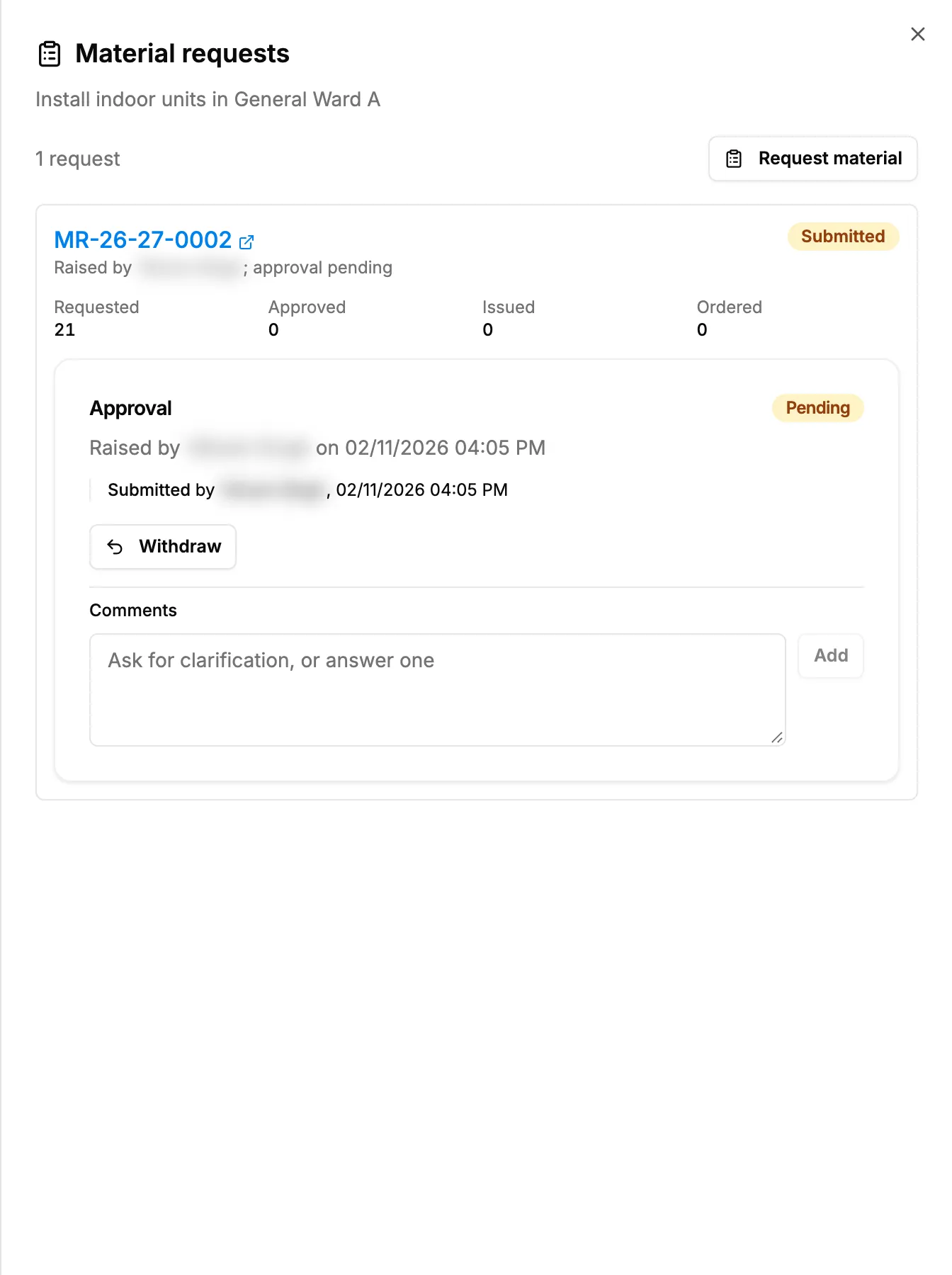
Step 2. The Material requests drawer for a to-do, with Request material and one request. -
Select Request material. "New material request" opens with the project and the to-do filled in.
-
Under Lines, choose each item, check its Unit and enter the Quantity. Use Add line for more items. See Raise a material request for a project for each field.
-
Select Save draft. The request's page opens.
-
Select Submit for approval. See Submit a material request for approval.
-
Go back to the project and open the to-do's Material requests drawer again. The request is listed with "Raised by [name]; approval [status]" and its Requested, Approved, Issued and Ordered quantities.
-
To follow the decision, read the Approval card under the request in the drawer. If you may decide it, you can do so there. See Decide an approval request: approve, partially approve or reject.
Result
The message "[number] submitted for approval" shows, and the request is Submitted, or "[number] approved automatically" and it is Approved. It is charged to the project and the to-do: the drawer lists it, the Task column on the Material Requests list names the to-do, and the project's Costing tab can filter its requests by task.
Next: once it is approved, the store issues the items or orders them. See Issue stock or raise a purchase order against a request line.
If something is different
- No Material requests button on the to-do row: the Material Requests module is off, or you do not have View on Material requests. See Material Requests or Approvals is missing.
- No Request material in the drawer: you need Add on Material requests.
- "No material request has been raised against this task.": nothing has been requested for this to-do yet. Requests raised for the project with no task are not listed here.
- "The task is not on this project.": the to-do belongs to another project. Start again from the right project's to-do.
- The request is refused on save: see A material request cannot be saved.
- It was approved at once, or it waits although it is within the quotation: see A request was approved automatically, or is never approved automatically.
- In the Associate Portal: workers and technicians raise requests from their own task or visit, under Request material. The worker app has no material request screen. See Request material for a task or a visit in the Associate Portal.