
Before you start
- You need Delete on Material requests.
- To cancel a Draft or Submitted request, you are the person who raised it.
- To cancel an Approved or Partially approved request, nothing has been issued or ordered against it yet.
- To delete, the request is a Draft, Cancelled or Rejected.
Steps
Cancel a request
-
Open the request. See Find, open and export material requests.
-
In the row of buttons under the description line, select Cancel request. The box "Cancel [number]" opens: "Say why. A submitted request is withdrawn from approval."
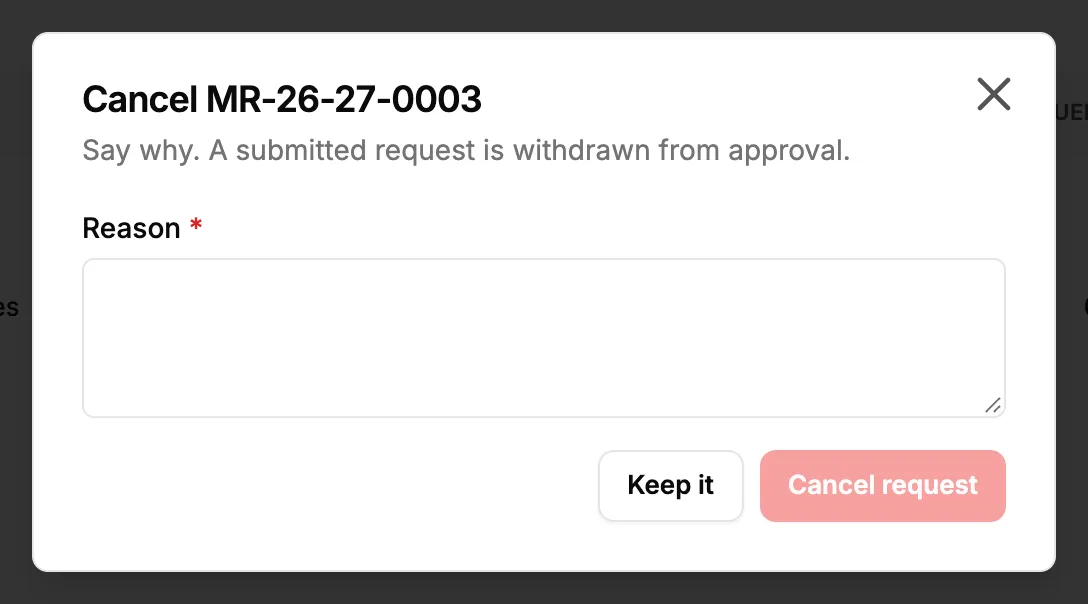
Step 2. The Cancel box with the Reason field and the Keep it and Cancel request buttons. -
In Reason, say why. Up to 500 characters.
-
Select Cancel request. To keep the request, select Keep it.
Delete a request
- Open the request.
- In the row of buttons under the description line, select Delete. The box "Delete [number]?" opens: "The request goes to the Recycle Bin, where an administrator can restore it within the retention period."
- Select Delete. To keep it, select Keep it.
Result
Cancel: the message "[number] cancelled" shows. The request is Cancelled, and its page shows "Cancelled [date and time] by [name]. Reason: [reason]". A submitted request's approval request is withdrawn, so it leaves the approvers' To approve tab. A cancelled request can still be deleted.
Delete: the message "[number] deleted" shows, and the request leaves the list. An administrator can restore it from the Recycle Bin. See Recycle bin: restore records and set retention.
If something is different
- No Cancel request or Delete button: you do not have Delete on Material requests, or the request's status does not allow it.
- "A reason is required": fill in Reason before you cancel.
- The cancel or delete is refused: for example "Only the person who raised the request can cancel it." or "Stock has been issued or ordered against this request; it can no longer be cancelled." See A material request cannot be cancelled or deleted.
- You only want to change a submitted request: withdraw it instead, then edit it. See Follow your own requests: withdraw or answer a question.
- In the Associate Portal: workers raise and send requests from their own task or visit with Request material, and follow them under My material requests. The portal offers no Cancel request or Delete, and the worker app has no material request screen. Cancelled and rejected requests are deleted in the office app. See Request material for a task or a visit in the Associate Portal.