
Before you start
- You need Edit on Material requests.
- The request is a Draft with every line right. See Edit a draft material request.
Steps
-
Open the request. Its right column says "A draft. Submit it for approval when the lines are right."
-
In the row of buttons under the description line, select Submit for approval.
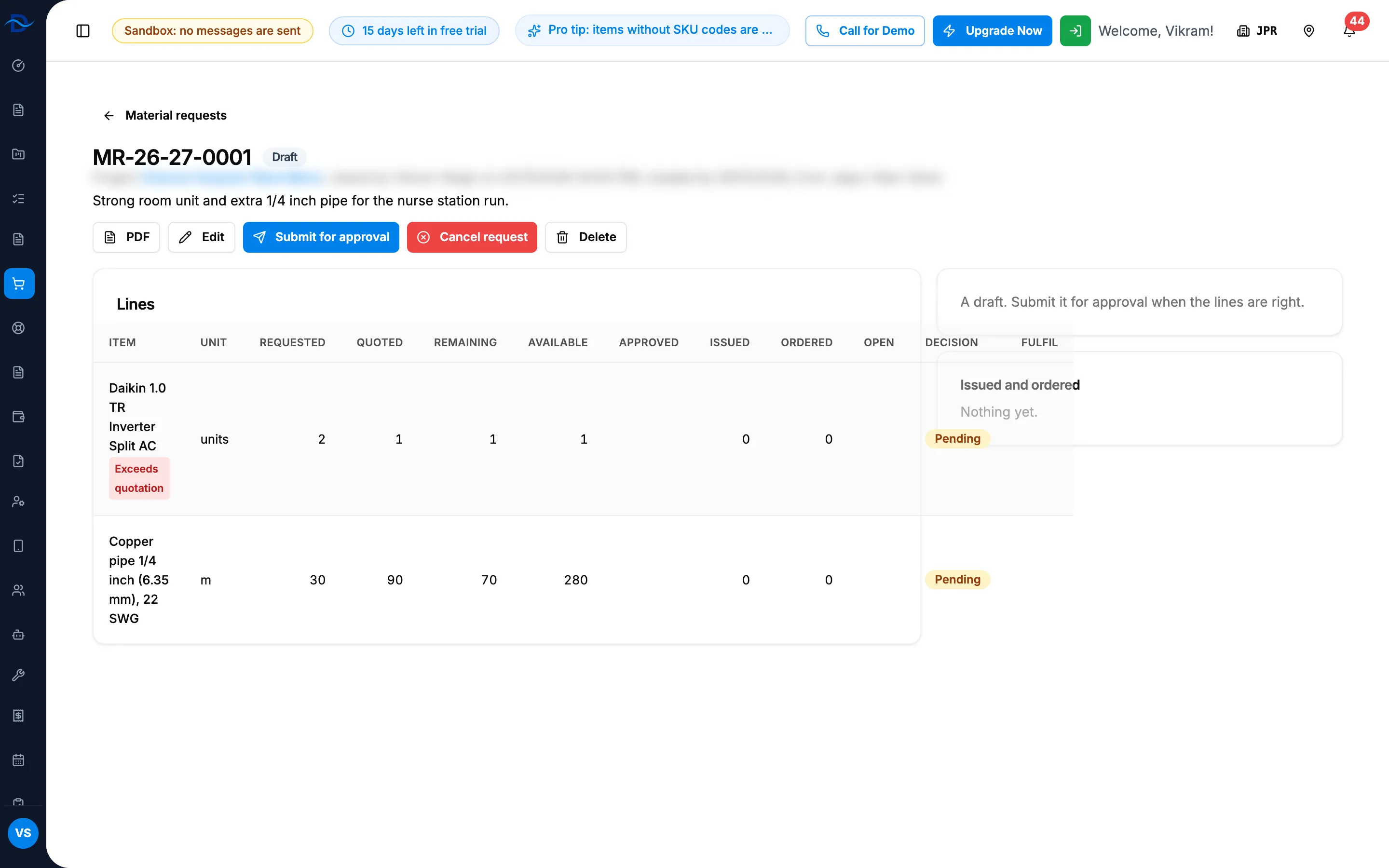
Step 2. A draft material request with Submit for approval and the draft note on the right. -
Read the message:
- "[number] submitted for approval": the request waits for an approver.
- "[number] approved automatically": your company's rule approved it at once.
-
Read the Approval card on the right. It shows the status, "Raised by [name] on [date and time]", and the trail with the Submitted event.
Result
The request is Submitted and its approval request is Pending. The people your company's rule names are told: by default the project's manager, or everyone who can approve when there is none. Anyone who can approve can decide it from the Approvals page. The request can no longer be edited.
If it was approved at once, the request is Approved and its approval reads Auto-approved. Its lines can be issued or ordered straight away. See Issue stock or raise a purchase order against a request line.
You can follow the request on the Approvals page, My requests tab. See Follow your own requests: withdraw or answer a question.
If something is different
- No Submit for approval button: you do not have Edit on Material requests, or the request is not a draft.
- "This is already waiting for approval.": it was submitted already. See A material request cannot be edited or submitted.
- It was approved automatically, or it waits although it is within the quotation: the rule on Settings › Approvals decides. A service request always waits. See A request was approved automatically, or is never approved automatically.
- You need to change it after submitting: withdraw it, edit it and submit it again. See Follow your own requests: withdraw or answer a question.