
Before you start
- You need Operation Management and Add on BoQs.
- The project has a BoQ stage. See Which stages a new project gets.
- Pull from calculations uses the project's saved design work, including its saved equipment selection. See How AC unit recommendations work.
Steps
-
Open the project, select the Project Stages tab, and open the BoQ stage. See Open a stage and its tool.
-
Read the Bill of Quantities card: "Three ways to build the BoQ. Nothing is invented, lines with no source data stay manual."
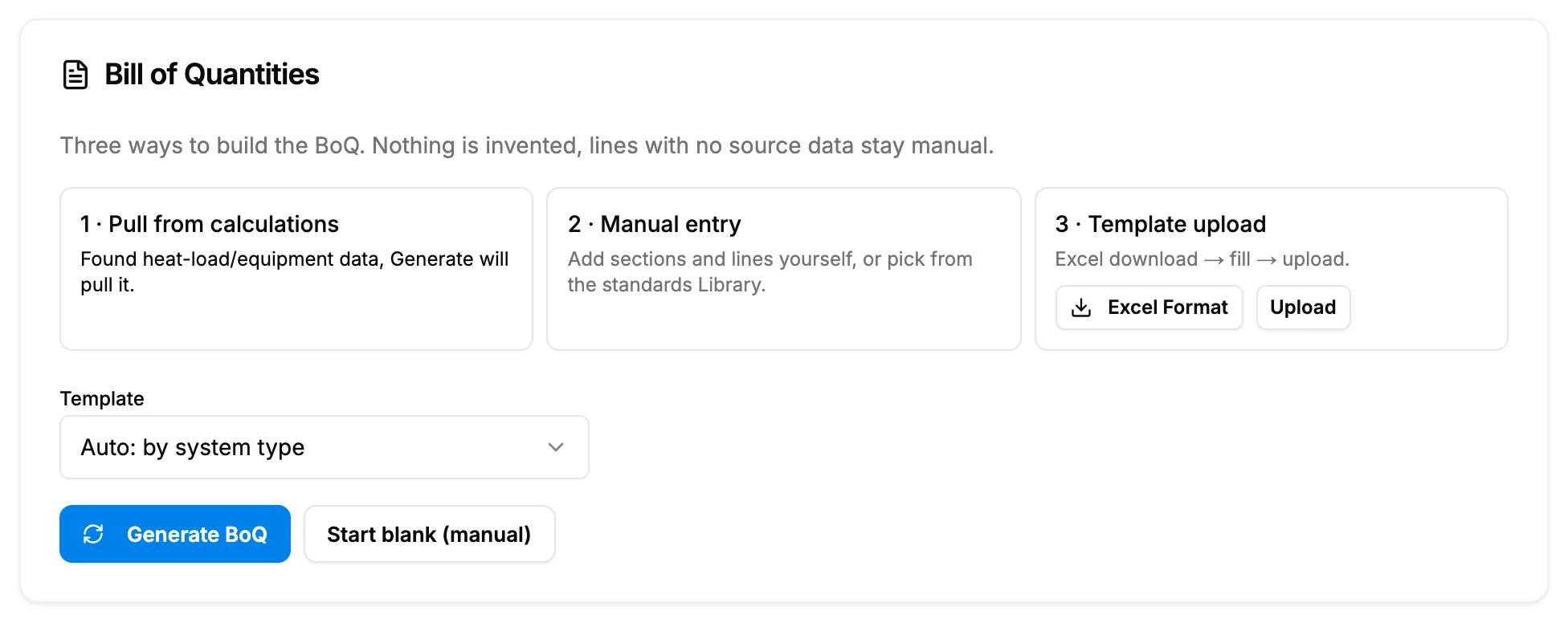
Step 2. The Bill of Quantities card with the three ways to build the BoQ. -
Choose one way:
- 1 · Pull from calculations: pick a Template ("Auto: by system type", "Blank", or one of your templates), then select Generate BoQ. It reads "Generating…" while it works. When the project has design data, the card says "Found heat-load/equipment data, Generate will pull it." Without it: "No calculated spaces, ductwork or selected equipment on this project yet, generated lines will be manual."
- 2 · Manual entry: select Start blank (manual).
- 3 · Template upload: see Import a BoQ from Excel.
-
Check the lines and rates, then save. See Edit BoQ lines, markup and rate structure.
Result
The message "BoQ generated" shows, and the panel shows the BoQ as Draft with its rate structure, Single rate or Supply + Labour. Lines that had no source data are left for you to fill in.
The BoQ also reads the project's saved equipment selection. Next: Finalize or reopen a BoQ, then Generate a quotation from a BoQ.
If something is different
- No Bill of Quantities panel on the stage: you do not have View on BoQs.
- No Generate BoQ or Start blank: you do not have Add on BoQs, or Operation Management.
- Takeoff rule set shows "Default (IS 655)" above the button: your company has the rule set picker on. Keep the default unless you set up your own on BoQ Settings. See Set your company's BoQ defaults and takeoff rules.
- The rate structure: new BoQs start with your company's default. See Set your company's BoQ defaults and takeoff rules.
- To rebuild later: on a draft project BoQ, Regenerate derives the lines again.