
Before you start
- Your role is Owner, Admin or Manager.
Steps
-
On the BoQ's toolbar, select Save as Template. The box "Save BoQ as Template" opens: "The section and line structure is always saved. Choose what else to carry."
-
Type the Template name, for example "Retail VRF standard".
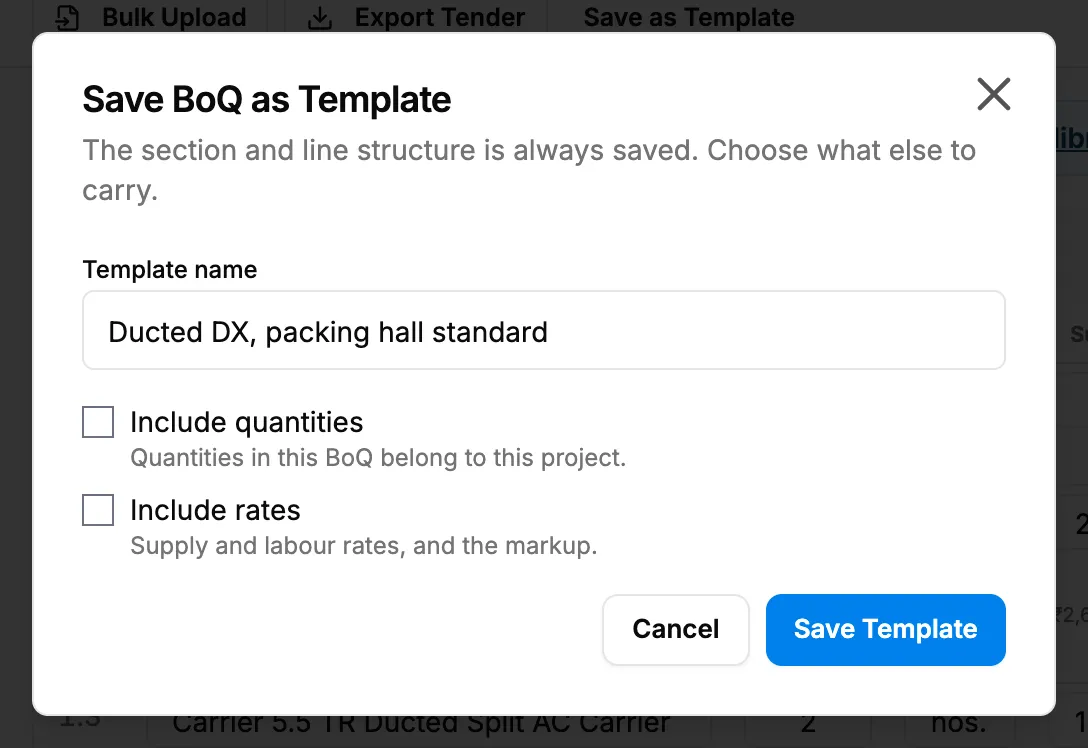
Step 2. The Save BoQ as Template box with Include quantities and Include rates. -
Tick Include quantities if you want them ("Quantities in this BoQ belong to this project."), and Include rates for "Supply and labour rates, and the markup."
-
Select Save Template.
Result
The message "Saved as template" shows, with Open to see the template. It is listed on BoQ › BoQ Templates.
If something is different
- "A template named "[name]" already exists. Replace it, or rename this one.": select Replace ("Template replaced"), or change the name and select Save under a new name.
- "Insufficient permissions to save templates": your role is not Owner, Admin or Manager. The BoQ List offers Save as Template to everyone.