
Before you start
- You need Operation Management and Add on BoQs.
- The BoQ Templates and BoQ List module is on.
Steps
-
In the sidebar, select BoQ › BoQ List, then New BoQ. The "New BoQ" box opens: "A BoQ with no project. You can attach a client now or later."
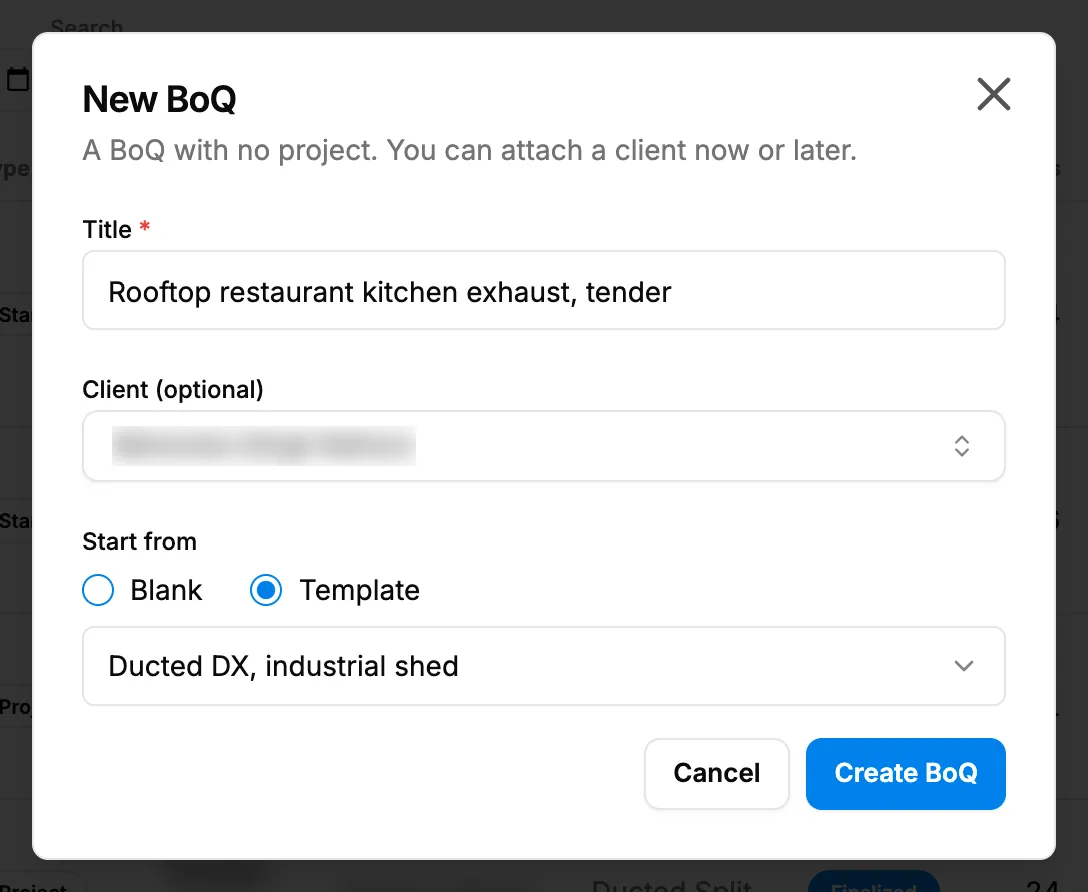
Step 1. The New BoQ box with Title, Client and Start from. -
Type a Title, up to 200 characters.
-
Optional: choose the Client (optional).
-
Under Start from, choose Blank or Template, and pick the Template.
-
Select Create BoQ.
-
Add and edit the lines. See Edit BoQ lines, markup and rate structure.
Result
The message "BoQ created" shows and the BoQ opens: a header card with the Title, the Client and its reference number "BOQ-[year]-[4 digits]", then the Bill of Quantities panel. Header changes save when you leave the field: "Header saved".
A standalone BoQ has no Regenerate, no Pull from calculations, no takeoff rule set picker and no Push to Procurement.
If something is different
- From a template row: on BoQ › BoQ Templates, New standalone BoQ opens this box with the template chosen.
- "Give the BoQ a title.": fill in Title.
- "Choose a template, or start blank.": pick a template, or choose Blank.
- "No templates yet. Start blank, or create a template first.": see Create and manage BoQ templates.
- "Could not create the BoQ": try again.
- "BoQ Templates is switched off for your company.": see The BoQ menu is missing, or "BoQ Templates is switched off".