
Before you start
- You need Add on Quotations and Can see selling prices.
- The quotation is Accepted and has no replacement open yet.
Steps
-
Open the accepted quotation's page.
-
Select Supersede. The box "Supersede [number]?" says: "This creates a new draft copy of [number] with the same project, sections and lines, for you to change. [number] stays accepted until the new quotation is accepted; then it is marked superseded and no longer counts in the project's contract value."
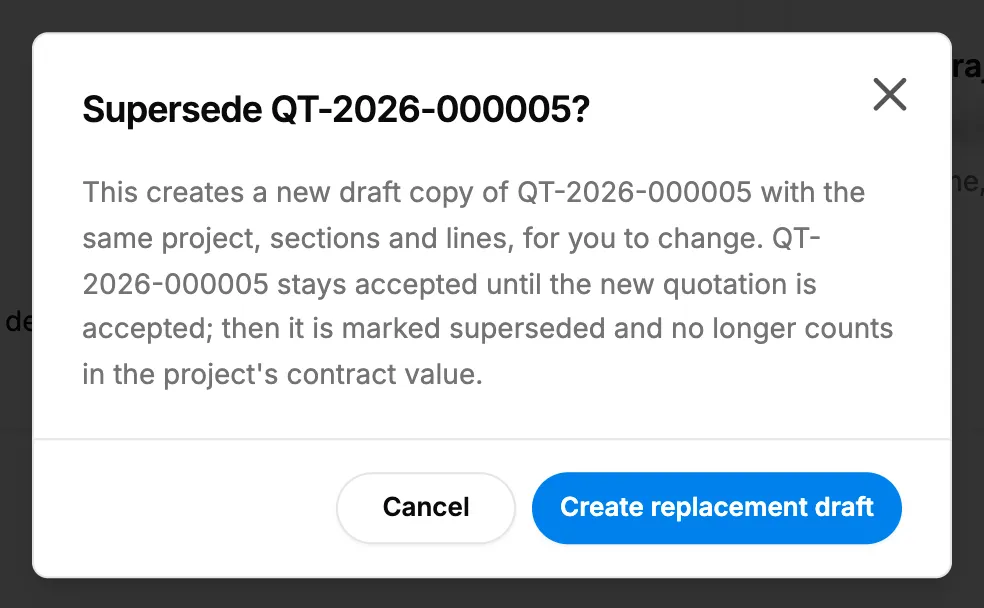
Step 2. The Supersede box with Create replacement draft. -
Select Create replacement draft. The new draft opens for editing.
-
Change the lines, then publish and send it. See Edit and publish a draft quotation.
-
When the client accepts it, mark it accepted. See Accept or reject a quotation.
Result
The message "Draft [number] created to supersede this quotation. Accepting it marks this one superseded." shows. The original's page shows "Replacement [number] ([status])", and the new one shows "Replaces [number]". When the replacement is accepted, the original reads Superseded.
If something is different
- "Only an accepted quotation can be superseded.": the quotation is not accepted.
- "A replacement for this quotation is already open: [number].": open that draft instead.
- The replacement will not save: "No enquiry linked to this quotation": see A quotation from a BoQ will not save.