
Before you start
- You need Operation Management and Add on Procurements.
- The BoQ is a project BoQ and Finalized.
- Your firm type is not Design & Consultation.
- The project is not Tender or Lost.
Steps
-
On the finalized project BoQ's toolbar, select Push to Procurement. When some lines are not mapped, the button says how many: "Push to Procurement · [number] need mapping".
-
If some lines are not mapped to your inventory, the box "Map lines to inventory" opens: "[number] lines aren't linked to an inventory item yet. Bind each to a catalog item (or create one), then push. Nothing is invented, skip what you don't want to push." For each line, find the item in "Search inventory…", select + Create item, or select Skip.
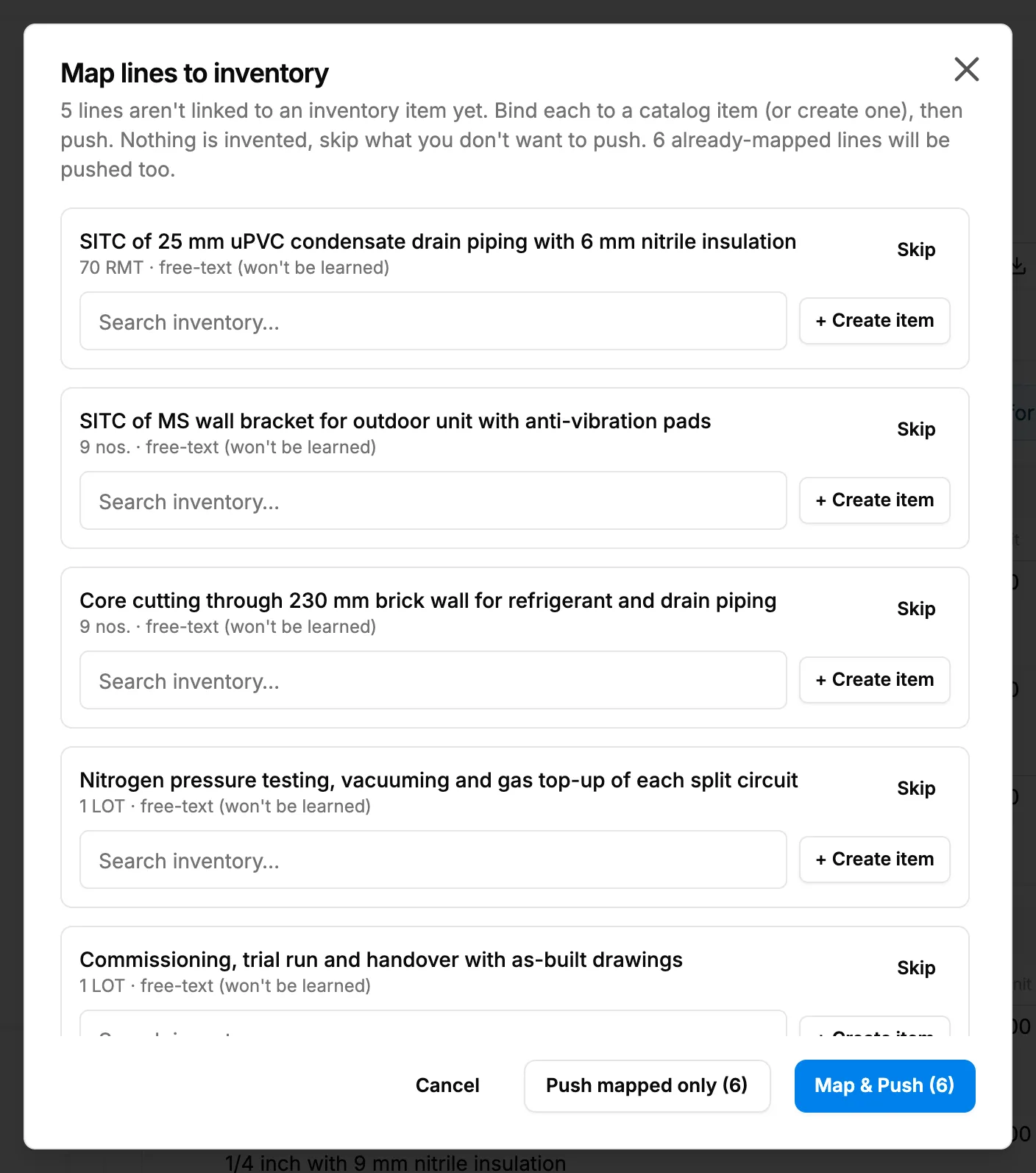
Step 2. The Map lines to inventory box for lines not yet mapped to inventory. -
Select Map & Push ([number]), or Push mapped only ([number]) to leave the unmapped lines out.
Result
The message from the server, or "Pushed to Procurement", shows. The mapped lines are on the project's procurement, in the Catalog and inventory module (see Allocate materials to a project); purchase orders for them are raised in the Purchase module (see Create a purchase order). If the BoQ is reopened and quantities change later, "later quantity changes show as drift"; pushes already made stay intact.
To map items once for every future BoQ, see Map your catalog to the standards library. The BoQ panel links there too: "[number] lines aren't mapped to inventory. Map your catalog to the standards library once for one-click procurement push."
If something is different
- "Consultants author tender BoQs; procurement push is not available.": your firm type is Design & Consultation.
- No Push to Procurement: see Generate Quotation or Push to Procurement is missing.
- The project is Tender or Lost: accept a quotation for it first. See Material allocation is locked.