
Before you start
- You need View on Quotations. The sidebar entry needs Enquiry Management and the CRM module.
- To export, you also need Can export lists.
Steps
Use the tabs and search
- In the sidebar, select CRM › Quotations. "Quotations" opens: "Manage and track client quotations".
- Select a tab: All, Draft or Published.
- Type in "Search by quotation number or client...".
Filter the list
-
Select Filter.
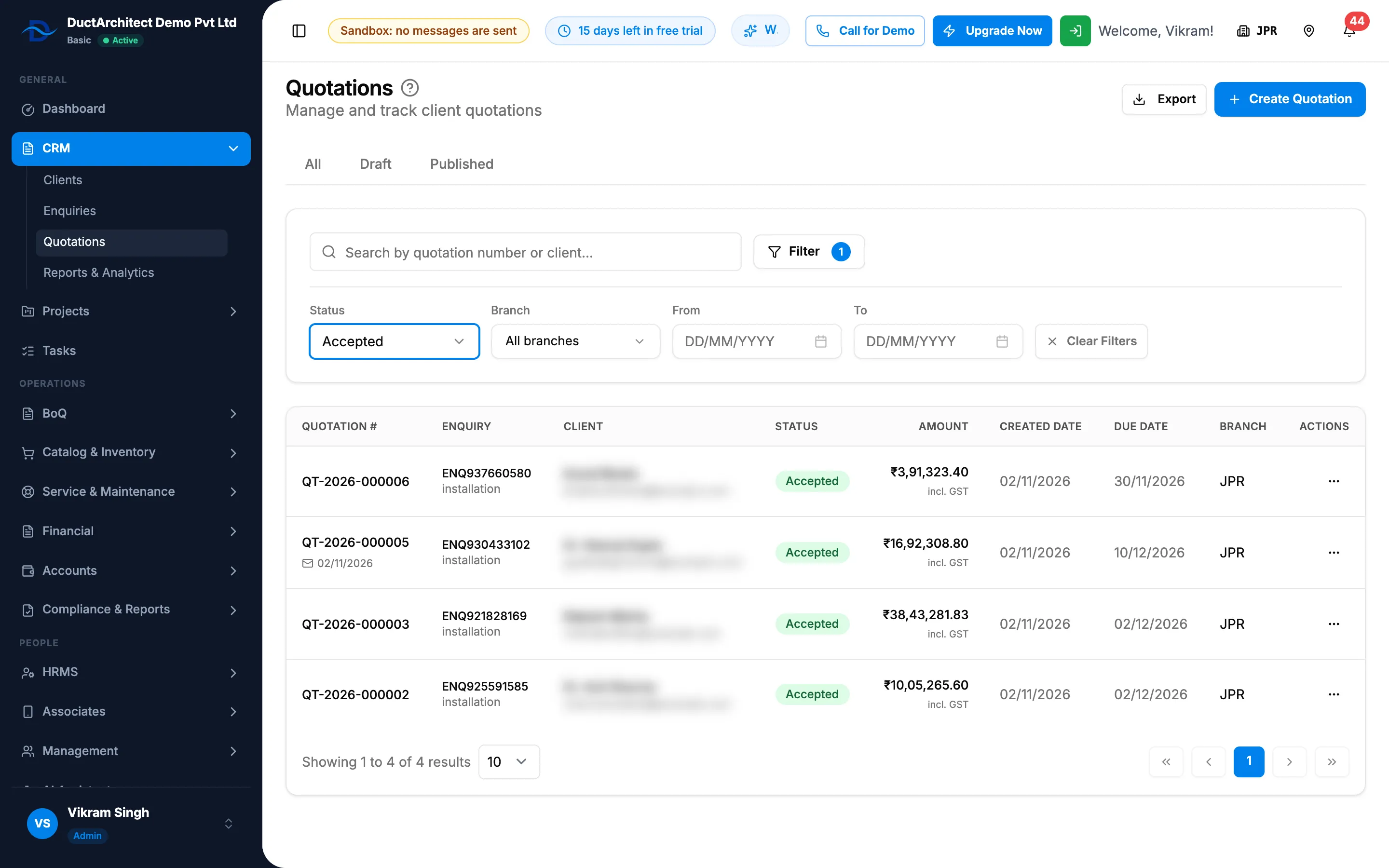
Step 1. The Filter panel with Status, Branch, From and To. -
Choose a Status: All Statuses, Draft, Sent, Accepted or Rejected.
-
Choose a Branch, when your company shows branches.
-
Pick From and To for the quotation date.
-
To show everything again, select Clear Filters. It shows once a filter is set.
Export the list
- Select Export, then Export Excel or Export PDF.
Result
The list shows the matching quotations with Quotation # (a mail icon shows when it was last sent to the client), Enquiry, Client, Status, Amount, Created Date, Due Date and the row menu. With no match: "No quotations found".
Export the list: the file, named after "Quotations", downloads.
If something is different
- Published and Sent: the Published tab shows the quotations whose badge reads Sent.
- No Superseded in the Status filter: superseded quotations show under All.
- "incl. [tax type]" in Amount: the amount includes tax, on an Indian quotation in INR.
- No Create Quotation: see I don't see Create Quotation.
- "You cannot export lists.": you do not have Can export lists. See Restrict what a role can see and export.
- Opening a quotation fails: see I see the quotation list but cannot open a quotation.