
Before you start
- You need Approve on Quotations, and Can see selling prices. Your company's plan is active.
- The quotation is Sent.
Steps
Accept a quotation
-
Open the quotation's page, or its row menu on CRM › Quotations.
-
Select Mark as Accepted. The box "Mark quotation as accepted?" says that the quotation is added to the project's awarded quotations, and that "An accepted quotation can no longer be edited or deleted: use Supersede to replace it."
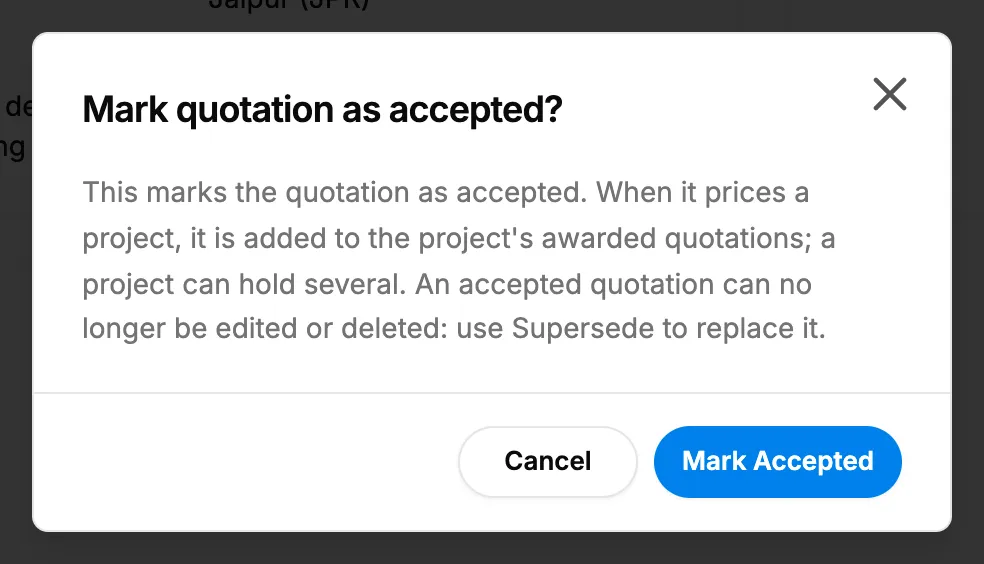
Step 2. The Mark quotation as accepted? box. -
Select Mark Accepted.
Reject a quotation
- Open the quotation's page or row menu and select Mark as Rejected. The box says "You can revert it to Sent later."
- Select Mark Rejected.
Result
Accept a quotation: the message from the server shows, for example "Quotation accepted and added to the project's awarded quotations." The quotation is Accepted. If it prices a project:
- it is added to the project's awarded quotations; a project can hold several;
- a project in Tender moves to Won, and material allocation, procurement and stock out open for it.
See How a project moves from Tender or Pending to Completed. If the quotation has no project yet, see Convert an accepted quotation to a project.
Reject a quotation: the message "Quotation marked as rejected." shows and the quotation is Rejected.
If something is different
- No Mark as Accepted or Mark as Rejected: the quotation is not Sent, or you do not have Approve on Quotations.
- A mistake: see Revert a quotation to Sent.
- The client wants changes after accepting: see Supersede an accepted quotation.
- "Failed to update status": try again.