
Before you start
- You need Add on Quotations for a new quotation, or Edit for a draft, and Can see selling prices.
- Open the quotation form. See Create a quotation, or Edit and publish a draft quotation.
Steps
-
In the Sections editor, check the sections. A new quotation starts with the standard five, or with your company's own: AC / VRF / VRV Systems, Other Inventory, Labour & Installation, Transportation & Freight, Other Charges.
-
To add a section, select Add Section and give it a title. Rename, move or delete a section with its buttons.
-
For each section, pick its cost type, Material, Labour or Other: "Cost type, for job costing".
-
In a section, select Add Line.
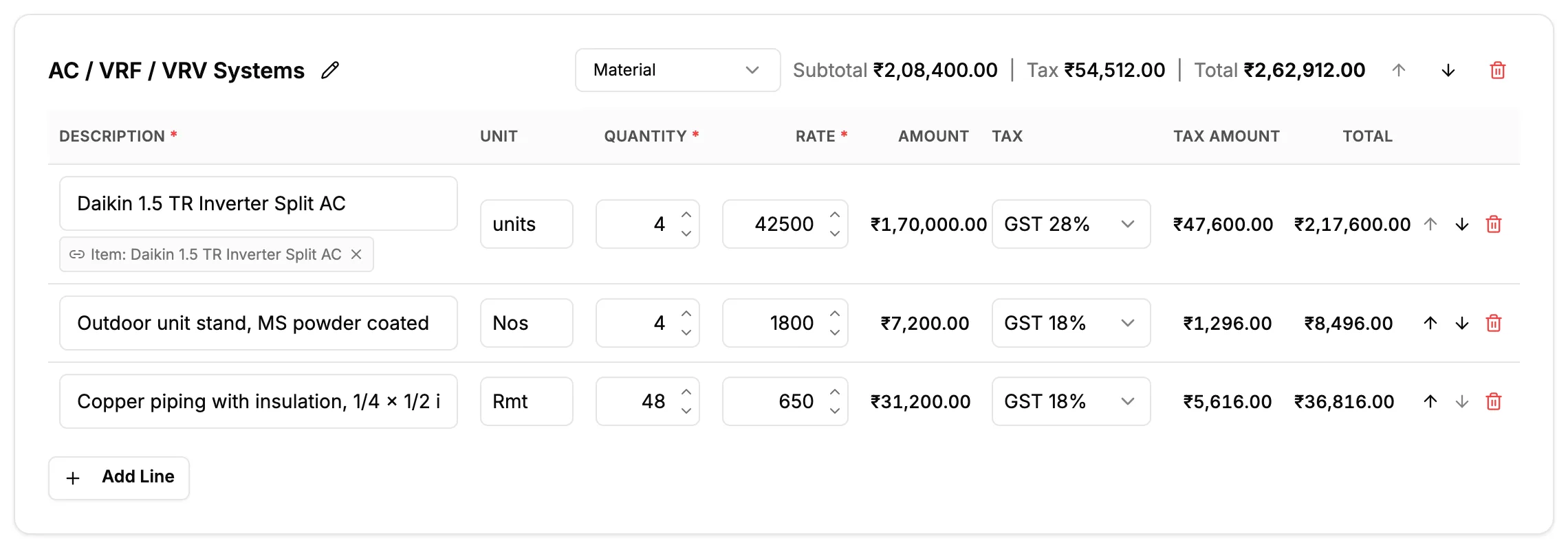
Step 4. A section with its lines: Description, Unit, Quantity, Rate and Tax. -
Type the Description, or search and pick an inventory item. A linked line shows "Item: [name]".
-
Fill in Unit, Quantity and Rate. For an Indian company quoting in INR, pick the Tax slab.
-
Repeat for every line. The totals panel updates as you go.
-
Save the quotation with Save as Draft or Save Draft.
Result
The quotation has its sections and lines, with each section's subtotal and the grand total. Sections with no lines are not shown on the quotation's page. The section cost types are used by job costing. See How job costing works out a project's cost and margin.
If something is different
- "Every section needs a title" or "Add at least one section": title every section and keep at least one.
- "Line description is required" or "Please add at least one line item with a description": fill in a description. Blank lines are dropped on save.
- "Quantity must be greater than 0" or "Quantity can have at most 2 decimal places": correct the quantity.
- "Unit price cannot be negative": correct the rate.
- To stop linking a line to an item: select Unlink item.
- "No lines in this section yet.": add a line or delete the section.
- To make these sections your company's starting set: see Set your company's default quotation sections.