
Before you start
- You need Enquiry Management or Project Management, Add on Quotations and Can see selling prices.
- Your company's plan is active.
- The quotation needs an enquiry. Pick an existing one, or add one while you create the quotation. For a project with a BoQ, you can instead generate the quotation from the BoQ. See Generate a quotation from a BoQ.
Steps
-
In the sidebar, select CRM › Quotations.
-
Select Create Quotation. "Create New Quotation" opens: "Generate a professional quotation for your client."
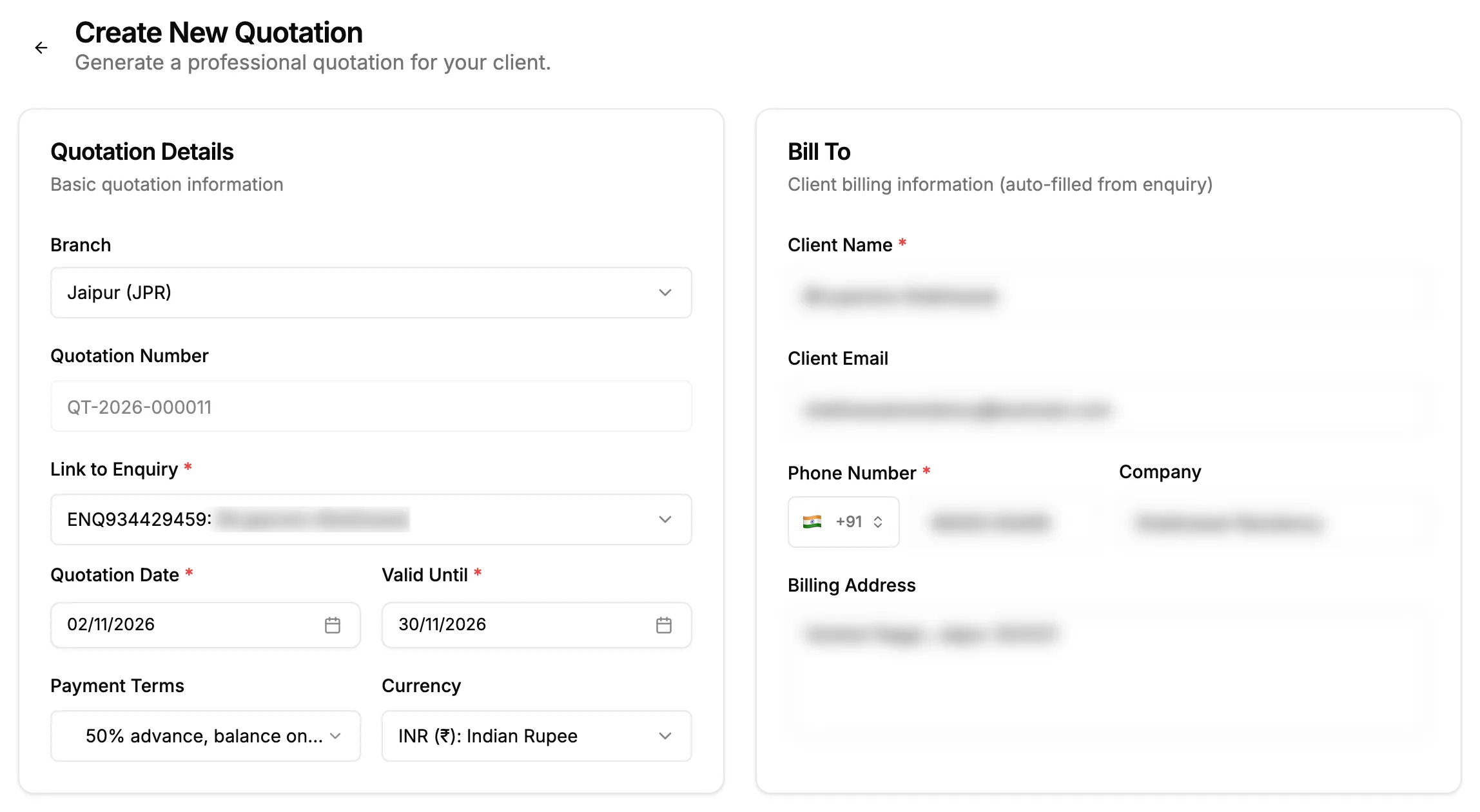
Step 2. Create New Quotation with Quotation Details and Bill To. -
Under Quotation Details, choose the enquiry in Link to Enquiry. Or select + Add New Enquiry to add one. Bill To fills in from the enquiry: "Client billing information (auto-filled from enquiry)".
-
Set Quotation Date and Valid Until. Choose Payment Terms and Currency if needed.
-
Check Client Name and Phone Number, which are required, and add Client Email to send the quotation from DuctArchitect later.
-
Add the sections and lines. See Add sections and lines to a quotation.
-
Set the discount, notes and terms. See Set tax, discount, notes and terms on a quotation.
-
Select Save as Draft to keep working on it, or Generate Quotation to make it ready to send.
From the enquiry: on CRM › Enquiries, Generate Quotation in the enquiry's row menu opens Create New Quotation with the enquiry already chosen. Go on from step 4.
Every field is listed in New and Edit Quotation: every field.
Result
The message "Quotation created successfully" shows. The PDF downloads, and the list opens. With Save as Draft, the quotation is Draft. With Generate Quotation, it is Sent, listed under Published, and its seller details are frozen.
Next: Send a quotation to a client.
If something is different
- No Create Quotation button: see I don't see Create Quotation.
- "Please select an enquiry": choose an enquiry, or add one with + Add New Enquiry. See Add an enquiry.
- "Valid until date cannot be before quotation date": pick a later Valid Until.
- "No Budget Set" after Generate Quotation: "You are publishing this quotation without a budget set." Select Yes, Publish, or No, Go Back to add a budget in Budget (Editable).
- "Items total ([amount]) exceeds budget ([amount]). Please reduce items or increase budget.": lower the lines or raise the budget.
- Branches: with branches shown, pick the Branch. It cannot change once the quotation is sent.
- No Tax column: see There are no tax columns on my quotation.
- An upgrade box opens: the plan check uses your plan's enquiry limit. See How your company's plan status changes.