
Before you start
- You need Enquiry Management and Add on Enquiries.
- Your company's plan is active and has room for another enquiry.
- To fill in the client from your client list, the client is saved and active. See Add a client.
Steps
-
In the sidebar, select CRM › Enquiries.
-
Select Add Enquiry (Create on a small screen). "New Enquiry" opens: "Create a new client enquiry".
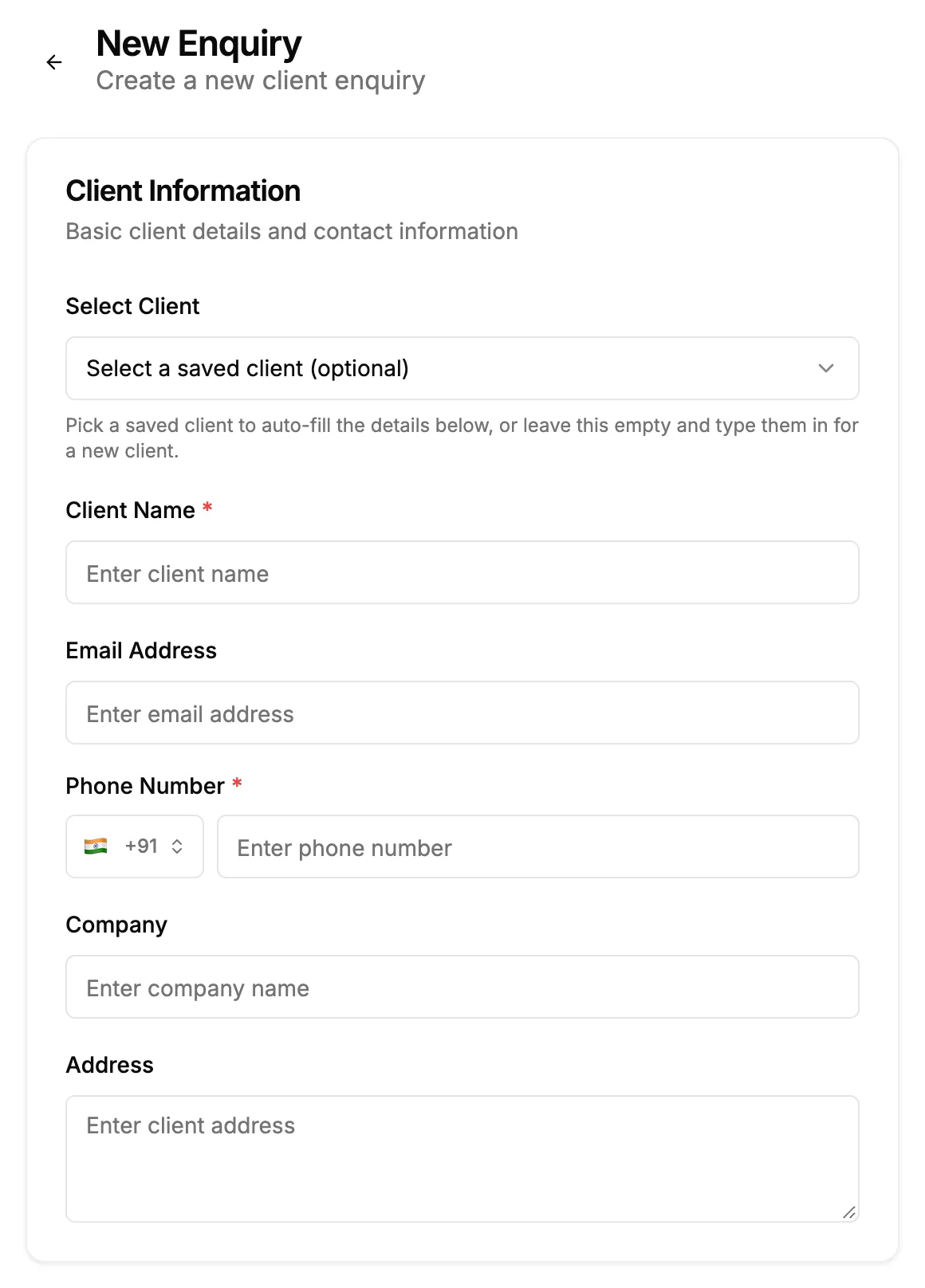
Step 2. New Enquiry with the Client Information card and Select Client. -
Under Client Information, open Select Client and pick a saved client. The client fields fill in and are locked. For a new client, leave it empty and type the details, or pick + Add new client to save the client first.
-
Check Client Name and Phone Number, which are required. Email Address, Company and Address are optional.
-
Under Project Information, choose the Project Type.
-
Optional: add the Project Description, the Currency, the Budget and the Duration (days).
-
Optional: change the Priority (it starts at Medium).
-
Choose the Source: where the enquiry came from.
-
Optional: under Additional Information, add Notes, pick a Follow-up Date (today or later), and choose a person in Assign To.
-
Select Add Enquiry.
Every field is listed in New Enquiry and Edit Enquiry: every field.
Result
The message "Enquiry created successfully" shows. The enquiry is New, with a number "ENQ" followed by digits, and your company's unit system saved with it. It is on CRM › Enquiries and counts in the Total and New cards.
Next: Create a quotation for it, or Start a project from an enquiry.
If something is different
- No Add Enquiry button: you do not have Add on Enquiries.
- An upgrade box or a plan warning opens: see Add Enquiry or Add Client opens a plan warning.
- The client is not in Select Client: see A client is missing from Select Client.
- "Client name must be 25 characters or less" after you pick a saved client: see "Client name must be 25 characters or less" on an enquiry.
- + Add new client is missing, or saving the client is refused: see I can't open Clients, or adding a client is refused.
- "Please select a project type" or "Please select a source": choose one.
- Indian company in INR: a box under Budget shows the pre-tax budget, the tax and the total, and the note "[tax type] ([rate]%) will apply on budget for INR" shows under Currency.
- Budget shows Restricted, or is not saved: see The enquiry budget shows Restricted or is not saved.
- The person you assigned is refused: they are no longer working. Choose someone else, or leave it Unassigned.
- "Failed to create enquiry. Please try again.": try again.
- Many enquiries at once: use Download Template and Bulk Upload on the enquiry list, or Data Import. See Import open enquiries from Excel.