
Before you start
- You need User Management and Delete on Customers.
- To keep the client on the list but stop it being picked, make it inactive instead. See Edit a client or mark it inactive.
Steps
-
In the sidebar, select CRM › Clients. When the CRM module is off, select Management › Clients.
-
On the client's row, open the ... menu and select Delete Client.
-
The box "Delete Client" asks "Are you sure you want to delete "[name]"? This action will mark the client as inactive."
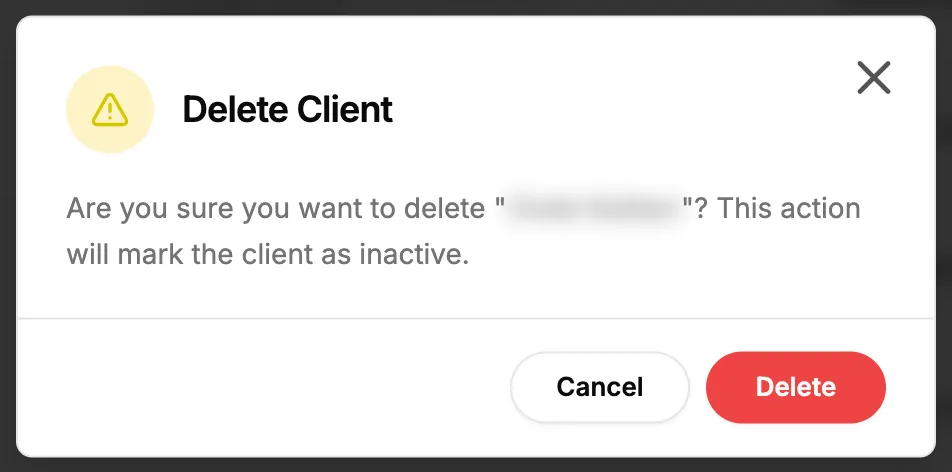
Step 3. The Delete Client box. -
Select Delete.
Result
The message "Client deleted" shows. The client is marked inactive and leaves the list: deleted clients are not listed, whatever the filter. An Owner or Admin can restore it from Settings › Recycle bin, under Clients. See Recycle bin: restore records and set retention.
If something is different
- No Delete Client in the menu: you do not have Delete on Customers.
- "Failed to delete client": try again. If it continues, submit a request with the client name.
- The client is not under the Inactive filter: a deleted client is not on the list at all, although the box speaks of marking it inactive. Restore it from the Recycle bin.
- There is no restore button on this page: restore is only in the Recycle bin.