
Before you start
- You need User Management and View on Customers.
- To export, you also need Can export lists.
Steps
Search and filter
-
In the sidebar, select CRM › Clients. When the CRM module is off, select Management › Clients.
-
Type in "Search by name, email, phone...". The search also finds a client by the name of one of its projects.
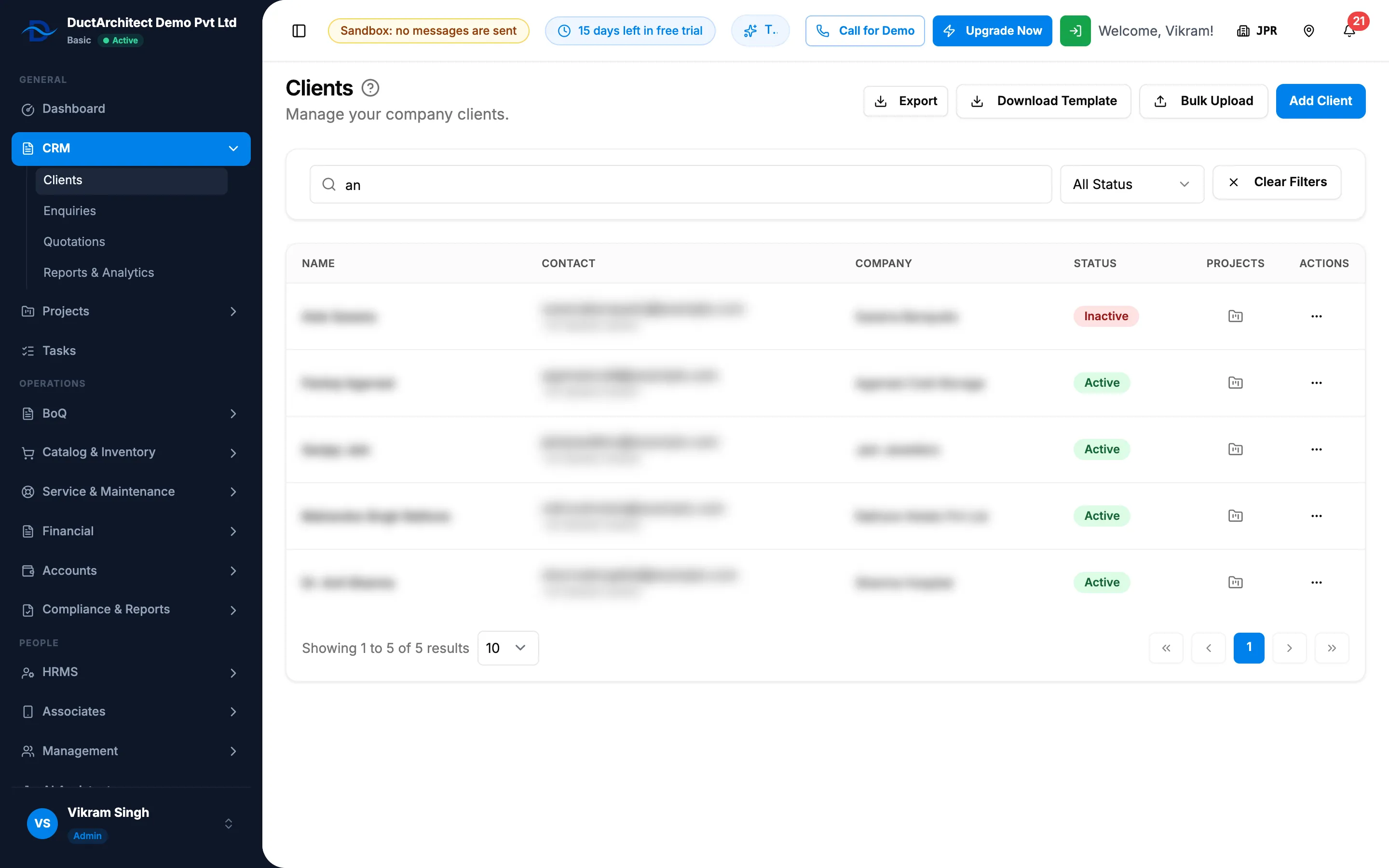
Step 2. The Clients list with the search box and the status filter. -
To see only active or inactive clients, choose Active or Inactive in the status filter (All Status shows both).
-
To start again, select Clear Filters.
The list is always sorted by last change, newest first. It shows Name, Contact (email, with the phone below), Company, Status and Projects.
See a client's projects
- On the client's row, select the folder icon in Projects ("View projects for [name]"). The project list opens, searched for the client's name.
Export the list
- Search and filter the list as you need.
- Select Export, then Export Excel or Export PDF. The file is named "Clients" and holds the filtered list.
Result
Search and filter: the list shows only the matching clients, or "No clients found".
See a client's projects: Projects › List opens with the client's name in the search.
Export the list: the file downloads.
If something is different
- Access Denied when you open Clients, or no Clients in the sidebar: see I can't open Clients, or adding a client is refused.
- A client you deleted is not found: deleted clients are not listed. An Owner or Admin can restore it. See Delete a client.
- "You cannot export lists.": you do not have Can export lists. See Restrict what a role can see and export.
- Only some clients are listed: without Can see all records, you see only your own clients.
- Phones show only the first two and last two digits, other contacts read "Restricted": you cannot see customer contact details. See I can't see prices or customer details.